
In this article, I will walk you through the four primary methods for downloading blobs in 2026, providing a step-by-step tutorial for each.
How to download file from Azure Blob Storage
Method 1: Using Azure Portal
Follow the steps below
Select the uploaded file. Right-click the selected file, then click the Download link in the pop-up.
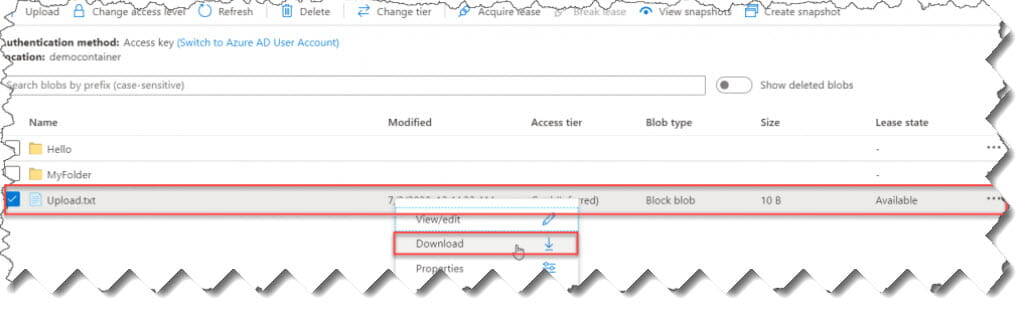
Another way is to click the three dots (…) and select Download.

Now, the file will download successfully.
Method 2: Using C#
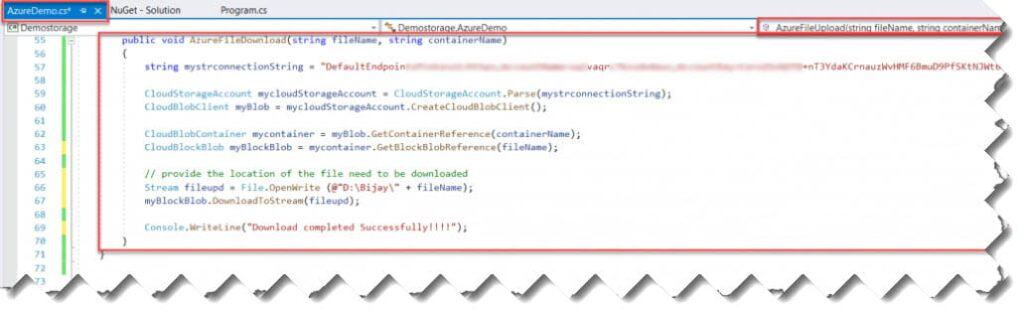
There are two parameters for the AzureFileDownload() method. The name of the file to be uploaded and the Container name.
Check out: How To Upload File To Azure Blob Storage
Below is the code for the AzureFileDownload().
public void AzureFileDownload(string fileName, string containerName)
        {
            string mystrconnectionString = "DefaultEndpointsProtocol=https;AccountName=sqlvaqrc7kssdx4eus;AccountKey=Coro2SvGOTD+nT3YdaKCrnauz########";

            CloudStorageAccount mycloudStorageAccount = CloudStorageAccount.Parse(mystrconnectionString);
            CloudBlobClient myBlob = mycloudStorageAccount.CreateCloudBlobClient();

            CloudBlobContainer mycontainer = myBlob.GetContainerReference(containerName);
            CloudBlockBlob myBlockBlob = mycontainer.GetBlockBlobReference(fileName);

            // provide the location of the file need to be downloaded
            Stream fileupd = File.OpenWrite (@"D:\Bijay\" + fileName);
            myBlockBlob.DownloadToStream(fileupd);

            Console.WriteLine("Download completed Successfully!!!!");
        }
Now, after running the code, I got the following output. It downloaded the file at the specified path.

Method 3: Using PowerShell
First, we must log in to Azure with the below cmdlet to interact with Azure objects.
PS C:\WINDOWS\system32> Login-AzureRmAccountOr, you can also use the below PowerShell cmdlet to connect to Azure
PS C:\WINDOWS\system32> Connect-AzAccountThe next step is to get the storage account keys from the Azure portal, and you need to assign it to a variable with the help of the below cmdlet
$Keys = "Coro2SvGOTD+nT3YdaKCrnXXXXXXXXXXXXXXXXXXXXXXXXXXXXXXXXXXXXXXXXXXXXXXXXXXXXX=="To get the above key from the Azure portal,
You need to log into the Azure portal and go to the storage account from where you are getting the file, click on the Access keys, and then copy the Keys as highlighted below

As mentioned above, use the PowerShell cmdlet below (Context) to access the Azure storage account using the AccessKey above.
$StorageContext = New-AzureStorageContext -StorageAccountName sqlvaqrc7kssdx4eus -StorageAccountKey $KeysThe cmdlet below provides the local file name to download, the container name, the Destination local path where the file should be downloaded, and the Storage context.
Get-AzStorageBlobContent -Blob "Upload.txt" -Container $containerName -Destination "D:\Bijay\" ` -Context $StorageContext Below is the complete PowerShell script to download the file from the Azure blob storage
Login-AzureRmAccount
$Keys = "Coro2SvGOTD+nT3YdaKCrnauzWvHMF6BmuD9PfSKtNJWt6etOMjkwg6KNSQ39zOOQcMpDSjyBKHdALGIg6gZ4Q=="
$StorageContext = New-AzureStorageContext -StorageAccountName sqlvaqrc7kssdx4eus -StorageAccountKey $Keys
$containerName = "democontainer";
Get-AzStorageBlobContent -Blob "Upload.txt" `
  -Container $containerName `
  -Destination "D:\Bijay\" `
-Context $StorageContext 
How to Download Blob Contents from an Azure Storage Account using PowerShell
It will ask you to provide your Azure credentials, enter them, and click the Sign in button.

You can see above the script executed successfully without any issues.

Now, to check that, navigate to the local path and can see the file downloaded successfully.

Method 4: Azure Storage Explorer (Best for Bulk Data)
It is a free GUI-based application that provides a familiar, folder-like interface for your cloud storage.
Tutorial: The Power User Path
- Launch Storage Explorer: Open the app on your desktop.
- Authenticate: Sign in using your corporate Microsoft account.
- Drill Down: Navigate through your Subscription -> Storage Accounts -> Blob Containers.
- Select Multiple: You can use
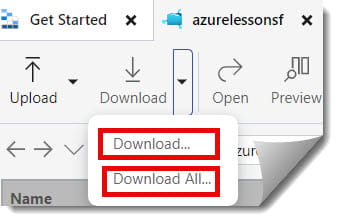
Ctrl + Clickto select multiple blobs or even entire folders. - Execute: Click the Download button in the top menu. Choose your destination folder on your local drive (e.g.,
C:\Users\Admin\Downloads\CloudArchive). Check out the screenshot below for your reference.
Method 3: AzCopy (Best for High-Performance & Scripting)
When you are dealing with terabytes of data or need to automate a recurring download, AzCopy is the only real choice. It is a command-line utility optimized for speed through parallel processing.
To download a file using AzCopy, you need to provide the source URL (including a SAS token for authentication) and the local destination.
Syntax Example:
PowerShell
azcopy copy "https://staccountname.blob.core.windows.net/container/myfile.zip?[SAS_TOKEN]" "C:\LocalFolder\myfile.zip"Why I Use AzCopy
- Resiliency: If your office network in San Francisco blinks, AzCopy can resume the download from where it left off.
- Concurrency: It downloads multiple “chunks” of a large file simultaneously, saturating your high-speed fiber connection.
- Filtering: You can use wildcards (e.g.,
*.pdf) to download only specific file types from a massive container.
Security Best Practices for Downloads
Keep these three security pillars in mind:
Never share your primary Storage Account Key. If a colleague in the marketing department needs a file, generate a SAS Token that expires in 2 hours and grants only “Read” access.
2. Private Endpoints
For highly sensitive data, ensure the download doesn’t travel over the public internet. Use Azure Private Link so the data stays within the Microsoft backbone and your corporate VPN.
3. Lifecycle Management
Don’t download data just to let it sit on a local hard drive. If you are downloading for an audit, ensure the local copy is deleted once the audit is complete.
Troubleshooting Common Download Failures
Here is how I handle the most common issues:
- “403 Authorization Failed”: This usually means your IP address is not whitelisted on the storage account firewall. In the Azure Portal, check the “Networking” settings of your storage account and ensure your current client IP is allowed.
- “The specified blob does not exist”: Check for typos. Blob names are case-sensitive.
MyFile.txtis not the same asmyfile.txt. - Slow Speeds: Check if you are using a “Cool” or “Archive” tier. Downloading from Archive storage is not instantaneous; you must “rehydrate” the blob first, which can take several hours depending on the priority set.
Final Thoughts:
Downloading from Azure Blob Storage is a task that scales in complexity with your data. For a few documents, use the Portal. For moving your office’s creative assets, use Storage Explorer. For the heavy lifting of data engineering, use AzCopy.
You may also like the following articles:

I am Rajkishore, and I am a Microsoft Certified IT Consultant. I have over 14 years of experience in Microsoft Azure and AWS, with good experience in Azure Functions, Storage, Virtual Machines, Logic Apps, PowerShell Commands, CLI Commands, Machine Learning, AI, Azure Cognitive Services, DevOps, etc. Not only that, I do have good real-time experience in designing and developing cloud-native data integrations on Azure or AWS, etc. I hope you will learn from these practical Azure tutorials. Read more.