When you work with the Azure Command-Line Interface (CLI) daily, managing your authentication state is just as important as writing the code itself. In this article, I’m going to walk you through exactly how to refresh your credentials in the Azure CLI, from simple interactive logins to managing service principal rotations.
How to Refresh Credentials in Azure CLI
Azure uses OAuth 2.0 under the hood. When you log in, Microsoft Entra ID (formerly Azure AD) hands the CLI two critical pieces of data:
- Access Token: A short-lived key (usually valid for 60-90 minutes) that allows you to perform actions.
- Refresh Token: A longer-lived key (valid for days or weeks) used to request new access tokens automatically.
If you haven’t used the CLI in a while, or if your organization’s security policy (Conditional Access) triggers a re-authentication requirement, your refresh token becomes invalid. That’s when you need a manual refresh.
Method 1: The Standard Interactive Refresh
For most developers, the interactive login method is the go-to. If your session is stale, the fastest way to “refresh” is simply to re-authenticate.
Step 1: Check Your Current Identity
Before I refresh, I always like to see who the CLI thinks I am. Run:
Code snippet
az account showAfter executing the command above, I received the expected output, as shown in the screenshot below.

Step 2: Perform the Login
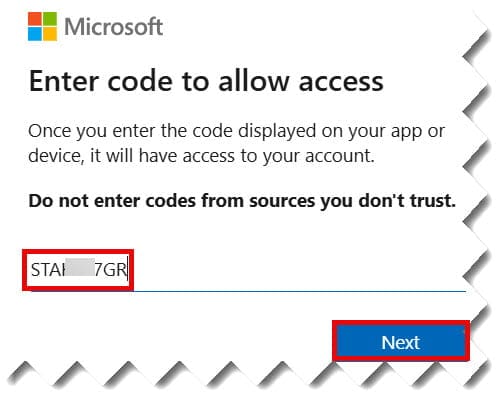
To refresh your user credentials, run the standard login command. This will open your default web browser. Check out the screenshots below for your reference.
Code snippet
az loginPro Tip: If you are working on a remote server (like a Linux VM without a GUI), use the device code flow:
az login --use-device-code