
In this tutorial, I’ll walk you step-by-step through how I ordered, configured, loaded, and safely shipped an Azure Data Box from our facility in Illinois directly to Microsoft’s datacenter.
Azure Data Box
What is Azure Data Box?
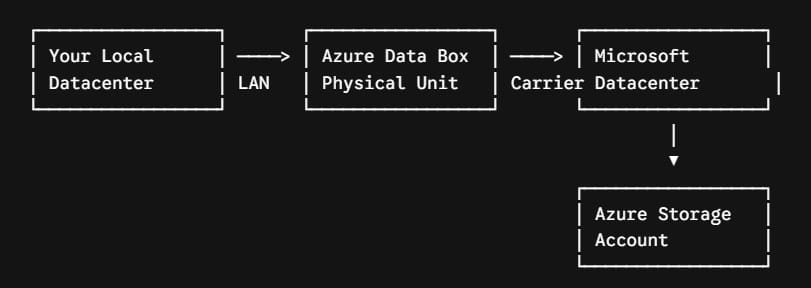
Azure Data Box is a ruggedized physical storage appliance shipped directly to your datacenter or office by Microsoft. You load your local files onto the device over high-speed Local Area Network (LAN) connections (using standard protocols like SMB or NFS) and ship it back via a national carrier.
Once it arrives at the designated Microsoft datacenter, Azure engineers copy your data directly into your target Blob storage accounts or Azure Files shares.
The Azure Data Box Family Overview
Depending on your total dataset size, Microsoft offers several appliance variations tailored for different capacity requirements:
| Device Variant | Usable Capacity | Network Interfaces | Best For |
| Data Box Disk | ~35 TB (up to 5 SSDs) | USB 3.0 / SATA | Small-to-medium transfers, remote office branches |
| Data Box (Standard / Next Gen) | 80 TB to 525 TB | 10 GbE / 100 GbE (RJ45, SFP+, QSFP28) | Full data center exits, massive archive migrations |
| Data Box Heavy | ~770 TB usable | Multiple 40 Gbps QSFP+ | Petabyte-scale enterprise migrations |
For our 80 TB dataset, the standard Azure Data Box unit was the perfect fit.
Step-by-Step Tutorial: Moving Local Data to Azure
Step 1: Prerequisites and Azure Portal Setup
Before ordering the physical unit, I ensured our local environment and Azure tenant were prepped.
- Create Target Storage Accounts: Log into the Azure Portal, navigate to Storage Accounts, and create your destination storage account (e.g.,
apexlogisticsdata01). Ensure the region matches where your workloads will run (we choseEast US). - Verify Access Permissions: Ensure your Azure IAM role contains Owner or Contributor rights on the subscription, plus explicit access to the target storage resource.
- Check Network Gear: Verify that your switch rack has available 10 GbE SFP+ or 100 GbE ports and appropriate Twinax or fiber cabling ready near your target storage servers.
Step 2: Ordering the Azure Data Box
Order the device through the Azure Portal.
Azure Portal ──> Search "Azure Data Box" ──> Create New Order ──> Set Shipping & Storage- In the search bar at the top of the Azure Portal, type Azure Data Box and select it.
- Click + Create.
- Fill in the primary details:
- Subscription: Select your active enterprise subscription.
- Resource Group: Select your target resource group (e.g.,
rg-migration-chicago). - Source Region: USA / United States.
- Destination Azure Region:
East US.
- Select Data Box as your transfer type.
- Enter your Shipping Address (e.g., your facility in Chicago, IL) and contact notification emails.
- Under Destination Targets, map the unit to your pre-created storage account (
apexlogisticsdata01). - Review details and click Create.
Step 3: Unboxing and Physical Setup
Within a few business days, UPS delivered the ruggedized Data Box container to our loading dock.
Security Note: The Azure Data Box does not come in a cardboard box. The device itself is encased in a hardened, tamper-evident outer shell equipped with security tags and a digital E-ink shipping display label.
- Inspect for Tampering: I checked the tamper-evident stickers around the outer casing to confirm no physical interception occurred during transit.
- Set Up Power and Connectivity:
- Unclip the front and back device panels.
- Plug in the standard IEC power cord.
- Connect the 10 GbE SFP+ DATA 1 port directly into our core datacenter switch using a Twinax copper cable.
- Connect the 1 GbE MGMT port to our local management subnet.
- Power On: Press the power button on the front control panel.
Step 4: Configuring the Device and Unlocking Encryption
Every Data Box is hardware-encrypted via AES 256-bit encryption and requires a temporary passkey from your Azure Portal to unlock locally.
- Go back to your Azure Portal and navigate to your Data Box order.
- Under Device Details, copy the IP Address, Username, and Device Password.
- Open a browser on a local laptop connected to the management subnet and ente