
In this comprehensive article, I will walk you through my battle-tested framework for planning, assessing, and executing an enterprise-grade migration to Microsoft Azure using Azure Migrate.
Azure Migrate
What is Azure Migrate?
Azure Migrate is Microsoft’s unified platform for discovering, assessing, and migrating on-premises workloads—including virtual machines, physical servers, databases, web apps, and virtual desktop infrastructure—directly to the Azure cloud.
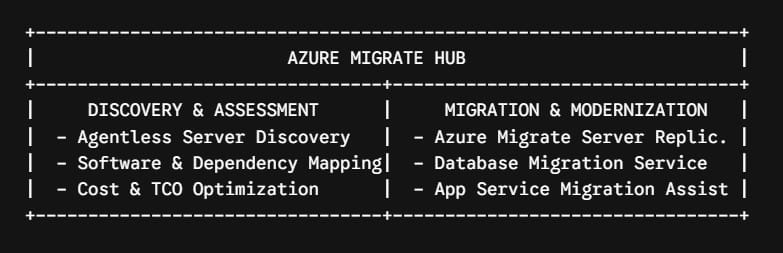
Rather than forcing you to stitch together disparate third-party utilities, Azure Migrate provides native tools alongside integrated ISV (Independent Software Vendor) solutions.
Key Capabilities at a Glance
| Functionality | Core Capability | Typical Enterprise Benefit |
| Unified Hub | Single glass plane to track discovery through cutover | Eliminates tool sprawl and centralizes progress reporting. |
| Agentless Discovery | Appliance-based scanning for VMware, Hyper-V, and AWS/GCP | Zero agent overhead on source workloads during initial scanning. |
| Dependency Analysis | Visual maps of server-to-server network calls | Prevents broken app links by identifying multi-tier dependencies. |
| Azure Readiness Assessment | Automatic compatibility analysis and target sizing | Ensures specs match workload CPU, RAM, and IOPS requirements. |
| Cost & TCO Modeling | Right-sizing based on actual performance data | Prevents over-provisioning and leverages Azure Hybrid Benefit. |
Pre-Migration Strategy
Azure Migrate gives you the analytical data needed to classify each workload into one of these paths:
- Rehost (Lift-and-Shift): Moving virtual machines to Azure IaaS VMs without structural changes.
- Replatform (Lift-and-Shape): Shifting workloads to managed PaaS services (e.g., migrating a SQL database to Azure SQL Managed Instance or a web app to Azure App Service) with minimal code changes.
- Refactor (Re-architect): Rewriting legacy monolithic code to take advantage of cloud-native microservices, serverless functions, or Kubernetes.
- Repurchase: Replacing an on-premises platform with a SaaS offering (e.g., switching local Exchange to Microsoft 365).
- Retain: Keeping specialized workloads on-premises due to regulatory mandates or recent hardware investments.
- Retire: Decommissioning legacy servers that are no longer actively used.
Complete Tutorial: Executing a Migration with Azure Migrate
Here is my standard operational runbook for executing an end-to-end migration using Azure Migrate.
Phase 1: Setting Up the Azure Migrate Project and Appliance
To begin, you need to create an Azure Migrate project and deploy the lightweight collector appliance inside your local environment.
Step 1: Initialize the Project in Azure
- Sign in to the Azure Portal and search for Azure Migrate.
- Under Servers, databases and web apps, select Discover, assess and migrate.
- Click Create project, choose your Target Subscription and Resource Group (e.g.,
rg-migration-prod-eastus), and assign a name to your project. - Select your preferred target geography (e.g., United States).
Step 2: Deploy the Local Appliance
Azure Migrate uses a lightweight virtual machine (the Azure Migrate Appliance) to conduct discovery without requiring local software agents on every host.
- For VMware Environments: Download the pre-configured Open Virtualization Format (
.OVA) template from the portal. - For Hyper-V Environments: Download the compressed VHD file.
- For Physical Servers or Other Public Cloud Instances (AWS/GCP): Download the PowerShell installer script to run on a dedicated Windows Server host.
Once imported into your hypervisor, open the Appliance Configuration Manager web interface, configure network settings, authenticate with Azure, and register the appliance to your project.
Phase 2: Agentless Discovery & Software Inventory
Once the appliance connects to your management systems (such as VMware vCenter or Hyper-V Hosts), agentless discovery begins.