
Velocity is the single most important metric for predictability. It is not about how “fast” you are working (a common misconception); it is about how much work your team can consistently deliver over a set period. In this guide, I will walk you through exactly how to check, configure, and interpret Velocity in Azure DevOps so you can walk into that next planning meeting with confidence.
Table of Contents
- How To Check Velocity In Azure DevOps
- Video Tutorial
How To Check Velocity In Azure DevOps
What is Velocity in the Azure Context?
In Azure DevOps, Velocity calculates the total amount of effort (usually Story Points, Effort, or a count of Work Items) for all user stories or backlog items completed within a sprint.
It visualizes two critical data points:
- Planned Work: How much work you committed to when the sprint started.
- Completed Work: How much work was actually moved to the “Closed” or “Done” state by the sprint end date.
The gap between these two bars is where the conversation happens.
Prerequisites
Ensure the following:
- Access Level: You need Basic access or higher. Stakeholder access often restricts viewing certain analytics charts.
- Project Config: Your project must be using the Boards feature actively.
- Sprint Dates: Your Iteration Paths (Sprints) must have Start and End dates defined in Project Settings.
- Work Item States: Your User Stories must actually be moved to a “Completed” state category. If they sit in “Resolved” but your process configuration doesn’t map “Resolved” to “Completed,” the chart will read zero.
Method 1: The Analytics Tab (The Quickest Way)
Microsoft has significantly improved the “in-context” analytics over the last few years. You no longer need to build a complex dashboard just to see your trend.
This is the method I recommend for Scrum Masters who need a quick pulse check during a backlog refinement session.
Step-by-Step Instructions
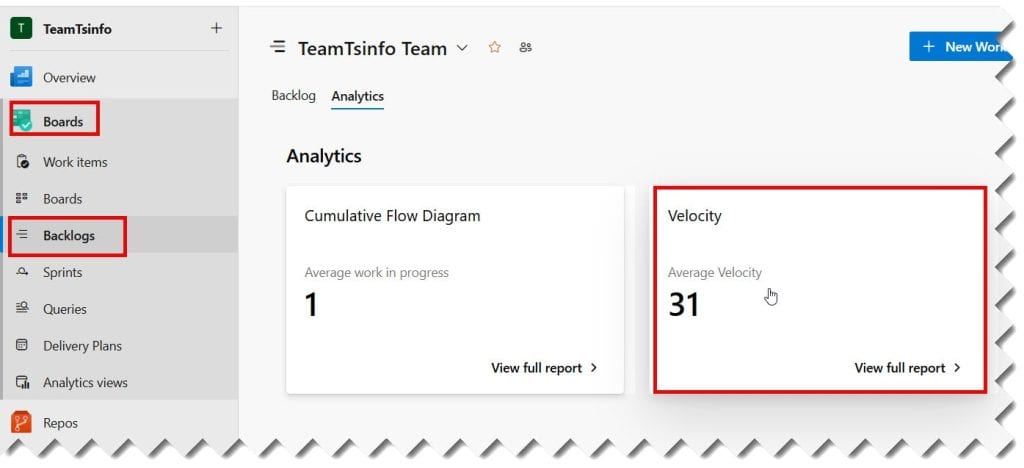
- Navigate to Boards: Log into your Azure DevOps organization and click into your project. On the left-hand sidebar, hover over Boards and select Backlogs.
- Select Your Team: In the top-right corner, ensure you have the correct team selected from the dropdown menu. Velocity is team-specific; viewing the “Project Team” often gives messy data.
- Toggle the Analytics View: Look at the top-right corner of the backlog view. You will see a tab labeled Analytics. Click it.
- Select Velocity: Once the Analytics drawer opens, you will typically see a few charts (like Burnup or Cumulative Flow). Select the card labeled Velocity.
Check out the screenshot below for the complete steps for your reference.
Reading the Analytics Chart
The default view here is interactive.
- The Bars: The blue (or green) portions represent completed work. The transparent or light-colored sections represent planned work that wasn’t finished.
- The Trend Line: ADO will project an “Average Velocity” line across the chart. This is your magic number for capacity planning.
Method 2: The Dashboard Widget (The Executive View)
While the Analytics tab is great for the team, it isn’t great for stakeholders or quarterly reviews. For that, you want a persistent Dashboard. This is the “classic” way to track velocity and allows for much deeper customization.
Step-by-Step Configuration
- Go to Dashboards: On the left sidebar, select Overview > Dashboards.
- Edit Mode: Click the Edit button at the top of the dashboard.
- Add the Widget:
- In the search box on the right labeled “Add Widget,” type Velocity.
- You will see the standard “Velocity” widget. Drag and drop it onto your canvas.
Check out the screenshot below for the complete steps:

4. Configure the Widget: This is where most people get it wrong. Click the Gear icon (Configure) on the widget you just dropped.

Critical Configuration Settings
| Setting | Recommendation | Why? |
| Team | Select your specific Feature Team | Never select the root project team; velocity is a team-level metric. |
| Work Items | User Stories / Product Backlog Items | Do not include Tasks or Bugs unless your team points them. Mixing types skews the data. |
| Aggregation | Sum of Story Points (or Effort) | The default is often “Count of Work Items.” Counting items is useless if one story is 1 point and another is 13. |
| Number of Iterations | 6 to 8 | 3 is too few to see a trend; 10+ includes stale historical data that might not reflect current team size. |
| Late Work | “Show work completed late” | I recommend checking this. It helps you see if the team is finishing work just after the sprint closes. |
Interpreting the Data: What is the Chart Telling You?
Once you have the chart generated, you need to read it like a pro. The Velocity chart in Azure DevOps consists of bar clusters for each sprint.
The “Planned” Bar
This represents the total Story Points of work items assigned to the iteration as of the start time of the iteration.
- Pro Tip: If you add a story to the sprint on Day 2, ADO is smart enough (usually) to track that variance, but for the purest velocity metric, we look at what was committed during Planning.
The “Completed” Bar
This is the sum of Story Points for items closed before the sprint end date.
The Delta (The Gap)
- If Completed > Planned: You have a “sandbagging” problem. The team is under-committing to ensure they finish. While safe, it means you aren’t maximizing ROI.
- If Planned > Completed: You have an over-commitment problem. This is common in the US tech sector where “stretch goals” are cultural. However, chronic over-commitment leads to burnout and poor predictability.
Troubleshooting: Why is My Velocity Zero?
I receive emails about this constantly. “I closed the tickets! Why does the chart say 0?” Here are the usual suspects:
- The “State” Mapping Issue: ADO looks for the “Completed” state category. If you customized your workflow and created a state called “Deployed to QA” and treat that as done, but ADO thinks that state is “In Progress,” it won’t count toward velocity. You must check your Process configuration in Organization Settings.
- Items Closed Late: If your sprint ends on Friday at 5:00 PM, and a developer closes the ticket on Saturday morning, that work belongs to the next sprint (or is marked as late), depending on your widget settings.
- Missing Story Points: This sounds silly, but check the work items. If developers are leaving the “Story Points” or “Effort” field blank (NULL), the sum is zero. ADO does not assume a value of 1.
Best Practices
1. Use Rolling Averages
Never plan a sprint based on the velocity of the single previous sprint. If the team had a velocity of 40 in Sprint 1 and 20 in Sprint 2 (maybe due to a holiday like Thanksgiving), don’t assume Sprint 3 will be 20 or 40. Use the average of the last three sprints provided by the widget.
2. Don’t Compare Teams
This is a massive anti-pattern. Team Alpha having a velocity of 50 is not “better” than Team Beta having a velocity of 25. Team Alpha might use a Fibonacci scale (1, 2, 3, 5, 8) while Team Beta uses a linear scale (1, 2, 3, 4, 5). The numbers are relative to the team’s unique estimation baseline.
3. Account for “Drag”
Velocity tracks feature work. It rarely accounts for technical debt, bugs, or meetings. If you see your velocity trend dipping over three months, it is usually a sign that technical debt is clogging the gears.
Video Tutorial
Frequently Asked Questions (FAQ)
Q: Can I check velocity for a single individual?
A: No, and you shouldn’t want to. Scrum is a team sport. Azure DevOps does not provide native velocity charts for individuals because it encourages cherry-picking easy tasks to inflate numbers.
Q: Does Azure DevOps count bugs in velocity?
A: By default, usually no. However, you can configure the widget to include “Bugs” in the work item types. I recommend this only if your team assigns Story Points to bugs. If bugs are unpointed, they will drag your velocity down artificially.
Q: Why does the Planned bar change retroactively?
A: It shouldn’t, but if users are messing with iteration paths or start dates after the sprint has begun, it can confuse the analytics engine. Lock your sprint dates!
Q: Can I export this data to Excel?
A: Yes. From the Query view, you can export the raw data, but the Velocity chart itself is visual. For raw number crunching, I recommend using the OData Feed to pull the data into Power BI or Excel.
Conclusion
Checking velocity in Azure DevOps is straightforward once you know where to look, but mastering it requires understanding the nuance behind the bars. Whether you use the quick Analytics Tab for your daily stand-ups or the robust Dashboard Widget for your executive reports, ensure your configuration matches your team’s reality.
So, go configure that widget, check your Story Point fields, and stop guessing your capacity.
You may also like the following articles:
- How to Calculate Sprint Velocity in Azure DevOps
- What Is Work Items in Azure DevOps
- How To Change Sprint Dates In Azure DevOps
- How To Move User Story From One Sprint To Another Azure DevOps

I am Rajkishore, and I am a Microsoft Certified IT Consultant. I have over 14 years of experience in Microsoft Azure and AWS, with good experience in Azure Functions, Storage, Virtual Machines, Logic Apps, PowerShell Commands, CLI Commands, Machine Learning, AI, Azure Cognitive Services, DevOps, etc. Not only that, I do have good real-time experience in designing and developing cloud-native data integrations on Azure or AWS, etc. I hope you will learn from these practical Azure tutorials. Read more.
