
In this article, I will walk you through the four primary methods for downloading blobs in 2026, providing a step-by-step tutorial for each.
How to download file from Azure Blob Storage
Method 1: Using Azure Portal
Follow the steps below
Select the uploaded file. Right-click the selected file, then click the Download link in the pop-up.
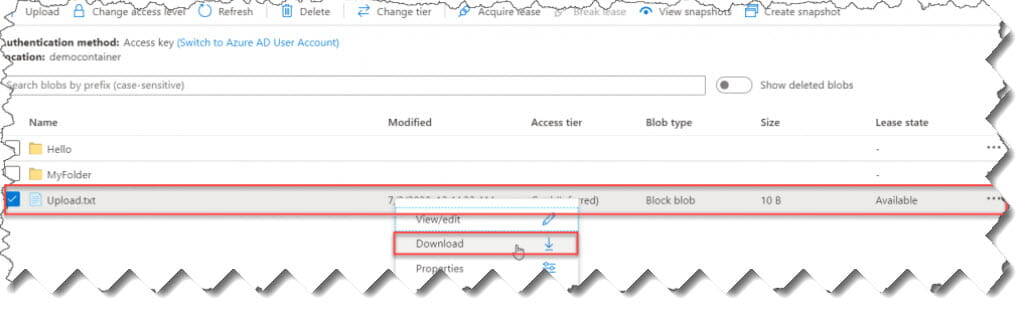
Another way is to click the three dots (…) and select Download.

Now, the file will download successfully.
Method 2: Using C#
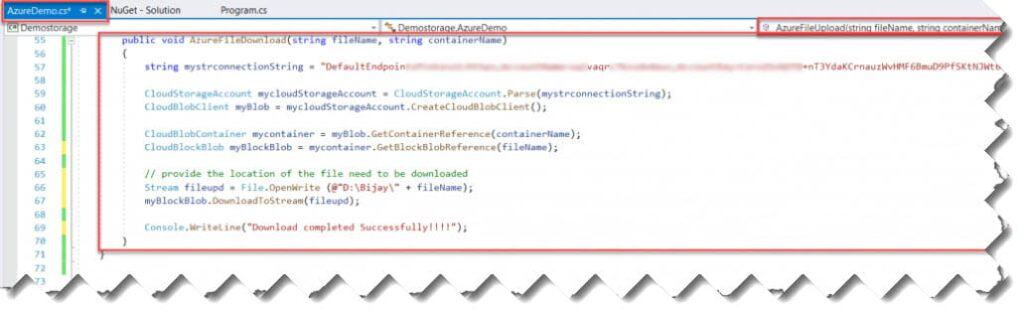
There are two parameters for the AzureFileDownload() method. The name of the file to be uploaded and the Container name.
Check out: How To Upload File To Azure Blob Storage
Below is the code for the AzureFileDownload().
public void AzureFileDownload(string fileName, string containerName)
        {
            string mystrconnectionString = "DefaultEndpointsProtocol=https;AccountName=sqlvaqrc7kssdx4eus;AccountKey=Coro2SvGOTD+nT3YdaKCrnauz########";

            CloudStorageAccount mycloudStorageAccount = CloudStorageAccount.Parse(mystrconnectionString);
            CloudBlobClient myBlob = mycloudStorageAccount.CreateCloudBlobClient();

            CloudBlobContainer mycontainer = myBlob.GetContainerReference(containerName);
            CloudBlockBlob myBlockBlob = mycontainer.GetBlockBlobReference(fileName);

            // provide the location of the file need to be downloaded
            Stream fileupd = File.OpenWrite (@"D:\Bijay\" + fileName);
            myBlockBlob.DownloadToStream(fileupd);

            Console.WriteLine("Download completed Successfully!!!!");
        }
Now, after running the code, I got the following output. It downloaded the file at the specified path.

Method 3: Using PowerShell
First, we must log in to Azure with the below cmdlet to interact with Azure objects.
PS C:\WINDOWS\system32> Login-AzureRmAccountOr, you can also use the below PowerShell cmdlet to connect to Azure
PS C:\WINDOWS\system32> Connect-AzAccountThe next step is to get the storage account keys from the Azure portal, and you need to assign it to a variable with the help of the below cmdlet
$Keys = "Coro2SvGOTD+nT3YdaKCrnXXXXXXXXXXXXXXXXXXXXXXXXXXXXXXXXXXXXXXXXXXXXXXXXXXXXX=="To get the above key from the Azure portal,
You need to log into the Azure portal and go to the storage account from where you are getting the file, click on the Access keys, and then copy the Keys as highlighted below

As mentioned above, use the PowerShell cmdlet below (Context) to access the Azure storage account using the AccessKey above.
$StorageContext = New-AzureStorageContext -StorageAccountName sqlvaqrc7kssdx4eus -StorageAccountKey $KeysThe cmdlet below provides the local file name to download, the container name, the Destination local path where the file should be downloaded, and the Storage context.
Get-AzStorageBlobContent -Blob "Upload.txt" -Container $containerName -Destination "D:\Bijay\" ` -Context $StorageContext Below is the complete PowerShell script to download the file from the Azure blob storage
Login-AzureRmAccount
$Keys = "Coro2SvGOTD+nT3YdaKCrnauzWvHMF6BmuD9PfSKtNJWt6etOMjkwg6KNSQ39zOOQcMpDSjyBKHdALGIg6gZ4Q=="
$StorageContext = New-AzureStorageContext -StorageAccountName sqlvaqrc7kssdx4eus -StorageAccountKey $Keys
$containerName = "democontainer";
Get-AzStorageBlobContent -Blob "Upload.txt" `
  -Container $containerName `
  -Destination "D:\Bijay\" `
-Context $StorageContext 
How to Download Blob Contents from an Azure Storage Account using PowerShell
It will ask you to provide your Azure credentials, enter them, and click the Sign in button.

You can see above the script executed successfully without any issues.