
In this comprehensive tutorial, I will walk you through everything you need to know about scaling up Azure SQL Database, comparing service tiers, determining when to scale vertical vs. horizontal, and executing scaling operations via Azure Portal, PowerShell, and Azure CLI.
How to Scale Up Azure SQL Database
Understanding Azure SQL Database Scaling Dimensions
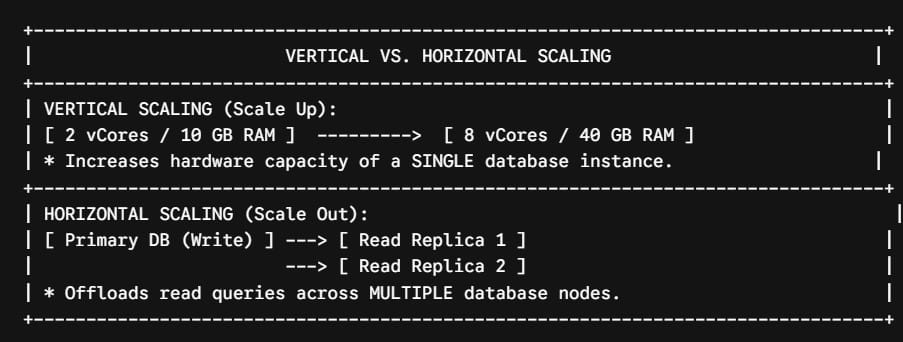
Before clicking buttons in the portal, we must clarify the core mechanics of scaling in Azure. Database scalability generally falls into two categories:
- Vertical Scaling (Scaling Up/Down): Increasing or decreasing compute capacity (vCores/DTUs) and memory allocated to a single database instance.
- Horizontal Scaling (Scaling Out/In): Distributing read/write workloads across multiple database replicas (such as Read Scale-Out, Sharding, or Elastic Pools).
While horizontal scaling handles massive enterprise concurrency, scaling up vertically is your primary, immediate line of defense when an individual database exhausts its compute headroom.
DTU vs. vCore: Choosing the Right Purchasing Model
Azure SQL Database offers two distinct purchasing models. Scaling up effectively requires understanding which model your workload currently utilizes.
1. Database Transaction Unit (DTU) Model
The DTU model provides a bundled measure of compute, storage, and I/O performance. It is divided into three tiers:
- Basic: Designed for light workloads, dev/test environments, and small administrative databases.
- Standard (S0–S12): Suited for workhorse web applications with low to medium concurrency.
- Premium (P1–P15): Optimized for high-concurrency transactional systems requiring low I/O latency and built-in read replicas.
2. Virtual Core (vCore) Model
The vCore model offers greater transparency and architectural control, allowing you to scale compute (vCores) and storage independently. This is the recommended purchasing model for enterprise workloads:
- General Purpose: Scalable compute and storage for common enterprise workloads.
- Business Critical: High-performance tier featuring low-latency local NVMe SSD storage and automatic read scale-out replicas.
- Hyperscale: Highly scalable tier supporting databases up to 100+ TB with near-instantaneous scaling and rapid backup/restore capability.
Purchasing Model Comparison
| Feature | DTU Model | vCore Model |
| Flexibility | Bundled (Compute + Storage fixed ratio) | Decoupled (Scale compute and storage independently) |
| Max Database Size | 1 TB (Premium) | 100+ TB (Hyperscale) |
| Scaling Control | Coarse-grained (Discrete DTU buckets) | Fine-grained (Granular vCore increments) |
| Hybrid Benefit Eligible | No | Yes (Azure Hybrid Benefit applies) |
| Serverless Option | No | Yes (Auto-scaling & Auto-pausing available) |
When Should You Scale Up? (Key Metric Signals)
Scaling up prematurely wastes infrastructure budget; waiting too long triggers application outages. As an architect, I monitor four primary performance metrics inside Azure Monitor to determine when a scale-up operation is required:
1. CPU Percentage (cpu_percent)
- Threshold: Sustained CPU usage above 80% to 85% for longer than 15 consecutive minutes.
- Action: Scale up vCores/DTUs or shift to a Serverless auto-scaling tier.
2. Data I/O Percentage (data_io_percent)
- Threshold: Sustained storage read/write saturation above 80%.
- Action: Transition to a higher service tier with higher IOPS (e.g., from General Purpose to Business Critical or Hyperscale).
3. Log Write Percentage (log_write_percent)
- Threshold: Log write throughput reaching system limits during bulk batch operations or heavy transaction streams.
- Action: Scale up compute resources to increase maximum log throughput allowances.
4. Memory / Worker Thread Limit Hits
- Threshold: Experiencing
60061error codes (Session limit reached) or highTHREADPOOLwait types. - Action: Scale up compute capacity to expand max worker thread allocation.
Provisioned vs. Serverless: The Dynamic Auto-Scale Option
If your application experiences unpredictable, spikey traffic patterns—such as an e-commerce store running flash sales or a business processing end-of-month payroll—manual scaling can be cumbersome.
The Azure SQL Database Serverless compute tier automatically scales compute capacity based on workload demand and bills strictly for the compute used per second.
Serverless Key Configuration Parameters:
- Min vCores: The lower compute floor reserved for baseline performance (e.g., 1 vCore).
- Max vCores: The maximum compute ceiling Azure can scale up to during high traffic (e.g., 16 vCores).
- Auto-Pause Delay: Time of total inactivity before the database automatically pauses to save compute costs ($0 compute charge while paused).
Step-by-Step Tutorial: How to Scale Up Azure SQL Database
Scaling up an Azure SQL Database is a non-destructive administrative task. Azure provisions new compute resources in the background, syncs state with the existing engine, and flips the connection string over via a brief failover signal (typically lasting under 10 seconds).
Here are the three standard administrative execution paths:
Method 1: Scaling Up via the Azure Portal
- Sign in to the Azure Portal (
portal.azure.com). - Search for and select SQL databases, then select your database instance.
- In the left navigation menu under Settings, click Compute + storage.
- Choose your desired Service Tier (e.g., General Purpose, Business Critical, or Hyperscale).
- Adjust the vCore slider to your target scale (e.g., upgrade from 4 vCores to 8 vCores).
- Adjust the Max Data Size slider if additional storage capacity is required.
- Click Apply.
Method 2: Scaling Up via Azure PowerShell
For enterprise automation and DevOps delivery pipelines, scaling script execution via PowerShell ensures repeatability:
PowerShell
# Define target parameters
$ResourceGroup = "rg-production-eastus"
$ServerName    = "sql-app-prod-01"
$DatabaseName  = "db-orders-prod"

# Example A: Scale up DTU Database to Standard S4
Set-AzSqlDatabase -ResourceGroupName $ResourceGroup `
                  -ServerName $ServerName `
                  -DatabaseName $DatabaseName `
                  -RequestedServiceObjectiveName "S4"

# Example B: Scale up vCore Database to General Purpose 8 vCores (Gen5)
Set-AzSqlDatabase -ResourceGroupName $ResourceGroup `
                  -ServerName $ServerName `
                  -DatabaseName $DatabaseName `
                  -Edition "GeneralPurpose" `
                  -ComputeGeneration "Gen5" `
                  -VCore 8
Method 3: Scaling Up via Azure CLI
For cross-platform DevOps automation, bash deployment baselines, or CI/CD pipelines:
Bash
# Define deployment variables
RESOURCE_GROUP="rg-production-eastus"
SERVER_NAME="sql-app-prod-01"
DATABASE_NAME="db-orders-prod"

# Scale up vCore capacity to 16 vCores in General Purpose tier
az sql db update \
  --resource-group $RESOURCE_GROUP \
  --server $SERVER_NAME \
  --name $DATABASE_NAME \
  --service-objective GP_Gen5_16
What Happens Behind the Scenes During Scaling?
Understanding the technical sequence during a scaling operation helps prevent panic when client connections briefly drop.
- Background Provisioning: Azure provisions a brand-new database engine instance with requested hardware specs (e.g., 8 vCores).
- Data Synchronization: Data files are attached or mirrored asynchronously to the new engine without locking the running source database.
- Gateway Re-routing: Azure SQL Gateway updates connection points and switches active traffic to the newly scaled instance.
- Transient Failover: Running connections experience a brief drop (usually 2 to 10 seconds). Active transactions roll back cleanly and must retry.
Scaling Multiple Databases with Elastic Pools
If your architecture manages dozens or hundreds of independent databases—such as a Multi-Tenant Software-as-a-Service (SaaS) application—scaling each database individually can become financially unsustainable.
Azure SQL Elastic Pools allow you to purchase a shared block of compute capacity (eDTUs or vCores) and assign multiple databases to that pool.
Advantages of Elastic Pools
- Cost Efficiency: Share peak compute allocations across databases that peak at different times.
- Granular Cap Management: Set minimum and maximum vCore consumption caps per database to keep a single noisy tenant from exhausting the entire pool’s resources.
- Collective Scaling: Scale up the entire pool’s total compute headroom with a single API call instead of updating 200 databases individually.
Summary Checklist for Scaling Up Azure SQL Database
By following this architectural framework, you can seamlessly scale your Azure SQL Database footprint up or down to ensure peak performance, optimal availability, and predictable cloud spending.
You may also like the following articles:

I am Rajkishore, and I am a Microsoft Certified IT Consultant. I have over 14 years of experience in Microsoft Azure and AWS, with good experience in Azure Functions, Storage, Virtual Machines, Logic Apps, PowerShell Commands, CLI Commands, Machine Learning, AI, Azure Cognitive Services, DevOps, etc. Not only that, I do have good real-time experience in designing and developing cloud-native data integrations on Azure or AWS, etc. I hope you will learn from these practical Azure tutorials. Read more.