
How to Write Manual Test Cases in Azure DevOps

In this tutorial, I will walk you through the end-to-end process of writing manual test cases in Azure DevOps. We won’t just cover the “clicks”—we will cover the strategy behind them.

How to Write Manual Test Cases in Azure DevOps

Understanding the Azure Test Plans Hierarchy

Before we start typing out test steps, we must understand the container structure. Many QA engineers make the mistake of diving straight into creating test cases without a proper skeleton. In Azure DevOps, the hierarchy is strict and specific.

Think of it like a physical filing cabinet:

  • Test Plan: The filing cabinet itself. This usually represents a specific Sprint, a Release, or a major Milestone (e.g., “Sprint 24 Test Plan” or “Release 1.0 Master Plan”).
  • Test Suite: The drawers or folders within the cabinet. These group your test cases logically (e.g., “Login Module,” “Payment Gateway,” or “User Story 101”).
  • Test Case: The individual documents inside the folder. These contain the actual instructions (steps) to verify a specific behavior.

The Three Types of Test Suites

Understanding the suite types is critical for SEO-friendly organization and reporting. I use different suites for different purposes:

Suite TypeDescriptionBest Use Case
Requirement-based SuitePulls test cases linked to a specific work item (User Story or Epic).Agile workflows where you need to verify specific acceptance criteria for a story.
Query-based SuiteDynamically pulls test cases based on a query (e.g., “All Priority 1 tests”).Regression testing or finding all tests with a specific tag (e.g., “SmokeTest”).
Static SuiteA manual folder where you drag and drop test cases.Custom grouping or ad-hoc test runs that don’t fit a specific requirement.

Prerequisites for Manual Testing in ADO

Before I can write a single case, I always ensure my permissions are correct. You cannot access the “Test Plans” module with a standard “Basic” license alone.

  • Access Level: You need Basic + Test Plans access level or a Visual Studio Enterprise subscription.
  • Project Permissions: You must have “Edit” permissions in the specific Area Path of your project.

Step 1: Creating Your First Test Plan

The first thing I do is establish the root container.

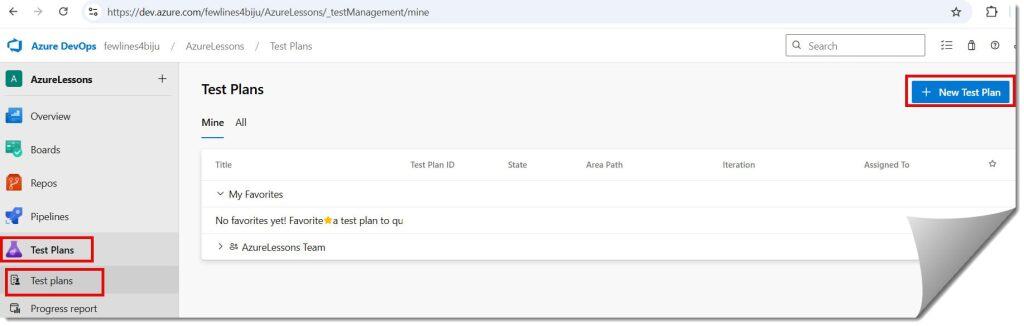
  1. I navigate to the Test Plans icon (it looks like a test tube) on the left sidebar.
  2. I click on New Test Plan.
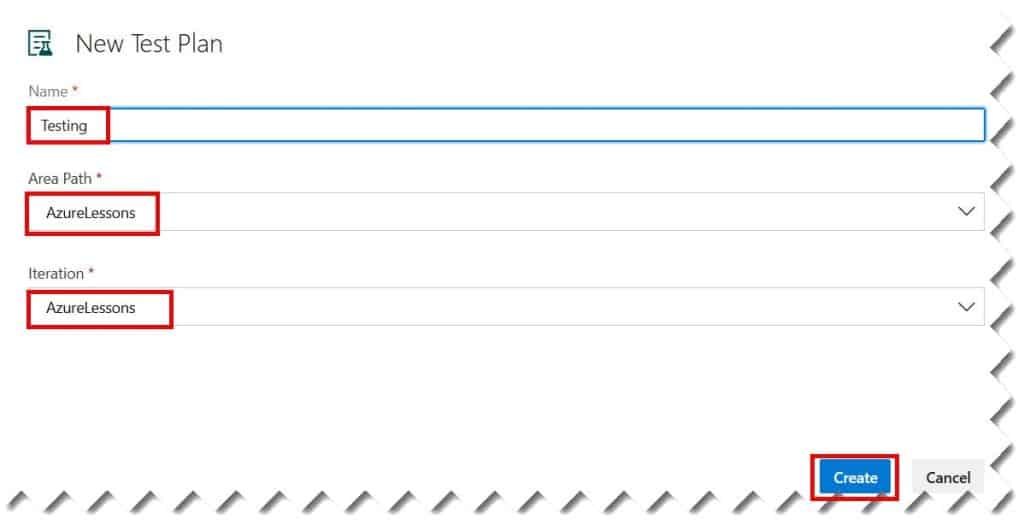
  3. I name it clearly. I recommend a naming convention like [Project Name] - [Sprint/Release] - [Test Type].
    • Example: “AcmeCorp – Sprint 45 – Functional Testing”
  4. I select the Area Path and Iteration. This is crucial. If I select “Sprint 45” as the iteration, this plan will show up on the boards for that specific sprint, keeping the developers and product owners aligned with my testing progress.

Check out the screenshot below for your reference.
How to Write Manual Test Cases in Azure DevOps
how to create test cases in azure devops

Step 2: Structuring with Requirement-Based Suites

I rarely use Static Suites for new feature work. In an Agile environment, traceability is king. If a stakeholder asks, “Is the ‘Forgot Password’ story tested?”, I need to show them the link immediately.

To do this, I create a Requirement-based Suite:

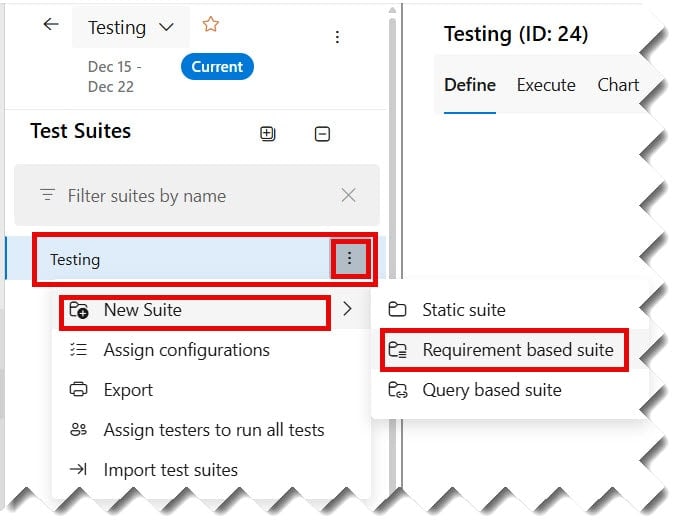
  1. I click the three dots (…) next to my new Test Plan.
  2. I select New Suite > Requirement based suite.
  3. A query window pops up. I enter the ID of the User Story I am working on, or I query for all “Active” User Stories in the current iteration.
  4. I select the stories I want to test and click Create Suites.

Check out the screenshot below for your reference.
how to write test cases in azure devops
how to add test cases in azure devops

Now, Azure DevOps creates a suite named after that User Story. Any test case I create inside this suite is automatically linked to that Story. This is the “gold standard” for traceability.

Step 3: Writing Effective Manual Test Cases

Now we get to the core of the work. Inside my new suite, I click New Test Case as shown in the screenshot below. A blank canvas opens, and this is where the quality of the QA work is defined.

write test cases in azure devops

1. Writing the Title

The title must be searchable and descriptive. I avoid generic titles like “Login Test.” Instead, I use a format that describes the condition and the expected outcome.

  • Bad: “Check Filter”
  • Good: “Verify that the User can filter the Product List by ‘Price: Low to High'”

Check out the screenshot below for your reference.
2. Defining Pre-conditions

I never assume the tester knows the state of the system. In the “Summary” tab, I use the Description field to list pre-conditions.

  • User must be logged in.
  • User must have items in the cart.
  • User must have a valid US shipping address.

Check out the screenshot below for your reference.

write manual test cases in azure devops

3. Creating Steps and Expected Results

This is the grid view where I spend most of my time. There are two columns: Action and Expected Result.

  • Action: I write imperative sentences. “Click the ‘Submit’ button.” “Enter ‘John Doe’ in the Name field.”
  • Expected Result: I write what the system should do in response. “The system redirects to the Dashboard.” “A success toast notification appears.”

Check out the screenshot below for your reference.

create test cases in azure devops

My Golden Rules for Steps:

  • One Action per Step: I don’t combine “Enter username and click login” into one step. I break them up. This makes it easier to fail a specific part of the test during execution.
  • Verifiable Results: I avoid vague results like “Page loads correctly.” I prefer “The ‘Welcome, John’ header is visible.”

Advanced Techniques: Parameters and Shared Steps

If I had to rewrite the same login steps for every single test case, I would waste hours. Azure DevOps offers two powerful features to solve this: Shared Steps and Parameters.

Using Shared Steps for Reusability

Let’s say every test requires the user to log in.

  1. I write the login steps (Enter User, Enter Pass, Click Login) in a standalone test case.
  2. I highlight those steps and click the “Create Shared Steps” icon.
  3. I name it “Shared Step – Standard Login”.
  4. Now, in any future test case, I simply click the “Insert Shared Steps” icon and pull that block in.

If the login UI changes in the future, I update the Shared Step once, and it updates in all 500 test cases that use it.

Data-Driven Testing with Parameters

Sometimes I need to run the same test with different data (e.g., valid credit card, expired credit card, stolen credit card). I don’t write three test cases. I use Parameters.

  1. In the step, instead of typing “1234-5678-9012-3456”, I type @CreditCardNumber.
  2. Azure DevOps automatically recognizes the @ symbol and creates a parameter table at the bottom of the screen.
  3. I can then add multiple rows of data in that table (Row 1: Valid, Row 2: Expired).
  4. When I run the test, ADO will ask me to run it once for every row of data I provided.

Executing the Test Cases

Writing the case is only half the battle. Executing it correctly is where we validate quality.

  1. I go to the Execute tab within my Test Plan.
  2. I select the test cases I want to run.
  3. I click Run for web application. This opens the Test Runner.

The Test Runner is a browser overlay. It sits on the side of my screen while I interact with the application.

  • I check off steps as they pass.
  • If a step fails, I click the “Fail” icon next to that specific step.
  • Crucial Feature: When I fail a step, I can immediately click Create Bug. Azure DevOps automatically populates the bug report with the steps I took, the expected result, and the actual result. It eliminates the “steps to reproduce” manual writing.

Best Practices for Authority and Maintenance

To maintain a clean repository, I follow these guidelines:

  • Tagging: I use tags heavily. I tag cases with Smoke, Regression, Automated, or Manual. This allows me to use Query-based suites later to verify “All Smoke Tests” in seconds.
  • State Management: I actively manage the state of my test cases.
    • Design: The case is being written.
    • Ready: The case is reviewed and ready for execution.
    • Closed: The feature is deprecated.
  • Review Process: I never mark a test case as “Ready” until a peer has reviewed it. We use the “Comments” section in the test case work item to discuss edge cases I might have missed.

Conclusion

Writing manual test cases in Azure DevOps is about more than just data entry; it is about creating a living documentation of your product’s quality standards. By utilizing the hierarchy of Plans and Suites correctly, leveraging parameters for efficiency, and strictly linking tests to requirements, you create a safety net for your development team.

You may also like the following articles:

Azure Virtual Machine

DOWNLOAD FREE AZURE VIRTUAL MACHINE PDF

Download our free 25+ page Azure Virtual Machine guide and master cloud deployment today!