
When standard cloud storage hits a wall, that’s where Azure NetApp Files (ANF) enters the picture. It isn’t just another storage option; it is a game-changer for enterprise-grade applications. In this article, I’m going to walk you through exactly what ANF is and how you can use it for your business.
What is Azure NetApp Files
Azure NetApp Files is an Azure-native, first-party, enterprise-class file storage service. It is powered by NetApp’s world-class ONTAP technology but is managed entirely within the Azure Portal.
Unlike other storage services that are “software-defined,” ANF runs on bare-metal flash hardware inside Microsoft’s data centers. This results in sub-millisecond latencies and the kind of throughput that was previously only available in your local on-premises data center.
Key Use Cases for ANF
- SAP HANA: It is the primary certified storage solution for SAP on Azure.
- High-Performance Computing (HPC): Ideal for oil and gas simulations or genomic sequencing.
- Virtual Desktop Infrastructure (VDI): Powers large-scale FSLogix profile containers for thousands of users in Florida or Texas.
- Database Workloads: Perfect for SQL Server and Oracle databases that require high IOPS.
The Storage Hierarchy: How it Works
You must understand how Azure NetApp Files is structured.
- NetApp Account: This is the top-level container. It is tied to a specific Azure region (like East US or West US 2).
- Capacity Pool: Within your account, you create a pool of storage. You “buy” this capacity in 1 TiB increments.
- Volume: This is the actual file share (NFS or SMB) that your servers connect to.
Step-by-Step Tutorial: Setting Up Your First Volume
We will create a high-performance NFS volume for a Linux workload.
Step 1: Register the NetApp Resource Provider
Before you can use ANF, you have to tell Azure you want the service.
- Open the Azure Portal.
- Search for Subscriptions and select yours.
- On the left-hand sidebar, click Resource Providers.
- Search for
Microsoft.NetAppand click Register. (It might take a few minutes—don’t worry, that’s normal).
Step 2: Create a NetApp Account
Think of this as your “storage HQ.”
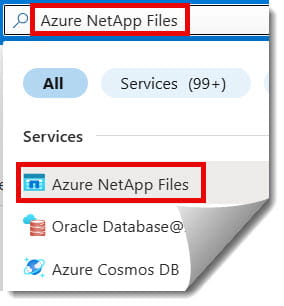
- Search for Azure NetApp Files in the portal search bar.
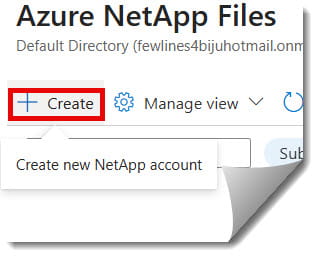
- Click + Create.
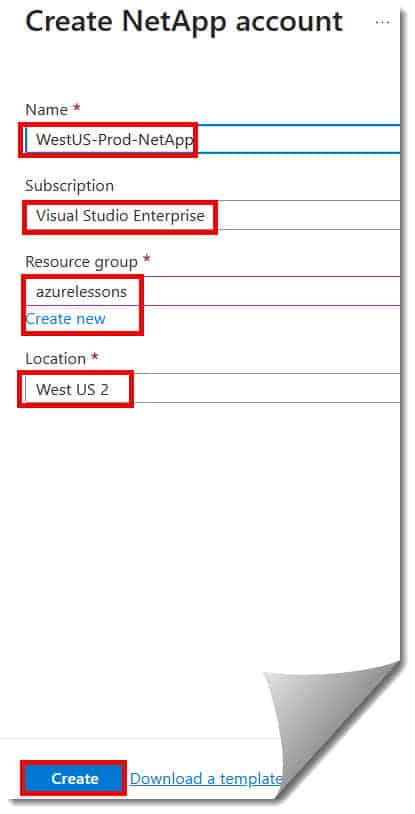
- Name it something descriptive like
WestUS-Prod-NetApp. - Select your Region (e.g., West US 2).
Check out the screenshot below for your reference.
Step 3: Set Up a Capacity Pool
- Go to your new NetApp Account and select Capacity pools > + Add pool.
- Service Level: This is crucial. You have three choices:
- Standard: 16 MiB/s per 1 TiB (Good for backups).
- Premium: 64 MiB/s per 1 TiB (Good for general apps).
- Ultra: 128 MiB/s per 1 TiB (HANA, Oracle, HPC).
- Size: Minimum is 1 TiB.
Step 4: Networking (The Delegated Subnet)
Azure NetApp Files requires a Delegated Subnet. This means you need a dedicated “lane” in your Virtual Network (VNet) just for ANF traffic.
Important: You cannot put Virtual Machines in this specific subnet. It is for the storage service only.
Step 5: Create the Volume
Finally, we create the share.
- Select Volumes > + Add volume.
- Choose your Capacity Pool and set a Quota (e.g., 100 GiB).
- Protocol: Select NFSv3 or SMB. For Linux, we usually go with NFSv3 for raw performance.
- Export Policy: This controls who can “talk” to the storage. Add your VNet IP range here to allow your VMs to mount the volume.
Advanced Data Management: Snapshots and Replication
Instant Snapshots
NetApp is famous for its Snapshot technology. Because it uses a “Redirect on Write” mechanism, taking a snapshot of a 50 TB dat