
Finding your Tenant ID in the Azure Portal (now primarily managed through Microsoft Entra ID) is a fundamental task for any cloud administrator, developer, or IT professional. In this comprehensive guide, I’ll walk you through exactly where to find your Tenant ID in the Azure Portal using the most up-to-date methods.
Where To Find Tenant ID In Azure Portal
As of early 2026, Microsoft has fully integrated Azure Active Directory into the Microsoft Entra brand. While the interface is cleaner, the steps remain straightforward if you know where to click.
Method 1: The “Microsoft Entra ID” Overview (Fastest Method)
This is my go-to method because it takes less than 30 seconds.
- Sign In: Open your browser and navigate to the Azure Portal. Log in with your corporate or admin credentials (e.g.,
admin@yourcompany.com). - Search for Entra: In the global search bar at the top of the portal, type “Microsoft Entra ID”.
- Select the Service: Click on “Microsoft Entra ID” from the search results.
- Check the Overview Page: You will land on the Overview blade by default.
- Locate the ID: Under the Basic information section (usually in the middle of the screen), look for the label Tenant ID.
- Copy: Hover over the ID and click the “Copy to clipboard” icon. Check out the below screenshots for your reference.


Method 2: Using the “Properties” Blade
If you prefer a more detailed view of your organization’s metadata, the Properties blade is the place to be.
- Follow steps 1-3 from Method 1 to reach the Microsoft Entra ID page.
- On the left-hand navigation menu, scroll down to the Manage section.
- Click on Properties.
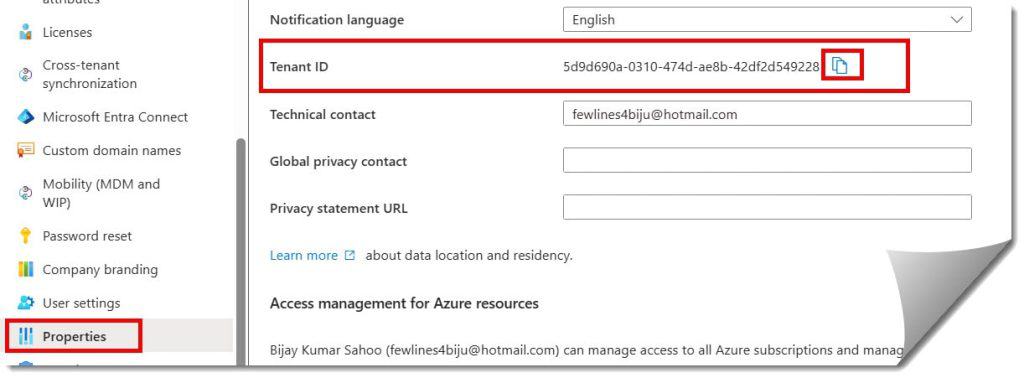
- Here, you will see a field labeled Tenant ID (it was previously called “Directory ID” in older versions of the portal).
- Click the copy icon next to the value. Check out the screenshot below for your reference.

Advanced Tips
Finding Tenant ID for Multiple Tenants using Directories + Subscriptions option
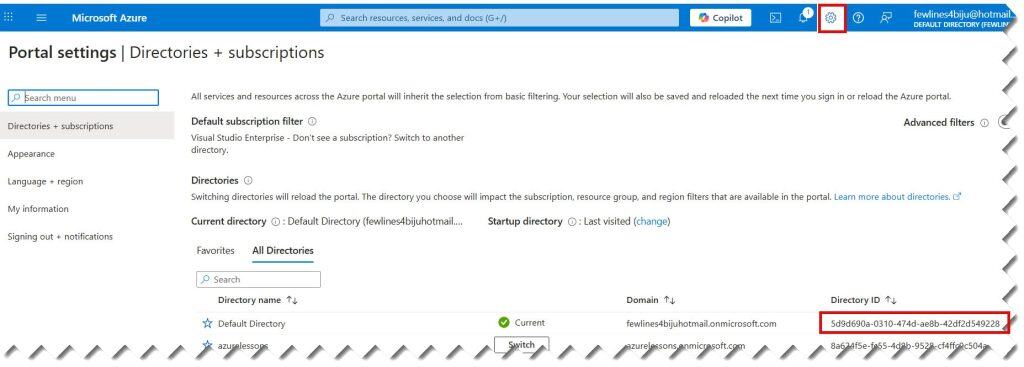
- Click the Directories + Subscriptions icon (the filter icon) in the top toolbar.
- The list will show all directories you have access to.
- Note that you must switch to the specific directory first using the “Switch” button before the Overview page will display that specific Tenant ID. Check out the screenshot below for your reference.
Also, Check out How to get tenant id in Azure using PowerShell and Azure CLI.
Common Troubleshooting Questions
“I see ‘Directory ID’ instead of ‘Tenant ID’. Is it the same thing?”
Yes. In earlier versions of the portal, Microsoft used the term “Directory ID.” In the current 2026 interface, “Tenant ID” is the standard term, but some older documentation or specific resource blades might still refer to it as Directory ID. They are identical.
“Can I change my Tenant ID?”
No. A Tenant ID is a permanent, immutable identifier assigned at the creation of the directory. If you need a different Tenant ID, you must create a new tenant and migrate your resources.
“Do I need specific permissions to see the Tenant ID?”
Generally, any user in the directory can view the Tenant ID via the Overview page. However, to see the “Properties” page or specific administrative details, you typically need at least the Directory Readers role.
Video Tutorial
Conclusion
Locating your Tenant ID in the Azure Portal is a simple but vital step for managing your cloud identity. By using the Microsoft Entra ID Overview page, you can find and copy this GUID in seconds.
You may also like the following articles:

I am Rajkishore, and I am a Microsoft Certified IT Consultant. I have over 14 years of experience in Microsoft Azure and AWS, with good experience in Azure Functions, Storage, Virtual Machines, Logic Apps, PowerShell Commands, CLI Commands, Machine Learning, AI, Azure Cognitive Services, DevOps, etc. Not only that, I do have good real-time experience in designing and developing cloud-native data integrations on Azure or AWS, etc. I hope you will learn from these practical Azure tutorials. Read more.