
In this comprehensive article, I will walk you through everything you need to know about deleting resource groups using the Azure Command-Line Interface (Azure CLI). Whether you are a Cloud Architect or a developer, mastering these commands will save you time.
Table of Contents
- Azure CLI Delete Resource Group
- Video Tutorial
Azure CLI Delete Resource Group
Prerequisites:
Before we dive into the commands, let’s ensure your environment is ready. I always recommend working with the latest version of the tools to avoid compatibility issues.
1. Install Azure CLI
If you haven’t already, install the Azure CLI on your machine. Whether you are on Windows using PowerShell, macOS using Homebrew, or a Linux distribution, the installation is straightforward.
2. Authentication
Open your terminal and sign in.
Bash
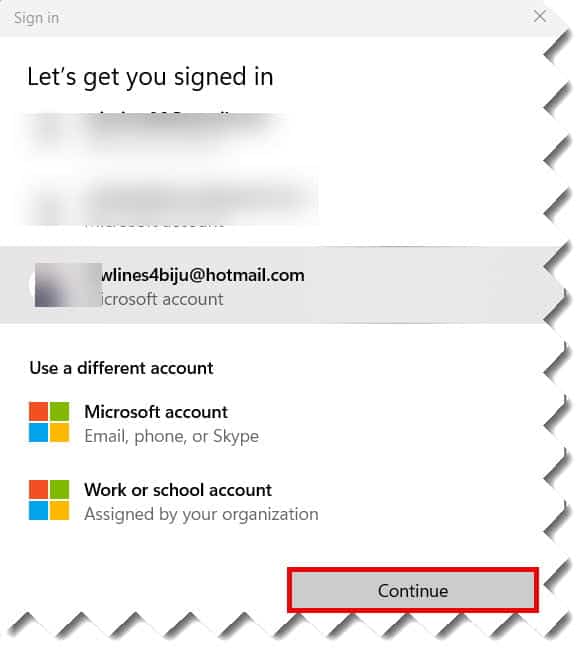
az loginThis will open your default browser (be it Edge, Chrome, or Safari). Once you authenticate with your Azure credentials, you’ll see a list of your subscriptions in the terminal. Check out the screenshot below for your reference.
3. Select the Correct Subscription
It is vital to ensure you are in the right context before hitting “delete.”
Bash
# List your subscriptions
az account list --output table
# Set the active subscription
az account set --subscription "Your-Subscription-Name"Understanding the Core Command: az group delete
The fundamental command for our task today is az group delete. It is deceptively simple but incredibly powerful. By default, this command deletes the resource group and every single resource contained within it—be it Virtual Machines, SQL Databases, or Storage Accounts.
The Syntax
The basic syntax is as follows:
Bash
az group delete --name <ResourceGroupName>Key Parameters at a Glance
| Parameter | Short Form | Description |
--name | -n | The name of the resource group you wish to destroy. |
--yes | -y | Automatically confirms the deletion (no prompt). |
--no-wait | Sends the command and returns the prompt immediately. | |
--verbose | Provides more details on the operation’s progress. |
Step-by-Step Tutorial: Deleting a Resource Group
Imagine I am working on a temporary project for a client in Chicago. I’ve created a resource group named ProjectWindyCity-RG to test some load balancers. Now that the testing phase is over, it’s time to clean up.
Step 1: Verify the Resource Group Exists
I never delete anything without verifying its existence and contents first. This is a habit that has saved me from many “oops” moments in production.
Bash
az group show --name ProjectWindyCity-RGStep 2: List Resources Within the Group
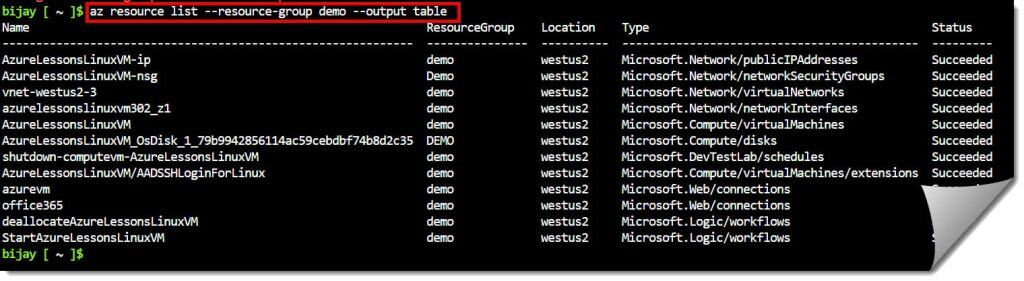
Before I pull the trigger, I want to see exactly what is going to be deleted.
Bash
az resource list --resource-group demo --output tableIf I see a production database in that list, I stop immediately.
Step 3: Execute the Delete Command
Now, I execute the deletion. Since I want to be safe, I’ll run it without the “yes” flag first to see the confirmation prompt.
Bash
az group delete --name helloaiThe CLI will ask: Are you sure you want to perform this operation? (y/n):
I type y and hit Enter.
Check out the screenshot below for your reference.

Advanced Techniques: Speed and Automation
If you are a seasoned engineer, you don’t have time to wait for a command to finish. You need to move on to the next task.
Using the --no-wait Parameter
Deleting a resource group can take anywhere from 30 seconds to 20 minutes, depending on the complexity of the resources (like Managed Instances or complex Networking). The --no-wait flag is a game-changer.
Bash
az group delete --name helloai --no-wait --yesThis command tells Azure: “Start the deletion process, don’t ask me for confirmation, and give me back control of my terminal immediately.”
Tracking Progress After “No-Wait”
If you used the --no-wait flag but suddenly get curious about the status, you can check it using:
Bash
az group show --name helloai --query properties.provisioningStateIf the group is still being deleted, it will return Deleting. Once it’s gone, the command will return an error stating the group was not found.
Summary of Commands
For your convenience, here is a quick-reference table for the commands we’ve discussed.
| Task | Azure CLI Command |
| List all groups | az group list -o table |
| Basic delete | az group delete -n <name> |
| Delete without prompt | az group delete -n <name> -y |
| Delete in background | az group delete -n <name> --no-wait -y |
| Check group status | az group show -n <name> --query properties.provisioningState |
Video Tutorial
Conclusion
Mastering the Azure CLI delete resource group command is a fundamental skill for any cloud professional. It moves you away from the manual “click-ops” mentality and toward a more automated, professional workflow. By understanding the use of the --no-wait flag, handling resource locks, and verifying your context, you can manage your Azure environment with the confidence of an expert.
You may also like the following articles:

I am Rajkishore, and I am a Microsoft Certified IT Consultant. I have over 14 years of experience in Microsoft Azure and AWS, with good experience in Azure Functions, Storage, Virtual Machines, Logic Apps, PowerShell Commands, CLI Commands, Machine Learning, AI, Azure Cognitive Services, DevOps, etc. Not only that, I do have good real-time experience in designing and developing cloud-native data integrations on Azure or AWS, etc. I hope you will learn from these practical Azure tutorials. Read more.
