
In this article, I’m going to provide a guide to Azure Data Studio, showing you why it’s becoming the go-to environment for data professionals across the globe.
Azure Data Studio
What is Azure Data Studio?
Azure Data Studio is a cross-platform desktop environment for data professionals using the family of on-premises and cloud data platforms on Windows, macOS, and Linux.
Think of it as the “Visual Studio Code” for databases. In fact, it is built on the same Electron framework as VS Code. It’s lightweight, highly extensible, and designed specifically for the person who spends their day writing queries, managing notebooks, and deploying to the cloud.
Step 1: Getting Started with Installation
- Download: Navigate to the official Microsoft download page.
- Platform Choice: Select the installer for your OS (User Installer for Windows is usually best for those without local admin rights).
- The “Welcome” Screen: Upon first launch, you’ll notice the “Connection” pane on the left. This is your command center.
Check out the below articles for thr complete steps
Creating Your First Connection
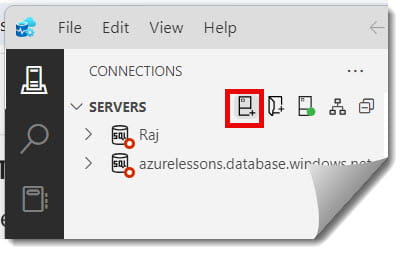
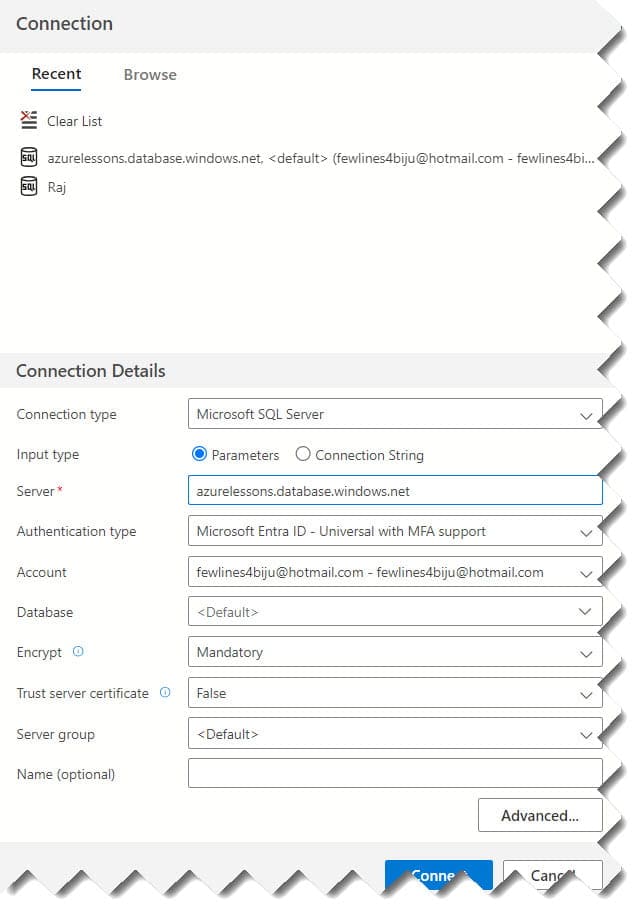
- Click the New Connection icon.
- Server Name: Enter your server (e.g.,
PROD-SQL-EAST-01.database.windows.net). - Authentication: For most US enterprise users, Microsoft Entra ID (formerly Azure AD) – Universal with MFA is the gold standard for security.
- Database: Select your target database or leave it as
<Default>.
Check out the screenshot below for your reference.
Step 2: Mastering the Modern Query Editor
The query editor in ADS feels snappier than SSMS and includes features that modern developers expect.
Intelligent Code Completion (IntelliSense)
ADS uses the same engine as VS Code, meaning the IntelliSense is incredibly responsive. As you type SELECT * FROM, it doesn’t just suggest tables; it suggests snippets and common joins based on your schema.
Smart Snippets
If you find yourself constantly writing the same INSERT or JOIN logic, ADS allows you to create Custom Snippets.
- Type
sqlin the editor, and a list of T-SQL templates appears. - This is a massive time-saver for teams in high-velocity environments like Fintech.
Step 3: The Power of SQL Notebooks
If there is one “excellent feature” that makes ADS stand out, it is SQL Notebooks. Inspired by Jupyter Notebooks, these allow you to combine executable SQL code with formatted Markdown text.
Why Notebooks are a Game Changer
Imagine a “Database Onboarding” notebook:
- Text Cell: “Welcome to the Marketing Database. Please run the following script to check your permissions.”
- Code Cell:
SELECT * FROM sys.database_permissions WHERE grantee_principal_id = USER_ID(); - Text Cell: “If you see ‘SELECT’ rights, you are good to go.”
This makes documentation executable. No more copying scripts from a Word doc.
Step 4: Data Visualization and Dashboards
Built-in Charting
When you run a query in ADS, a small chart icon appears on the right of the results grid.
- Run a query like
SELECT Category, SUM(Sales) FROM Orders GROUP BY Category. - Click the Chart icon.
- Choose Bar, Pie, or Line.
- Save as Image: You can immediately drop this into a PowerPoint for your Seattle-based executive team.
Insight Widgets
You can customize the “Server Dashboard” to show “Insight Widgets.” These are small graphs that run every time you click on a server connection, showing things like “Top 5 Slowest Queries” or “Database Size Growth.”
Step 5: Extensions – Personalizing Your Workspace
The extension marketplace is where ADS truly shines. For my clients who work in hybrid cloud environments, these are the “Must-Haves”:
- SQL Server Import: A streamlined wizard to bring flat files (CSV, TXT) into your tables.
- Azure SQL Migration: A tool that assesses your on-premises database and helps you move it to Azure SQL Database or Managed Instance.
- PostgreSQL/MySQL: Yes, ADS is not just for SQL Server. You can manage your entire data stack in one tool.
- GitHub Copilot: For the modern developer, having AI-assisted T-SQL writing is a force multiplier.
Step 6: Terminal and Version Control Integration
For those of us moving toward Database DevOps, the integrated terminal and Git support are vital.
Integrated Terminal
You don’t need to switch windows to run sqlcmd or powershell scripts. You can open a terminal directly inside ADS ( Ctrl + ` ).
Git Integration
If you store your SQL scripts in a repository (like Azure Repos or GitHub), ADS tracks your changes.
- Click the Source Control icon.
- View your “Diffs” (what you changed vs. what is in the repo).
- Commit and Push: All without leaving your database tool. This is the level of professionalism expected in Silicon Valley engineering teams.
Step 7: Managing Azure Resources Directly
As the name suggests, Azure integration is deep.
The Azure Pane
On the left sidebar, click the Azure icon (it looks like a cloud).
- Sign in with your corporate credentials.
- You can now browse all your Azure SQL Databases, Managed Instances, and Cosmos DB accounts across all your US subscriptions.
- Right-click to Connect: No more hunting for connection strings in the Azure Portal.
Conclusion:
Azure Data Studio isn’t just a replacement for your old query window; it is a platform that aligns with the way modern data teams work. It bridges the gap between the “Traditional DBA” and the “Cloud Developer,” providing a unified interface for the entire US tech ecosystem.
Whether you are writing complex T-SQL in a Manhattan skyscraper or analyzing data trends from a home office in Portland, Azure Data Studio provides the speed, flexibility, and cloud integration you need to stay ahead.
You may also like the following articles:
- Azure Data Studio Vs SSMS
- How To Enable Preview Features In Azure Data Studio
- How to connect to Azure sql Database from Azure Data Studio

I am Rajkishore, and I am a Microsoft Certified IT Consultant. I have over 14 years of experience in Microsoft Azure and AWS, with good experience in Azure Functions, Storage, Virtual Machines, Logic Apps, PowerShell Commands, CLI Commands, Machine Learning, AI, Azure Cognitive Services, DevOps, etc. Not only that, I do have good real-time experience in designing and developing cloud-native data integrations on Azure or AWS, etc. I hope you will learn from these practical Azure tutorials. Read more.