
In this comprehensive article, I will walk you through how to use Azure Migrate Assessment to evaluate your enterprise estate, optimize workload sizing, and build an airtight business case for your migration to Microsoft Azure.
Azure Migrate Assessment
What is an Azure Migrate Assessment?
At its core, Azure Migrate Assessment is an intelligence layer built into the central Azure Migrate portal. Instead of relying on static inventory spreadsheets or manual server surveys, Azure Migrate deploys a lightweight appliance into your local environment to continuously discover servers, databases, web applications, and file shares.
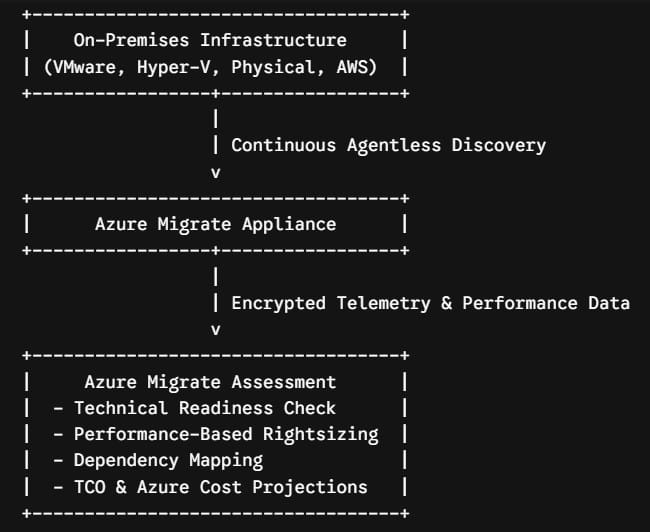
Once telemetry is gathered, the assessment engine evaluates your estate against Azure infrastructure targets. It provides answers to four critical questions every Chief Technology Officer (CTO) asks:
- Readiness: Are my current workloads technically compatible with Azure?
- Sizing: What specific Azure VM SKUs, SQL tiers, or App Service plans match my workload requirements without over-provisioning?
- Cost: What will my monthly Azure bill look like, taking into account Azure Hybrid Benefit and Reserved Instances?
- Dependencies: Which servers talk to each other, and which applications must be migrated together to avoid latency breakdown?
Architectural Insight: An assessment is a non-destructive, read-only exercise. It runs in parallel with your production workloads without impacting performance or modifying local configurations.
The Key Benefits of Running an Assessment First
- Eliminates Over-Provisioning: On-premises hypervisors are notoriously over-provisioned. A physical server might have 64 vCPUs allocated, but performance telemetry might reveal it operates at under 8% average CPU usage. Azure Migrate rightsizes your cloud footprint based on actual utilization rather than allocated capacity, frequently cutting projected cloud costs by 30% to 50%.
- Identifies Blockers Early: Obsolete operating systems, non-standard disk formats, unsupported database configurations, or unsupported kernel versions are surfaced during the assessment phase—allowing your team to remediate issues before scheduling migration waves.
- Maps Unregistered Dependencies: In legacy datacenters, documentation is rarely up to date. Automated dependency analysis reveals hidden database connections, background API calls, and shared network drives that would otherwise cause application outages post-migration.
- Generates Board-Ready Business Cases: Azure Migrate includes a built-in Business Case tool that pairs infrastructure costs with operational savings, carbon footprint reduction (sustainability metrics), and software licensing optimizations.
Evaluating Your Workloads: The 4 Core Assessment Types
| Assessment Type | Target On-Premises Workloads | Key Evaluation Output | Primary Cost Drivers Analyzed |
| Azure VM Assessment | VMware, Hyper-V, Physical Servers, AWS/GCP Instances | Azure IaaS VM SKU sizing, OS compatibility, disk storage types (Standard, Premium, Ultra). | vCPU count, RAM, IOPS, throughput, Azure Hybrid Benefit (AHUB). |
| Azure SQL Assessment | On-prem SQL Server instances, Failover Clusters, AGs | Modernization readiness for Azure SQL Database, Azure SQL Managed Instance, or Azure SQL VM. | Compute vCores, storage capacity, IOPS, feature parity checks. |
| Azure App Service Assessment | IIS Web Applications, ASP.NET, Java apps | Platform-as-a-Service (PaaS) compatibility for Azure App Service plans. | Port bindings, authentication providers, ISAPI filters, web config settings. |
| Azure Files & Storage | On-premises SMB and NFS file shares (Windows/Linux) | Azure Files SKU recommendations (Standard vs. Premium, redundant media types). | Total storage volume, active file throughput, churn rates, redundancy needs. |
The 4-Step Azure Migrate Assessment Workflow
To execute an accurate assessment, follow this structured, phased workflow across your enterprise infrastructure.
1. Deploy the Azure Migrate Appliance:1 – 2 Hours.
Download and deploy the lightweight appliance VM (OVA for VMware, VHD for Hyper-V, or script for physical servers) into your local environment. Connect the appliance to your Azure Migrate project using secure outbound HTTPS credentials.
2. Execute Agentless Continuous Discovery: 1- 30 Days.
Allow the appliance to discover inventory across hypervisors and OS guest layers. Enable agentless application discovery to identify running software, installed roles, and database instances across your enterprise servers.
3. Analyze Application Dependencies: Continuous Monitoring.
Enable agentless dependency analysis across critical server groups. The appliance captures incoming and outgoing TCP connections to map multi-tier application architectures and identify dependent server groups.
4. Configure & Run Assessment Reports: Interactive Analysis.
Create targeted assessment reports inside the Azure portal. Customize properties including target Azure region, sizing criteria (performance-based vs. as-on-premises), percentile utilization (P95/P99), comfort factors, and licensing options.