
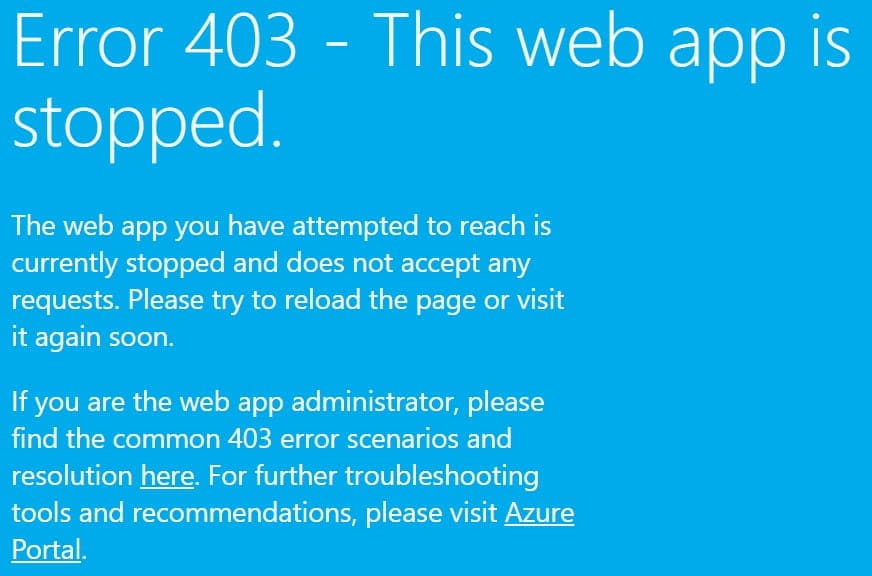
When you see the Error 403 – This web app is stopped message in Azure, it usually means your Web App (App Service) or Azure Function is either physically stopped or has reached a specific platform limit.
Surprisingly, the error can also be misleading—appearing even when your app is technically “Running” but the platform is blocking access due to configuration issues.
Error 403 – This web app is stopped. Azure
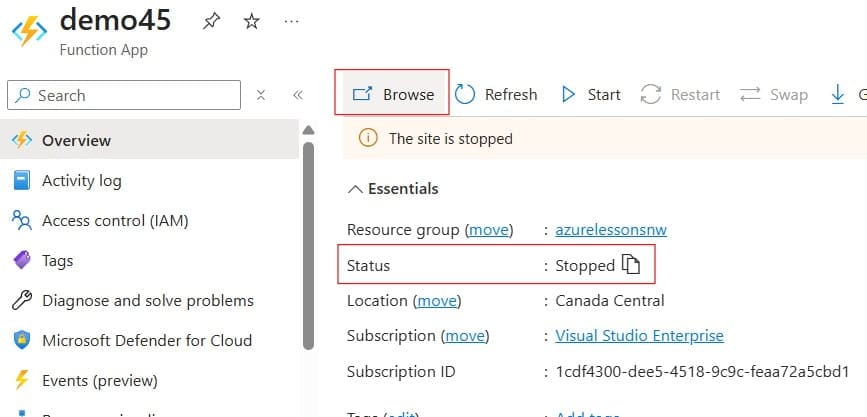
Recently, I tried to open one of my Azure Function apps, but I got this error. Check out the screenshots below for your reference.
Solution -1: Restart the App Service
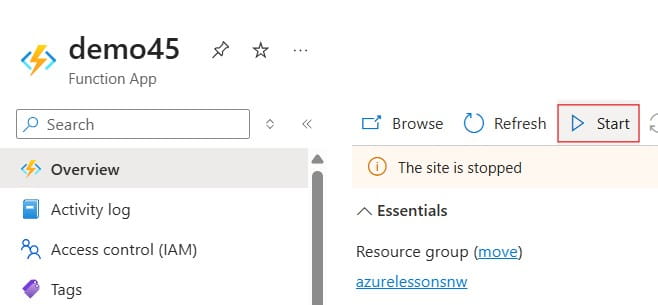
To solve this issue, I logged in to the Azure Portal and verified that the status of the Azure function was Stopped. Now, what I had done was just start the Azure Function app using the start button, as shown in the screenshot below.

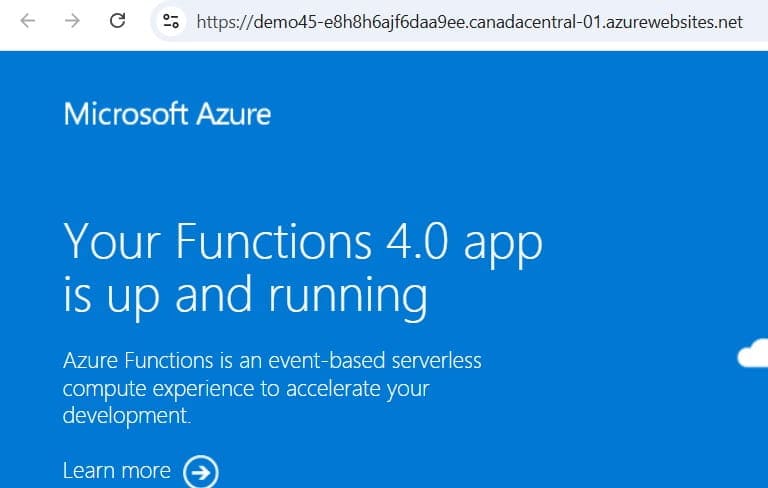
Now, I refreshed the Azure function url and you are able to see the Azure function is up and running without any issue.
If the above soution didn’t work for you try the below solutions.
Solution -2: Physical State & Billing Checks
The most common and direct causes are related to the app’s status in the Azure Portal or the health of your subscription.
- App is Stopped in Portal: Navigate to your Web App in the Azure Portal. Check the Status on the Overview page. If it says Stopped, click the Start button at the top.
- Billing / Spending Limit: If you are using a Free Trial or a subscription with a spending limit, Azure will automatically stop all services once that limit is reached.
- Fix: Check your Azure Account Center to ensure your subscription is “Active.”
- Resource Quota Limit: This happens most often on Free or Shared tiers. If your app exceeds its daily “Data Out,” “CPU,” or “Memory” quota, it will be suspended until the next 24-hour cycle begins.
- Fix: Go to the Quotas blade in the portal. You can wait for the reset (it will show “Resets in X hours”) or Scale Up to a Basic or Standard tier where quotas do not apply.
Solution -3:Network & Domain Restrictions
Sometimes the app is running, but Azure returns the “Stopped” 403 error because the request is being blocked before it reaches your code.
- Custom Domain Validation: If you recently added a custom domain and the validation is still “Pending” or “Failed,” Azure may serve this error.
- Fix: Ensure the domain is fully validated in the Custom domains tab.
- IP Restrictions: If you have configured Access Restrictions (firewall rules), and your current IP address isn’t on the “Allow” list, you may see a 403.
- Fix: Go to Settings > Networking > Access Restrictions and ensure your IP is allowed.
- Static Web App Restriction: For Azure Static Web Apps, high abnormal traffic can trigger automatic edge restrictions, causing this specific error message even if the app is healthy.
Quick Troubleshooting Steps
If you aren’t sure which issue you are facing, try these steps in order:
- Test the Default URL: Browse to your app using the
*.azurewebsites.netor*.azurestaticapps.netURL. If this works but your custom domain doesn’t, the issue is DNS or Domain Validation. - Restart the App: Even if the status says “Running,” a platform glitch can occur. Use the Restart button in the portal to refresh the instance.
- Check Service Health: Look at the Service Health or Resource Health blade in Azure to see if there is a regional outage affecting your App Service plan.
Video Tutorial
You may also like the following articles:
- Azure App Service 500 Internal Server Error
- Backup/Restore to URL device error
- An error happened while reading data from the provider
- The remote server returned an error: (400) Bad Request.

I am Rajkishore, and I am a Microsoft Certified IT Consultant. I have over 14 years of experience in Microsoft Azure and AWS, with good experience in Azure Functions, Storage, Virtual Machines, Logic Apps, PowerShell Commands, CLI Commands, Machine Learning, AI, Azure Cognitive Services, DevOps, etc. Not only that, I do have good real-time experience in designing and developing cloud-native data integrations on Azure or AWS, etc. I hope you will learn from these practical Azure tutorials. Read more.