
If you are looking to streamline your workflow using Azure DevOps, understanding how to create a team is the fundamental first step to a structured, high-velocity machine. In this article, I will walk you through the nuances of team management in Azure DevOps, ensuring your project structure supports long-term growth and cross-functional collaboration.
Table of Contents
- How To Create A Team In Azure DevOps
- Video Tutorial
How To Create A Team In Azure DevOps
The Strategic Importance of Teams in Azure DevOps
In Azure DevOps, a Team is more than just a list of names. It is a sub-unit of a Project that possesses its own dedicated tools, including:
- Product Backlogs and Boards: Each team can view its specific work without the noise of the entire organization.
- Dashboards: Teams can track their own velocity and burn-down charts.
- Sprint Cadences: Different teams can operate on different schedules if necessary (though alignment is usually better).
- Capacity Planning: You can track the individual availability of team members within that specific unit.
Prerequisites:
To follow this tutorial, you must ensure:
- Project Administrator Rights: You must belong to the Project Administrators group or have the “Edit project-level information” permission set to “Allow.”
- An Existing Project: Teams live inside Projects. If you haven’t created a Project yet, that is your step zero.
- Stakeholder/Basic Access: Ensure the users you intend to add to the team have at least “Basic” access level to contribute to the boards.
Step-by-Step Tutorial: Creating a Team in Azure DevOps
Let’s dive into the core process. I will guide you through the Azure DevOps portal as if we were setting up a new engineering squad for a high-priority launch.
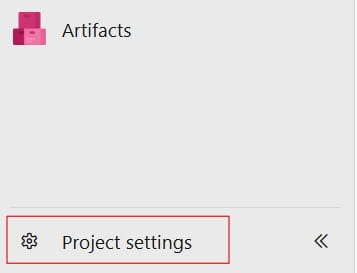
Log into your Azure DevOps organization (e.g., [dev.azure.com/YourOrganization](https://dev.azure.com/YourOrganization)). Select the project where your team will reside. Once inside, look at the bottom-left corner of the screen and click on Project Settings. Check out the screenshot below for your reference.
Step 2: Access the Teams Configuration
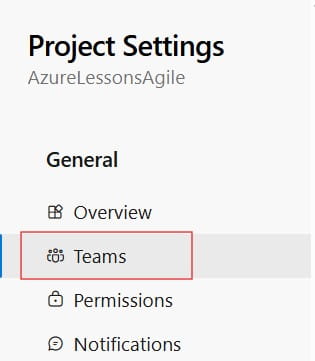
Under the General section of the settings menu, click on Teams. Here, you will see a list of existing teams. By default, Azure DevOps creates a “Default Team” named after your project (e.g., AzureLessons-Project Team). While small startups might stick with the default, enterprise-scale operations require specialized teams like Backend-Squad, Mobile-UX, or Cloud-Ops. Check out the screenshot below for your reference.
Step 3: Initiate “New Team”
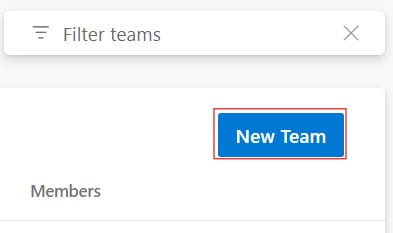
Click the New Team button at the top right. A configuration panel will slide out. This is where your organizational standards come into play. Check out the screenshot below for your reference.
Step 4: Define Team Details
Fill out the following fields with precision:
- Team Name: Use a clear, descriptive name. For example, Alpha-Commerce-Engine.
- Members: You can start adding users by typing their names or email addresses. In a USA-based corporate directory, these are usually synced via Microsoft Entra ID (formerly Azure AD).
- Description: Briefly state the team’s mission (e.g., “Responsible for the checkout and payment gateway microservices”).
- Area Path: This is critical. By default, it creates a new area path for the team. This is how Azure DevOps knows which Work Items belong to this team’s board.
Check out the screenshot below for your reference.


Configuring Team Visibility and Permissions
Creating the team is only half the battle. As an authoritative admin, you must configure how that team interacts with the rest of the project.
Managing Team Administrators
I highly recommend appointing at least two Team Administrators. This decentralizes control, allowing the team lead or Scrum Master to manage their own members and sprint settings without bugging the Project Admin for every small change.
Team Permissions Matrix
| Permission Level | Description | Recommended For |
| Team Admin | Can configure boards, backlogs, and team members. | Scrum Masters, Tech Leads |
| Contributor | Can create and edit work items, contribute to code. | Developers, QA Engineers |
| Reader | Can view work but cannot modify. | Stakeholders, Project Sponsors |
Setting Up Backlogs, Boards, and Sprints
Once the team is created, it won’t be fully functional until you define its working parameters.
Area Paths and Iteration Paths
- Area Paths: Think of this as the “Department.” It filters the work items. You must ensure the team’s “Default Area” is set correctly so that when a dev creates a bug, it automatically shows up on the right board.
- Iteration Paths (Sprints): You need to select which sprints the team will participate in. Navigate to Team Configuration > Iterations and click “Select Iterations” to add the upcoming milestones to the team’s schedule.
Pro-Tips for Managing Large-Scale Teams
A few “golden rules” for Azure DevOps team management:
- Avoid “Flat” Structures: If you have 50 people in one team, your Kanban board will be unreadable. Break them into smaller functional squads of 5-9 people.
- Synchronize Iterations: Unless you have a very specific reason not to, keep all teams on the same sprint heartbeat (e.g., 2-week cycles starting on Wednesday). This makes “Big Room Planning” much easier.
- Use Team Groups for Security: Instead of adding 20 people individually to every repository, add them to the Team, and then give the Team Group access to the Repo or Pipeline.
Common Troubleshooting: “Why Can’t My Team See Their Work?”
If your team members are looking at an empty board, check these three things:
- The Area Path Mismatch: Check if the Work Items are assigned to an Area Path that the team hasn’t “subscribed” to in their settings.
- Access Levels: Ensure the user isn’t accidentally set to “Stakeholder” access if they need to move items on the Kanban board (Stakeholders have limited board interaction).
- Iteration Dates: If the “Current Sprint” is empty, verify that today’s date actually falls within the start and end dates defined in the Project Iterations.
Video Tutorial
Conclusion:
Creating a team in Azure DevOps is the gateway to professional-grade Project Management. By following this structured approach, you aren’t just “adding users to a list”—you are building high-performance environment where developers can focus on what they do best.
You may also like the following articles:
- How To Add Feature To Epic In Azure DevOps
- How To Copy Tasks In Azure DevOps
- Azure DevOps Tutorial For Beginners
- How To Use Azure Devops For Project Management

I am Rajkishore, and I am a Microsoft Certified IT Consultant. I have over 14 years of experience in Microsoft Azure and AWS, with good experience in Azure Functions, Storage, Virtual Machines, Logic Apps, PowerShell Commands, CLI Commands, Machine Learning, AI, Azure Cognitive Services, DevOps, etc. Not only that, I do have good real-time experience in designing and developing cloud-native data integrations on Azure or AWS, etc. I hope you will learn from these practical Azure tutorials. Read more.
