
In this article, I will walk you through the precise mechanics of why Azure App Service throws a 500 Internal Server Error and show you exactly how to fix it, ensuring your production infrastructure is resilient, secure, and running at peak performance.
Azure App Service 500 Internal Server Error
Demystifying the Azure App Service HTTP 500 Error
Before we start modifying configuration files, we need to understand the underlying layers of an Azure App Service. When an application throws a 500 error, the breakdown is happening at one of two distinct layers:
The Web Server Layer (IIS / Nginx)
The request successfully traversed the internet, bypassed Azure’s front-end load balancers, and reached the worker instance hosting your App Service. However, the web server engine (IIS on Windows workers or Nginx/Apache on Linux containers) encountered a structural configuration issue, such as a corrupted web.config file, a missing module, or an invalid routing rule—and choked before it could pass the request to your application code.
The Application Code Layer
The web server successfully handed the incoming HTTP request over to your runtime (e.g., .NET, Node.js, Python, or Java). However, during execution, your code threw a fatal runtime exception—such as a null reference, a database connection failure, or a dependency timeout—that wasn’t wrapped in a try-catch block. Lacking instructions on how to handle the failure, the runtime crashed the request thread and returned a standard 500 status code to the server shell.
Preliminary Triage: The “Quick Wins”
When consulting for enterprise clients in tech hubs like Seattle or Charlotte, I always teach my engineering teams to check the simplest explanations first. Roughly 30% of HTTP 500 instances are caused by platform oversights rather than complex code defects.
Run App Service Diagnostics
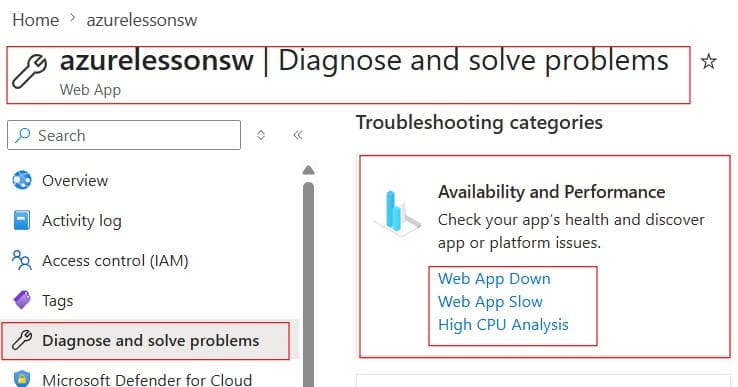
Azure provides an exceptional built-in troubleshooting tool called Diagnose and solve problems. This tool hooks directly into the App Service platform telemetry and can instantly spot obvious infrastructure issues.
- Navigate to your Web App in the Azure Portal.
- In the left-hand sidebar, click on Diagnose and solve problems.
- Select the Availability and Performance category and run the Web App Down or HTTP Server Errors analysis.
- Review the automated findings. If your app is hitting a CPU thread lock or memory exhaustion threshold, Azure will tell you right here. Check out the screenshot below for your reference.
The Power of a Cold Start (Restart vs. Advanced Tools)
If your app is stuck in a deadlocked state due to a frozen background thread or a leaking static memory cache, a standard restart from the Azure Portal overview blade may not fully clear the worker process. Instead, use the Advanced Tools (Kudu) to execute a hard process recycle.
Step-by-Step Guide: Accessing the “Source of Truth” Logs
If application diagnostics didn’t yield an immediate answer, you must pull back the curtain and look at the raw error logs. To do this, you need to enable App Service Logs. By default, Azure disables detailed error logging to save storage space and boost performance.
Step 1: Turn on Application Logging
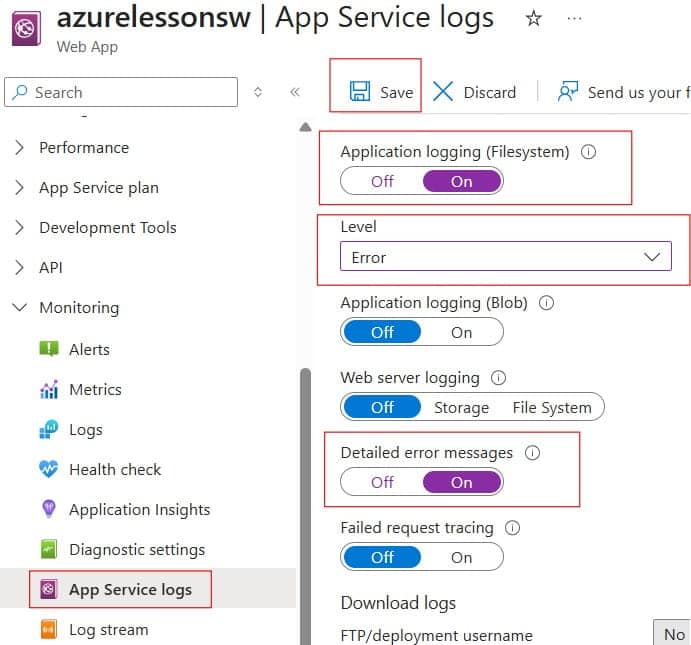
- Scroll down to the Monitoring section in your App Service menu and click on App Service logs.
- Toggle Application Logging (Filesystem) to On and set the level to Error or Information.
- Toggle Detailed error messages to On (this captures raw IIS/server-level html error pages).
- Click Save at the top of the blade. Check out the screenshot below for your reference.
Step 2: Use the Log Stream for Real-Time Insights
With logging enabled, you can watch the crash happen in real-time as you replicate the error in your browser.
- Click on Log stream directly under the App Service logs menu item.
- Refresh the broken page of your website. The stack trace of the unhandled code exception will stream directly onto your terminal view.
Troubleshooting the Windows Web.config Trap
If you are running a Windows-based App Service (highly common for legacy .NET Framework or .NET Core web apps), a major cause of an immediate HTTP 500 error is a malformed or invalid web.config file.
If there is a syntax error in your XML structure—such as an unclosed tag, a duplicated section handler, or an invalid module reference—IIS will instantly throw an internal server error before a single line of your custom C# code executes.
Common XML Configuration Blunders
- Duplicate
system.webServerSections: If your deployment pipeline merges multiple configuration files and accidentally duplicates the<system.webServer>tag, the server will crash with a 500 error. - Missing Core Modules: If your code relies on an IIS module that isn’t native to the Azure App Service multi-tenant worker environment (such as specific URL rewrite rules or custom compression modules), the initialization process will fail.
Testing the Web.config via Kudu
- Navigate to Advanced Tools under the Development Tools section of your App Service menu and click Go. This opens the Kudu console.
- Click on Debug console in the top menu and select CMD.
- Navigate to
site\wwwroot. - Locate your
web.configfile. You can click the edit icon to verify its XML syntax or temporarily rename it to see if the application switches from an HTTP 500 error to a standard directory listing error, isolating the config file as the source of the crash.
Resolving Linux Container Startup and Port Failures
If your enterprise has modernized its infrastructure and is hosting applications on Linux App Services (running native Node.js, Python, PHP, or custom Docker images), the anatomy of a 500 error looks quite different.
On Linux workers, Azure uses an architecture called Oryx to build and run your application code inside an optimized container wrapper. A 500 error here usually indicates that the container failed to initialize cleanly or crashed immediately after booting.
The Port Exposure Rule
Azure App Services expect your application container to listen for web traffic on port 80 or port 8080. If your custom Go or Node.js application is hardcoded to listen exclusively on a non-standard port like 3000 or 5000, the Azure container manager will repeatedly try to ping the container over port 80. After a specific timeout window, the platform assumes the container is unhealthy, tears down the routing path, and returns an HTTP 500 error to the client.
The Fix: WEBSITES_PORT Configuration
To bridge this gap without rewriting your application code, you can explicitly instruct Azure which port your container is using by injecting a platform environment variable.
| Setting Name | App Setting Value | Recommended For… |
|---|---|---|
| WEBSITES_PORT | 3000 (or your custom port) | Custom Docker containers and non-standard web runtimes. |
| SCM_DO_BUILD_DURING_DEPLOYMENT | true | Forcing Oryx to run custom build scripts during deployment. |
Export to Sheets
Go to Settings > Configuration (or Environment variables), add the appropriate key-value pair, and save your changes to trigger a clean container rebuild and resolve port mapping bottlenecks.
Advanced Diagnostics:
As an authoritative practitioner, I must emphasize that a significant percentage of 500 Internal Server Errors are completely external to the App Service instance itself. They are caused by transient database timeouts.
Imagine your web application, hosted in a Dallas data center, tries to execute a heavy report query against an Azure SQL Database or an external database instance. If that database is currently under high load, experiencing high lock contention, or undergoing maintenance, it will keep the connection open.
If your code doesn’t have an explicit, defensive timeout rule, the App Service thread will wait. Eventually, the internal request timeout threshold of the web server engine is crossed, the server cuts the cord, and returns a 500 error to the browser.
The Professional Tool: PowerShell App Service Kudu Connection Test
To determine if the network path between your App Service container and your database engine is fully clear, execute a true TCP socket handshake from within the Azure environment. Open the Kudu CMD console and attempt a connection check using standard database port mappings:
DOS
tcpping your-sql-database-server.database.windows.net:1433Analyzing the Connection Response Matrix:
- Connected to… Port 1433 – True – The network plumbing and database firewall rules are completely clear. If you are seeing an HTTP 500 error during data operations, the issue lies inside your database’s capacity constraints (e.g., CPU maxing out at 100%) or unhandled data type mapping exceptions within your ORM framework.
- Connection Timeout / Failed – The App Service is being blocked from talking to the database. Double-check your database’s Firewall and Virtual Networks settings. You must ensure that the “Allow Azure services and resources to access this server” switch is explicitly set to “Yes.”
9. Conclusion
Resolving an “Azure App Service 500 Internal Server Error” message isn’t a matter of luck; it is a matter of methodical elimination. By tracing the request path from the physical platform health, up through the web server’s core configuration files, past network firewall dependencies, and finally into the runtime engine logs of the application layer, you can isolate and resolve the bottleneck with absolute certainty.
You may also like the following articles:
- Azure App Service Deployment Slots
- Azure VM Not Starting
- Cannot Access Azure Portal
- Error 403 – This web app is stopped. Azure

I am Rajkishore, and I am a Microsoft Certified IT Consultant. I have over 14 years of experience in Microsoft Azure and AWS, with good experience in Azure Functions, Storage, Virtual Machines, Logic Apps, PowerShell Commands, CLI Commands, Machine Learning, AI, Azure Cognitive Services, DevOps, etc. Not only that, I do have good real-time experience in designing and developing cloud-native data integrations on Azure or AWS, etc. I hope you will learn from these practical Azure tutorials. Read more.