
In this article, I will take you through my professional, systematic workflow for diagnosing and fixing an Azure VM that won’t start.
Azure VM Not Starting
Initial Triage: The “Quick Wins”
Before we dive into the deep logs, let’s rule out the most common high-level blockers. In my experience, 40% of startup issues are resolved in this first phase.
Check Resource Health
Azure provides a built-in diagnostic tool called Resource Health. It tells you if Microsoft is aware of an underlying platform issue in the specific US datacenter (like US East or US West 2) where your VM resides.
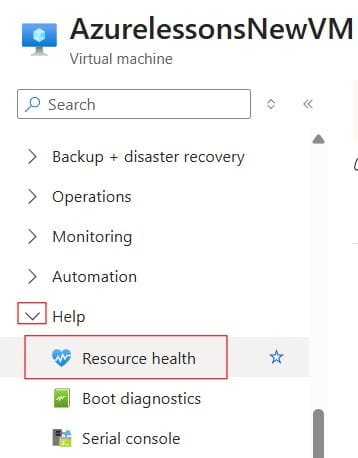
- The Workflow: Navigate to your VM in the Portal > Help > Resource Health.
- What to Look For: If the status is anything other than “Healthy,” the problem likely lies with Azure’s host infrastructure. Check out the screenshot below for your reference.
The Power of a Cold Start
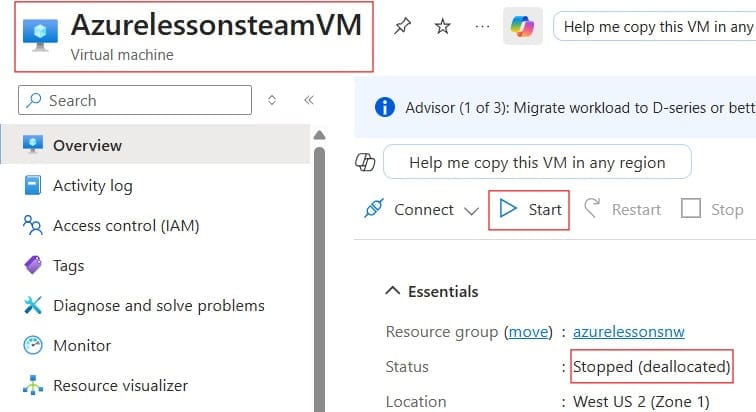
If your VM was recently “Stopped” (not deallocated), it might be pinned to a host that is currently under maintenance or experiencing a localized fault.
- The Fix: Ensure the VM is in the Stopped (deallocated) state. This releases the physical hardware lease. When you click Start again, Azure will find a new, healthy physical host to run your workload. Check out the screenshot below for your reference.
Decoding Allocation Failures
This is perhaps the most frustrating error: “Allocation failed. We do not have sufficient capacity for the requested VM size in this region.”
Why It Happens
Azure datacenters have finite physical racks. High-demand regions—like US East—can occasionally run out of specific “SKUs” or VM sizes (like the D-series or E-series). This often happens when you try to start a VM that has been deallocated for a long time; the hardware that once held it is now occupied by someone else.
The Architect’s Workarounds
- Retry After a Few Minutes: Capacity is dynamic. Someone else might deallocate their VM while you wait, freeing up a slot for you.
- Resize the VM: This is my “nuclear option.” If a
Standard_D4s_v3isn’t available, try aStandard_D4s_v4or a different series with similar specs. This forces Azure to look at a different cluster of physical hardware. - Try a Different Availability Zone: If your VM isn’t pinned to a specific zone, try moving it to Zone 2 or 3 within the same region.
The “Deep Dive”: Boot Diagnostics
If the VM “starts” in the portal but you can’t RDP or SSH into it, the OS is likely stuck. This is where Boot Diagnostics becomes your best friend.
Viewing the Serial Log and Screenshot
I never troubleshoot a VM without looking at the “Screenshot” under Help > Boot diagnostics. It’s the equivalent of standing in front of a physical monitor in a server room.
Common Visual Cues:
| Visual Error | Likely Culprit | Professional Fix |
| Windows Update (100% Complete) | A hung update cycle. | Wait up to 30 mins; then use the Serial Console to revert. |
| Blue Screen (BSOD) | Driver corruption or disk error. | Use the “VM Repair” commands (see Section 4). |
| Linux Kernel Panic | Incompatible kernel update. | Boot into an older kernel via Serial Console. |
| Black Screen | OS is waiting for input (e.g., Chkdsk). | Use Serial Console (SAC) to interact with the OS. |
Advanced Repair: The “Disk Swap” Method
When a VM is fundamentally broken at the OS level (e.g., corrupted registry or failed driver), the Azure Portal won’t save you. You need to perform what I call “Open Heart Surgery” on the OS disk.
The Manual Repair Workflow
- Stop and Deallocate the broken VM.
- Detach the OS Disk from the broken VM.
- Attach the Disk as a data disk to a healthy “Rescue VM” in the same region.
- Perform Repairs: From the Rescue VM, you can run
chkdsk, fix the/etc/fstab(for Linux), or inject missing drivers into the registry. - Reattach and Swap: Move the disk back to the original VM and start it up.
The Modern Way: az vm repair
For my teams in Dallas and Seattle, I recommend using the Azure VM Repair Extension. It automates the five steps above with a single CLI command.
Bash
# Create a repair VM and attach the broken disk automatically
az vm repair create -g MyResourceGroup -n MyBrokenVM --verbose
Network and Quota Blockers
Sometimes, the VM fails to start because of “External Constraints.”
Subscription Quotas
Every Azure subscription has a limit on the number of “vCPUs” you can use in a region. If you are starting a large VM and you’ve already hit your limit for the US West region, the start operation will fail immediately.
- Check: Go to Subscriptions > Usage + quotas and filter by your region.
Locked Resources
Check if there is a Read-only Lock on the Resource Group or the VM itself. If a colleague in the Security department has placed a lock on the environment to prevent changes, Azure will block the “Power State” change.
Proactive Monitoring
A knowledgeable cloud professional doesn’t just fix errors; they prevent them.
- Enable Boot Diagnostics by Default: Never create a VM without this. It’s free (using managed storage) and saves hours of guesswork.
- Set Up Azure Service Health Alerts: Get an SMS or email the moment the US East 2 region has a platform outage.
- Use Managed Disks: Standard Unmanaged disks (VHDs in storage accounts) are prone to “Lease” issues that can prevent a VM from starting. Managed disks are the industry standard for a reason.
7. Conclusion:
Troubleshooting an Azure VM that won’t start is a process of elimination. Start with the platform health, move to allocation capacity, and finally look into the OS boot state. By the time you reach for the “Disk Swap” method, you should have a clear understanding of exactly why the machine is failing.
You may also like the following articles:

I am Rajkishore, and I am a Microsoft Certified IT Consultant. I have over 14 years of experience in Microsoft Azure and AWS, with good experience in Azure Functions, Storage, Virtual Machines, Logic Apps, PowerShell Commands, CLI Commands, Machine Learning, AI, Azure Cognitive Services, DevOps, etc. Not only that, I do have good real-time experience in designing and developing cloud-native data integrations on Azure or AWS, etc. I hope you will learn from these practical Azure tutorials. Read more.