
In this article, I will walk you through the exact process of creating an Azure AI Foundry resource. I will focus on the architectural reality of setting this up correctly the first time.
Table of Contents
Create Azure AI Foundry Resource
Understanding the Architecture: Hubs vs. Projects
Before we click a single button in the Azure Portal, you need to understand what you are actually creating. The “Foundry resource” typically refers to the Azure AI Hub.
Think of the Hub as your corporate headquarters. It holds the security policies, network connections, and compute quota. Inside that headquarters, you have individual teams working on specific tasks—these are your Projects.
Here is how I explain the hierarchy to stakeholders:
| Component | Analogy | Function |
| Azure AI Hub | The Office Building | Centralized security, identity management, networking, and resource connections (like OpenAI). |
| Azure AI Project | A Department (e.g., HR, Dev) | A workspace for developers to build apps, manage prompts, and run evaluations. |
| Connections | The Utility Lines | Links to external resources like Azure OpenAI, Azure AI Search, or Blob Storage. |
When you “create a Foundry resource,” you are building the Office Building (The Hub).
Prerequisites
To follow along with this tutorial, ensure your Azure environment is prepped.
- Azure Subscription: You need an active subscription. If you are a student or testing, the free tier might suffice, but for enterprise features, Pay-As-You-Go is standard.
- Access Control (RBAC): You must have
ContributororOwnerpermissions on the Resource Group. - Resource Group: A clean Resource Group is preferred to keep your AI assets isolated from production web apps.
Creating Your Azure AI Hub
Let’s get into the console. I will guide you through the Azure Portal interface, as it provides more granular control over the initial setup than the simplified Foundry portal.
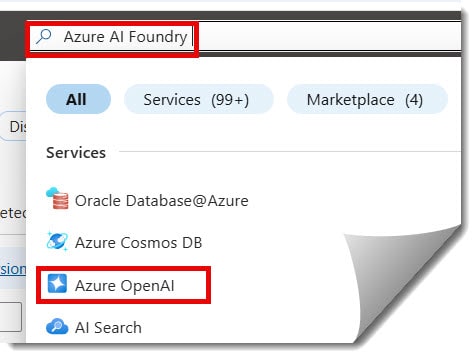
Log in to your Azure Portal. In the top search bar, type “Azure AI Foundry” . You will likely see an option for “Azure OpenAI “ under services. Click on Azure OpenAI as shown in the screenshot below.
Initiate the Create Wizard
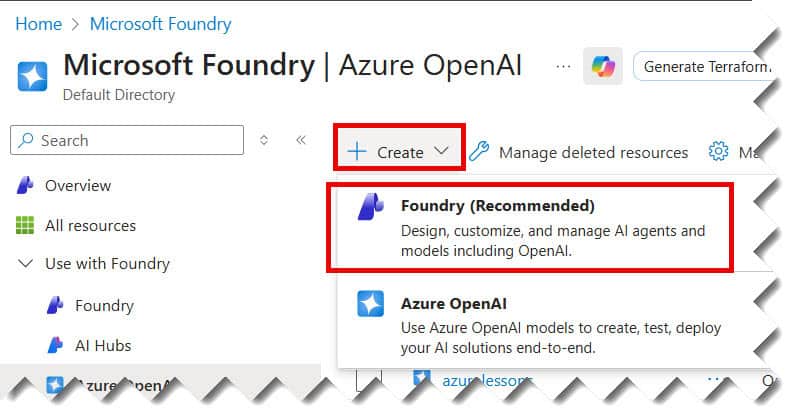
Click the + Create button dropdown and choose the Foundry (Recommended) option. You will be greeted with a setup wizard as shown in the screenshot below.
Configure Basic Details
This tab is the foundation. Here is how I configure it:
- Subscription: Select your primary development subscription.
- Resource Group: I usually use a proper name. It is a good practice to include the region in the name.
- Name: Give your Hub a globally unique name.
- Region: This is critical. Select East US 2 or West US.

Configure Dependent Resources
An AI Hub does not exist in a vacuum; it leans on other Azure services. The wizard will attempt to create new versions of these, but in an enterprise setting, you might want to link existing ones.
- Storage Account: Stores your raw data and artifacts. Standard LRS (Locally Redundant Storage) is usually fine for dev; use GRS (Geo-Redundant Storage) for prod.
- Key Vault: Stores your secrets and API keys.
- Application Insights: Critical for monitoring. Do not skip this.
- Container Registry: Required if you plan on using Prompt Flow with custom environments.


Networking and Security (The Critical Part)
You have three choices:
- Public: The easiest to set up. Accessible from the internet. Good for POCs (Proof of Concepts).
- Private with Internet Outbound: The Hub is inside a VNet but can reach out to the internet (e.g., to download Python packages).
- Private with Approved Outbound: The most secure. No internet access except to whitelisted FQDNs.

For this tutorial, if you are just starting, select Public. However, note that for any production workload handling sensitive US consumer data (PII), you must eventually migrate to a Private endpoint topology.
Review and Create
Click Review + create. Azure will run a final validation. If you see a green checkmark, hit Create.


Creating Your First Project
Once the Hub deployment is complete (it usually takes about 2-3 minutes), navigate to the resource. You are now the proud owner of an empty “Office Building.” It is time to move a team in.
Why do we need a Project?
You cannot run a prompt directly in the Hub. You need a Project to:
- Manage datasets.
- Build Prompt Flows.
- Evaluate model performance.
Steps to Create a Project
- Open your new AI Hub resource in the Azure Portal.
- Look for a button that says “Launch in Azure AI Foundry portal”. Click it.
- You will be redirected to the Foundry UI (formerly Studio).
- In the center of the screen, you will see “Create Project”.
- Project Name: Name this after the specific function. Example:
proj-customer-support-bot. - Hub: It should auto-select the Hub you just created.
- Click Create Project.

Connecting Models: The Azure OpenAI Link
A Hub without models is like a car without an engine. You need to connect an Azure OpenAI resource.
New vs. Existing Resources
If you already have an Azure OpenAI resource (e.g., one you created months ago to test GPT-3.5), you can “mount” it to your new Hub.
- Inside your Project in the Foundry portal, go to the Management center (bottom left usually).
- Select Connected resources.
- Click + New connection.
- Select Azure OpenAI.
- You can either create a new one here or select an existing one from your subscription.
Note for US Customers: Ensure your Azure OpenAI resource is in the same region as your Hub (e.g., both in East US) to minimize latency and avoid cross-region data transfer costs.
Governance and Cost Management
As we wrap up the creation process, I want to touch on two aspects that will save you headaches later: Cost and Access.
Managing Costs
Azure AI Foundry is not a single billable item; it is an aggregator. You will be billed for:
- Storage: The blobs storing your data.
- Key Vault: The secrets management.
- Inference: The actual tokens used (e.g., GPT-4 input/output tokens).
- Compute Instances: If you spin up a VM to run VS Code in the browser.
I highly recommend setting up a Cost Budget in Azure Cost Management specifically for the Resource Group creating this Hub. Set an alert at 50% and 80% of your monthly budget.
Role-Based Access Control (RBAC)
Do not give everyone Owner access. Here is a standard US enterprise role breakdown:
| Role | Who is it for? | Permissions |
| Azure AI Developer | Data Scientists | Can create projects, run flows, and deploy models within a project. |
| Azure AI Project Manager | Product Owners | Can view metrics and usage but cannot change architecture. |
| Azure AI Administrator | IT/DevOps | Full control over the Hub, networking, and security settings. |
Best Practices
- Data Residency: If you are in healthcare (HIPAA) or finance, ensure your Hub and all connected resources (OpenAI, Search) are strictly in US regions (East US, West US, Central US). Do not accidentally select a region like “East US 2 EUAP” unless you know exactly what that is (it is a testing canary region).
- Naming Conventions: Be consistent. If you use
ai-hub-prod, stick toai-proj-marketing-prod. It helps immensely when auditing logs. - Quota Management: GPT-4 quota is often tight. Request a quota increase immediately after creating your resource, as approval can take 24-48 hours.
Conclusion
Creating an Azure AI Foundry resource is your first step toward industrializing generative AI.By establishing a Hub, you are creating a secure, scalable foundation where your organization’s data can safely meet the world’s most powerful AI models.
You now have a Hub, a Project, and the knowledge to secure it. The infrastructure is ready.
You may also like the following articles:
- How to Create Agent in Azure AI Foundry
- How to Access Azure AI Foundry
- What Are the Main Features of Azure AI Foundry

I am Rajkishore, and I am a Microsoft Certified IT Consultant. I have over 14 years of experience in Microsoft Azure and AWS, with good experience in Azure Functions, Storage, Virtual Machines, Logic Apps, PowerShell Commands, CLI Commands, Machine Learning, AI, Azure Cognitive Services, DevOps, etc. Not only that, I do have good real-time experience in designing and developing cloud-native data integrations on Azure or AWS, etc. I hope you will learn from these practical Azure tutorials. Read more.
