How to Create a New Repo in Azure DevOps

Creating a repository sounds like the simplest task. In GitHub, it’s a big green button on the homepage. In Azure DevOps, it requires knowing exactly where you are in the hierarchy of Organizations and Projects.

In this guide, I am going to walk you through the exact steps to create a new repository in Azure DevOps, the architectural decisions you need to make before you click “Create,” and the best practices.

How to Create a New Repo in Azure DevOps

Understanding the Hierarchy: Organization vs. Project vs. Repo

Azure DevOps has a strict hierarchy:

  1. Organization: The top level (e.g., dev.azure.com/AzureLessonsUSA).
  2. Project: A container for work items, pipelines, and repos (e.g., HR-Systems).
  3. Repository: The actual place where your code lives.

A single Project can contain multiple Repositories.

This is crucial. You do not need to create a new “Project” every time you write a new microservice.

Method 1: The Standard GUI Approach (Web Portal)

This is how 95% of users will create a repo. It is straightforward if you know where to look.

Step 1: Navigate to Your Project

Log in to your Azure DevOps organization. Select the specific Project where this code belongs.

Step 2: Access the Repos Service

On the left-hand sidebar, you will see the Repos icon (it looks like a branch structure). Hover over it and select Files. Check out the below screenshot for your reference.

How to Create a New Repo in Azure DevOps

Step 3: The Dropdown Switch

This is the hidden trap.

At the very top of the screen, you will see the name of the current repository (usually the default one created when the project started).

  1. Click that name (it is actually a dropdown menu).
  2. Select + New repository from the bottom of the list. See the below screenshot for reference.
how to create a repo in azure devops

Step 4: Configuration

A flyout pane will appear on the right. You will need to make three specific choices here.

  1. Repository Type: Git vs. TFVC (See the comparison below).
  2. Repository Name: Use a standard naming convention (e.g., service-payment-gateway).
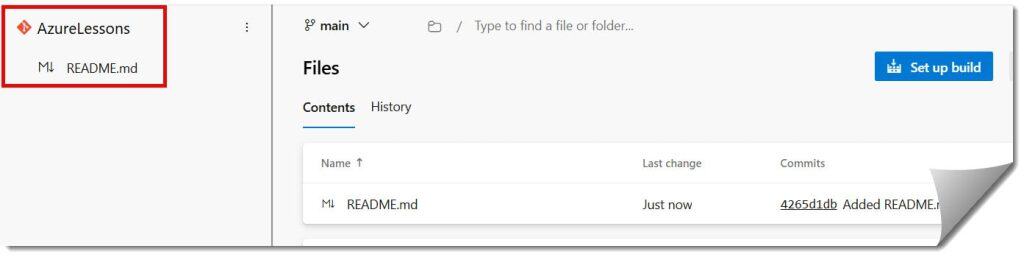
  3. Add a README: Check this box. Always check this box. It initializes the main branch so you can clone it immediately. Check out the screenshot below for the complete steps.
how to create repo in azure devops
azure devops how to create a new repo

Method 2: The Command Line Interface (Azure CLI)

You can create repos directly from PowerShell or Bash using the Azure CLI.

While I won’t run a live script here, the logic is simple. You need the azure-devops extension installed. The command structure typically follows:

az repos create --name "MyNewRepo" --project "TeamTsinfo" --org "https://dev.azure.com/fewlines4biju"

After executing the above query, I got the expected output as shown in the screenshot below.

how to create new repo in azure devops

Why use this method?

If you are setting up a microservices architecture for a client and need to spin up 50 repositories at once, you do not want to use the GUI. You script it.

Critical Decision: Git vs. TFVC

When you create a repo, Azure DevOps asks you to choose between Git and TFVC (Team Foundation Version Control).

Once you pick, you are stuck with it for that specific repo.

FeatureGitTFVC
ArchitectureDistributed (Everyone has a full copy)Centralized (Server has the master copy)
BranchingCheap and fast (Metadata pointers)Heavy (Path-based branches)
Offline WorkFull capabilityLimited (Read-only mostly)
Industry StandardYes (99% of modern dev)Legacy (Mostly older .NET shops)
My RecommendationAlways use GitOnly use if maintaining legacy systems

The Verdict: Unless you are maintaining a 15-year-old monolithic application for a government agency that specifically requires centralized locking of files, choose Git.

Post-Creation: The Initialization Phase

You hit “Create.” Congratulations, you have an empty bucket. Now what?

1. The .gitignore File

The first commit to your new repo should not be code. It should be a .gitignore file.

Azure DevOps allows you to add this during creation. If you are a Python developer, select the Python template. If you are in C#, select Visual Studio.

This prevents you from accidentally committing __pycache__ or .dll files, which bloat the repo size and cause merge conflicts.

2. The README.md

This is your repo’s front door. In the US corporate world, documentation is currency. Your Readme should state:

  • What the repo does.
  • How to build it locally.
  • Who owns it (Team email).

3. Importing Existing Code

If you are not starting from scratch but migrating from GitHub or a local folder:

  • Do not drag and drop files.
  • Use the “Import a repository” feature if coming from an external URL.
  • Or, use the generic git commands (git remote add origin...) to push your local history up to the new Azure home.

Governance: Branch Policies and Security

This is the step that separates a hobbyist from a professional. You cannot simply create the repo and walk away. You must secure it.

Setting Up Branch Policies

By default, anyone with access can push code directly to the main (or master) branch. This is dangerous.

You need to navigate to Project Settings > Repos > Policies and enforce:

  • Pull Requests: Require a PR for any change to main.
  • Minimum Reviewers: Require at least 1 or 2 human approvals.
  • Work Item Linking: Force developers to link their code to a Jira ticket or Azure Board User Story.
  • Build Validation: (Advanced) Ensure the code compiles before it can be merged.

Naming Conventions

If your organization is large, names matter.

  • Bad: Backend, NewApp, Test
  • Good: customer-portal-api, data-warehouse-etl, mobile-ios-consumer

I generally recommend a [domain]-[function]-[technology] format. It makes searching for repos much easier when you have hundreds of them.

Troubleshooting Common Creation Issues

Here are the most common errors I see US clients encounter.

1. “I don’t see the ‘New Repository’ button.”

  • Cause: You likely have Stakeholder access level. Stakeholders can view private projects but cannot create repos or modify code.
  • Fix: Ask your Organization Admin to upgrade your license to Basic.

2. “The repo name is already in use.”

  • Cause: Repo names must be unique within the Project.
  • Fix: Check if a deleted repo is holding the name, or simply choose a more specific name.

3. “I created it, but I can’t clone it.”

  • Cause: You usually haven’t set up your SSH keys or a Personal Access Token (PAT).
  • Fix: Go to User Settings > SSH Public Keys and add your machine’s key.

Conclusion

Creating a new repository in Azure DevOps is a fundamental skill, but doing it correctly is an art. It is the foundation upon which your CI/CD pipelines, your branch policies, and your development workflow will rest.

By choosing the right version control system (Git), setting up your .gitignore immediately, and enforcing branch policies from Day 1, you are setting your team up for success.

So, go ahead. Navigate to that dropdown, click New Repository, and start building something great.

You may also like the following articles:

Azure Virtual Machine

DOWNLOAD FREE AZURE VIRTUAL MACHINE PDF

Download our free 25+ page Azure Virtual Machine guide and master cloud deployment today!