
When you work with the Azure Command-Line Interface (CLI) daily, managing your authentication state is just as important as writing the code itself. In this article, I’m going to walk you through exactly how to refresh your credentials in the Azure CLI, from simple interactive logins to managing service principal rotations.
How to Refresh Credentials in Azure CLI
Azure uses OAuth 2.0 under the hood. When you log in, Microsoft Entra ID (formerly Azure AD) hands the CLI two critical pieces of data:
- Access Token: A short-lived key (usually valid for 60-90 minutes) that allows you to perform actions.
- Refresh Token: A longer-lived key (valid for days or weeks) used to request new access tokens automatically.
If you haven’t used the CLI in a while, or if your organization’s security policy (Conditional Access) triggers a re-authentication requirement, your refresh token becomes invalid. That’s when you need a manual refresh.
Method 1: The Standard Interactive Refresh
For most developers, the interactive login method is the go-to. If your session is stale, the fastest way to “refresh” is simply to re-authenticate.
Step 1: Check Your Current Identity
Before I refresh, I always like to see who the CLI thinks I am. Run:
Code snippet
az account showAfter executing the command above, I received the expected output, as shown in the screenshot below.

Step 2: Perform the Login
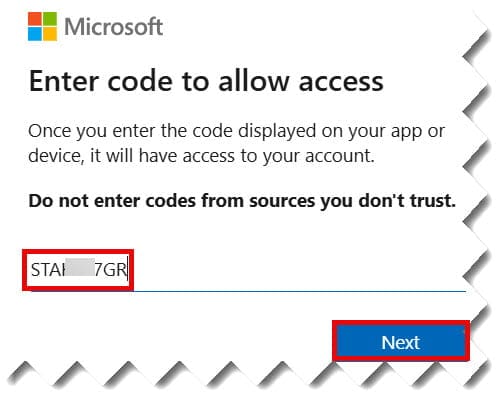
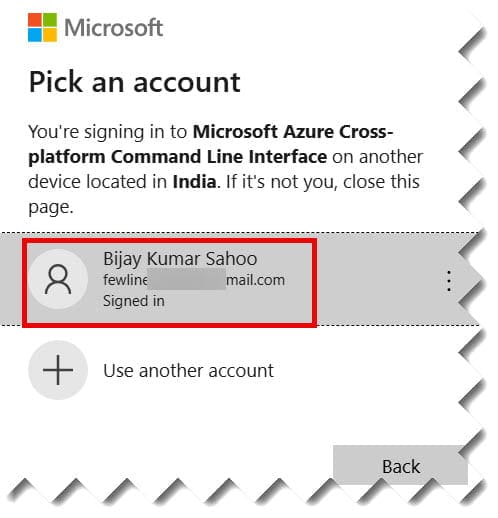
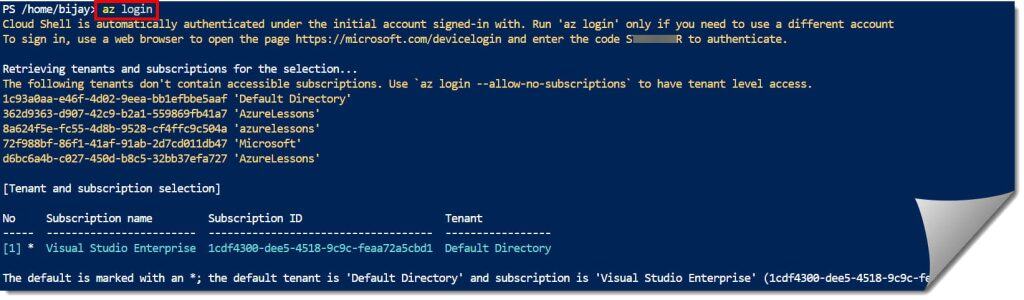
To refresh your user credentials, run the standard login command. This will open your default web browser. Check out the screenshots below for your reference.
Code snippet
az loginPro Tip: If you are working on a remote server (like a Linux VM without a GUI), use the device code flow:
az login --use-device-code



Step 3: Set Your Active Subscription
Often, refreshing credentials resets your “context.” If you have multiple subscriptions, make sure you’re pointed at the right one:
Code snippet
az account set --subscription "Visual Studio Enterprise"
Method 2: Refreshing via Access Tokens
Sometimes you don’t want to go through the whole browser dance. You just need to force the CLI to grab a new access token using the existing refresh token in its cache.
You can manually trigger a token fetch with this command:
Code snippet
az account get-access-tokenAfter executing the command above, I received the expected output, as shown in the screenshot below.
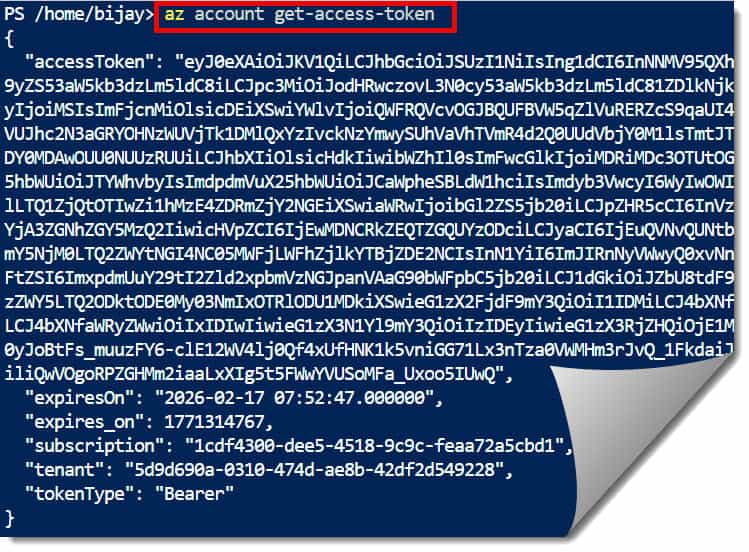
This command does two things:
- It checks if the current access token is valid.
- If it’s expired (or nearing expiration), it uses the Refresh Token to silently grab a new one.
| Property | Description |
| accessToken | The actual JWT used for API calls. |
| expiresOn | The local time when the token dies. |
| expires_on | The POSIX timestamp (UTC) of expiration. |
| tenant | The Azure Tenant ID associated with the token. |
Method 3: Handling Service Principal Credential Refresh
If you are an automation engineer or a DevOps architect, you aren’t using your personal email to log in. You’re using a Service Principal (SP). These don’t “expire” in the same way a user session does, but their secrets or certificates certainly do.
Resetting an Expired Service Principal Secret
If your SP secret has expired, you don’t just “refresh” it; you reset it. Here is how I handle this when managing enterprise-grade automation:
- Find the App ID:Code snippet
az ad sp list --display-name "GitHub-Actions-SP" --query "[].appId" -o tsv - Reset the Credential:Code snippet
az ad sp credential reset --id <Your-App-ID>
This command will generate a brand-new password. You must then update your environment variables or Key Vault secrets immediately.
Method 4: Clearing the Cache
Occasionally, the Azure CLI cache gets corrupted. You might find yourself stuck in a loop where az login completes successfully in the browser, but the CLI still insists you aren’t logged in.
When this happens to me, I perform a “clear and reset.” This is the digital equivalent of “unplugging it and plugging it back in.”
The Cleanup Checklist
- Logout:
az logout - Clear Account Cache:
az account clear - Delete the .azure Directory: Manually delete the
.azurefolder in your user profile (e.g.,C:\Users\JohnDoe\.azureon Windows).
After doing this, a fresh az login will almost always solve the issue.
Best Practices for Credential Management
- Use WAM on Windows: If you’re on Windows 10 or 11, the Web Account Manager (WAM) is now the default. It bridges your Windows login with the CLI, making “refreshes” almost invisible.
- Avoid Long-Lived Secrets: For automation, prefer Managed Identities over Service Principals whenever possible. Managed Identities refresh their own credentials automatically—you never have to run a “refresh” command again.
- Monitor Token Lifetime: In high-security environments, your IT department might set token lifetimes to 1 hour. If your scripts run longer than that, you’ll need to include logic to check the token status mid-run.
Frequently Asked Questions
How long does an Azure CLI login last?
Typically, the refresh token allows you to stay logged in for 90 days, provided you use the CLI at least once during that period. However, organization-specific Conditional Access policies can shorten this significantly.
Does az account clear delete my subscriptions?
No. It only clears the local cache on your machine. Your subscriptions and resources in the Azure Portal remain untouched.
Can I refresh credentials for a specific tenant?
Yes. If you belong to multiple organizations (e.g., a consultant working for a firm), use:
az login --tenant <tenant-id>
Summary Table: Refresh Commands at a Glance
| Scenario | Command |
| Standard User Refresh | az login |
| Silent Token Refresh | az account get-access-token |
| Switch/Refresh Subscription | az account set --subscription <name> |
| Update Service Principal Secret | az ad sp credential reset --id <id> |
| Wipe All Stored Credentials | az account clear |
Video Tutorial
Wrapping Up
Refreshing credentials in the Azure CLI doesn’t have to be a headache. Whether you’re doing a quick az login to get back to work or resetting a complex Service Principal for a CI/CD pipeline, knowing which command to use saves you time.
In my experience, 90% of “credential issues” are solved by a simple az account clear followed by a fresh login.
You may also like the following articles:

I am Rajkishore, and I am a Microsoft Certified IT Consultant. I have over 14 years of experience in Microsoft Azure and AWS, with good experience in Azure Functions, Storage, Virtual Machines, Logic Apps, PowerShell Commands, CLI Commands, Machine Learning, AI, Azure Cognitive Services, DevOps, etc. Not only that, I do have good real-time experience in designing and developing cloud-native data integrations on Azure or AWS, etc. I hope you will learn from these practical Azure tutorials. Read more.