
Entra ID (formerly known as Azure Active Directory) is the central nervous system of identity and access management (IAM) for the Microsoft cloud. In this article, I’ll break down the complexities of Entra ID into a digestible, authoritative tutorial designed to take you from a curious beginner to a confident administrator.
Table of Contents
- Microsoft Entra ID Tutorial For Beginners
- What is Microsoft Entra ID? (The Evolution of Identity)
- Why Enterprises are Moving to Entra ID
- Understanding the Licensing Landscape
- Tutorial Part 1: Navigating the Entra Admin Center
- Tutorial Part 2: Managing Users and Groups
- Tutorial Part 3: Implementing Security Essentials
- Tutorial Part 4: Integrating Applications (SSO)
- Common Pitfalls for Beginners (And How to Avoid Them)
- Recommendation for Starting Out
Microsoft Entra ID Tutorial For Beginners
What is Microsoft Entra ID? (The Evolution of Identity)
In late 2023, Microsoft rebranded Azure AD to Microsoft Entra ID. This wasn’t just a name change; it was a signal that identity now spans beyond just “Azure.” It covers every app, every user, and every device in your ecosystem.
Why Enterprises are Moving to Entra ID
- Zero Trust Security: It operates on the “never trust, always verify” principle.
- Single Sign-On (SSO): One set of credentials for thousands of apps.
- Global Scalability: Whether you have five employees in Austin or 50,000 across the globe, the infrastructure scales instantly.
- Seamless Integration: It is the native identity provider for Microsoft 365, Teams, and the Azure Portal.
Understanding the Licensing Landscape
One of the most common questions I get from IT managers is, “Which version do I need?” Microsoft offers several tiers, and picking the right one is crucial for your budget and security posture.
| License Tier | Target Audience | Key Features |
| Entra ID Free | Small startups / Home labs | Basic user management, 50k objects, limited SSO. |
| Microsoft 365 Apps | General business users | Basic security, self-service password reset for cloud users. |
| Entra ID P1 | Mid-market enterprises | Conditional Access, Advanced Group Management. |
| Entra ID P2 | High-security / Enterprises | Identity Protection, Privileged Identity Management (PIM). |
When I start a project for a new client, the first place I take them is the Microsoft Entra Admin Center (formerly the Azure Portal).
1. Accessing the Portal
To follow along, you’ll head to entra.microsoft.com. Log in with your Global Administrator credentials. If you are a beginner, I highly recommend setting up a “Sandbox” or “Developer” tenant so you aren’t experimenting on your live corporate data.
2. The Overview Dashboard
The dashboard is your cockpit. You’ll see:
- Tenant ID: The unique identifier for your organization.
- User Count: How many digital identities you are managing.
- Secure Score: A percentage that tells you how well you’ve followed Microsoft’s security best practices.
Tutorial Part 2: Managing Users and Groups
Identity management starts with the “Who.” In Entra ID, we deal with two primary types of identities: Members and Guests.
Creating a New User
In my workflow, I prefer a standardized approach to user creation to avoid messy directories.
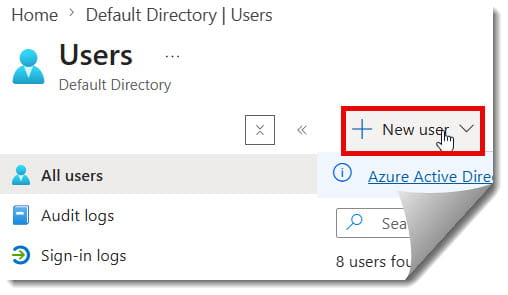
- On the left-hand sidebar, select Identity > Users > All users.
- Click New user > Create new user.
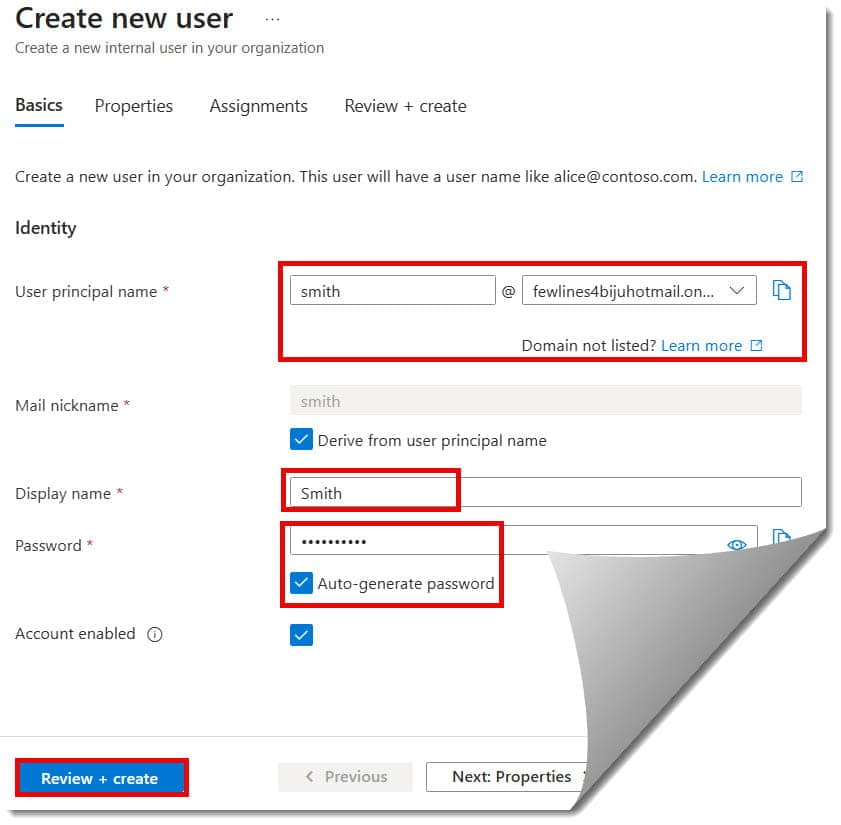
- Identity Details: Enter the User Principal Name (UPN), such as
jsmith@yourfirm.com. Ensure the “Display Name” matches your company’s HR records (e.g., “John Smith”). - Password: I always recommend letting Entra ID generate a strong password and checking the “User must change password on next sign-in” box.
The Power of Groups
Managing individuals is a nightmare. Managing Groups is how you scale.
- Security Groups: Used to grant access to resources (like a SharePoint site).
- Microsoft 365 Groups: Used for collaboration (creates a shared mailbox, calendar, and Team).
- Dynamic Groups (P1/P2 Feature): This is my favorite “pro” tip. You can set a rule like “If Department equals ‘Sales’, add to Sales Group automatically.” This saves hours of manual labor for IT teams in high-growth cities like Nashville or Denver.
Tutorial Part 3: Implementing Security Essentials
If you take only one thing away from this tutorial, let it be this: Passwords are not enough. In 2026, a password-only environment is a liability.
1. Multi-Factor Authentication (MFA)
MFA is the single most effective way to prevent account takeovers. Entra ID makes this easy via Security Defaults. For beginners, I suggest turning this on immediately in your tenant settings to enforce MFA across the board.
2. Conditional Access (The “Brain” of Entra)
This is where Entra ID shows its true authority. Conditional Access allows you to create “If-Then” statements.
- Example: IF a user is trying to access Payroll data AND they are outside the United States, THEN block access.
- Example: IF a user is on an unmanaged personal device, THEN require a password change and MFA.
3. Self-Service Password Reset (SSPR)
By enabling SSPR, you allow users like “Smith in Accounting” to reset her own password using a verified phone number or an authentication app, just like she would with her personal bank account.
Tutorial Part 4: Integrating Applications (SSO)
The real magic of Entra ID is Single Sign-On (SSO). Your users shouldn’t have to remember 20 different passwords for Salesforce, Slack, Adobe, and Zoom.
- Navigate to Identity > Applications > Enterprise applications.
- Click New application.
- Browse the Entra ID App Gallery. Microsoft has pre-integrated thousands of popular U.S. business apps.
- Once added, you can assign specific users or groups to the app. Now, when John Smith logs into his computer, he can access Slack with a single click—no extra login required.
Common Pitfalls for Beginners (And How to Avoid Them)
Even the best IT professionals make mistakes when they first touch Entra ID. Here is what to watch out for:
- Over-Privileged Admins: Do not give everyone the “Global Administrator” role. Use the Principle of Least Privilege. Give someone the “User Administrator” role if that’s all they need to do.
- Ignoring the Audit Logs: Entra ID tracks every sign-in and every change. If a user in your Miami office is suddenly logging in from an IP address in a different country, the Sign-in logs will tell you.
- Forgetting Guest Governance: When you invite guests (vendors, contractors), they stay in your directory until you remove them. Regularly audit your guest list to keep your “digital house” clean.
Recommendation for Starting Out
If you are just beginning your Entra ID journey, I recommend the following the below plan:
- Week 1: Set up a free developer tenant and practice creating 10 users and 3 groups.
- Week 2: Enable MFA and test the experience on your own mobile device using the Microsoft Authenticator app.
- Week 3: Connect a “dummy” application (like a personal Dropbox or a trial of a SaaS tool) to see how SSO works.
- Week 4: Explore the Identity Secure Score and try to complete three recommendations to see how it improves your security posture.
Conclusion:
Microsoft Entra ID is the foundation upon which modern American business is built. By mastering the basics of users, groups, security, and application integration, you aren’t just learning a tool—you are learning the language of the modern web.
Entra ID is the boundary that keeps your data safe while allowing your team to work from anywhere. Whether you’re an IT pro or a developer, Entra ID is your gateway to the cloud.
You may also like the following articles:
- What are the main benefits of using Microsoft Entra ID
- How To Get Microsoft Entra ID
- How To Setup Microsoft Entra ID
- How To Add Device In Microsoft Entra Admin Center

I am Rajkishore, and I am a Microsoft Certified IT Consultant. I have over 14 years of experience in Microsoft Azure and AWS, with good experience in Azure Functions, Storage, Virtual Machines, Logic Apps, PowerShell Commands, CLI Commands, Machine Learning, AI, Azure Cognitive Services, DevOps, etc. Not only that, I do have good real-time experience in designing and developing cloud-native data integrations on Azure or AWS, etc. I hope you will learn from these practical Azure tutorials. Read more.
