
In this comprehensive article, I will walk you through the professional steps for adding and managing devices within the Microsoft Entra admin center.
How To Add Device In Microsoft Entra Admin Center
When a device is added to Microsoft Entra, it allows you to:
- Enforce Conditional Access: Ensure only “Compliant” devices can access Outlook or SharePoint.
- Enable Single Sign-On (SSO): Users sign in once to the device and get seamless access to all corporate apps.
- Simplify Remote Work: Perfect for the modern hybrid workforce in hubs .
Understanding the Three Types of Device Identities
Before we jump into the admin center, we must clarify how a device is added. In Microsoft Entra, “adding” a device isn’t always a manual upload by an admin; it’s often a registration triggered by the user or an automated system.
1. Entra Registered Devices
Typically used for Bring Your Own Device (BYOD) scenarios. These are personal devices (Windows, iOS, Android, macOS) used by employees to access corporate resources.
- Ownership: User-owned.
- Authentication: Uses a local account but registers with Entra for cloud access.
2. Entra Joined Devices
These are strictly corporate-owned devices. They are joined only to Microsoft Entra ID and do not require an on-premises Active Directory.
- Ownership: Organization-owned.
- Authentication: Users sign in with their corporate Entra ID account (e.g.,
name@company.com).
3. Hybrid Entra Joined Devices
For established firms that still rely on an on-premises Active Directory but want cloud benefits. These devices are “joined” to the local AD and “registered” in the cloud.
Accessing the Microsoft Entra Admin Center
To begin, you need the right permissions. I recommend using the Global Administrator or Cloud Device Administrator role for these tasks.
- Navigate to the Microsoft Entra admin center.
- Sign in with your administrative credentials.
- On the left-hand sidebar, expand the Identity menu.
- Select Devices and then click on All devices. Check out the screenshot below for your reference.
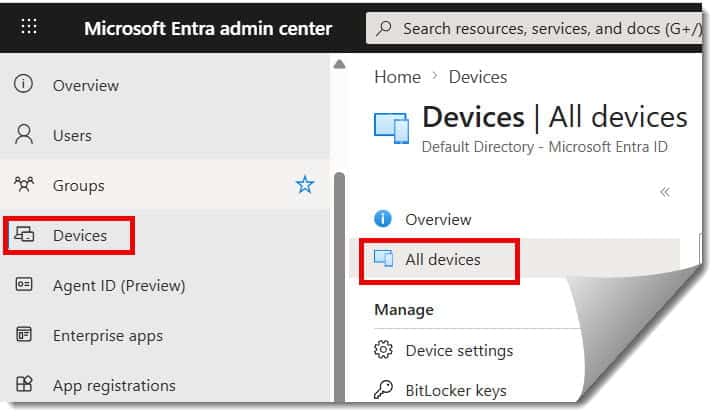
Check out How To Access Microsoft Entra Admin Center
Step-by-Step Tutorial: How a Device is Added to the Portal
In the Entra admin center, “adding” a device usually involves configuring the settings that allow devices to join, or manually importing hardware identifiers for automated deployment.
Phase 1: Configuring Device Settings
Before a user can add their device, you must permit the action in the portal.
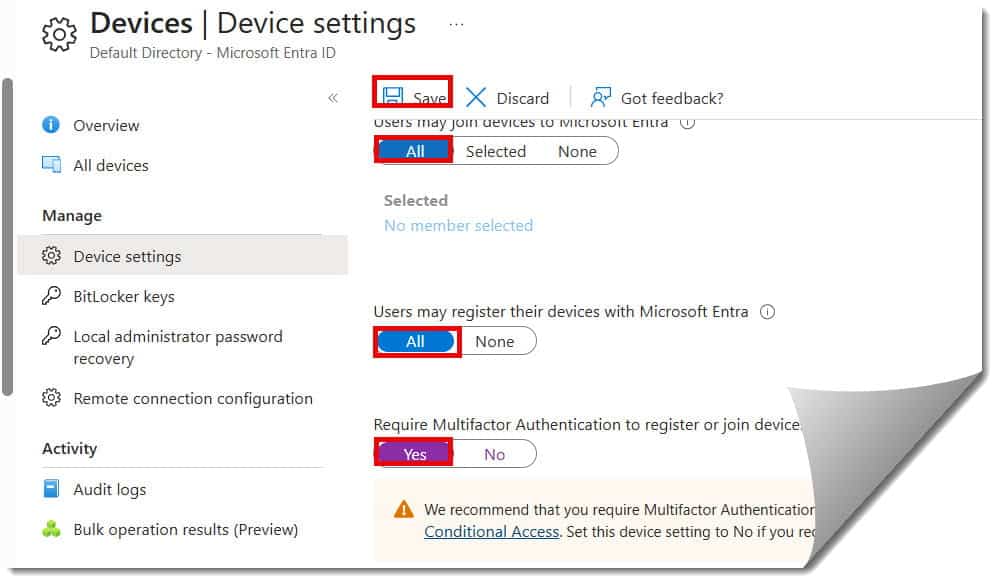
- Go to: Devices > Device settings.
- Users may join devices to Microsoft Entra ID: Set this to “All” or “Selected” (highly recommended for security).
- Additional local administrators: Here, you can designate IT staff with local admin rights on all joined devices.
- Require Multi-Factor Authentication (MFA): Set this to “Yes.” This is a security “must-have” in the USA to prevent rogue devices from joining your tenant. Check out the screenshot below for your reference.
Phase 2: Adding Windows Devices via “Work or School”
For most Windows 10 or 11 users, the “adding” happens on the client side, which then populates the Entra portal.
- On the local PC, go to Settings > Accounts > Access work or school.
- Click Connect.
- To Register (BYOD): Enter the email address and sign in.
- To Join (Corporate): Click the link at the bottom that says “Join this device to Microsoft Entra ID”.
- Once the user completes the MFA prompt, the device will appear in your All devices list in the admin center.
Managing Bulk Additions with Windows Autopilot
If you are a sysadmin for a massive logistics company, you don’t