
In this authoritative guide, I will walk you step-by-step through signing in to the Azure Portal, managing multi-tenant environments, addressing multi-factor authentication (MFA) requirements, and troubleshooting complex authentication errors.
How to Sign In to Azure Portal
Understanding the Microsoft Azure Portal
Before opening a browser, it is essential to understand that “the Azure Portal” is not a single uniform web link. Microsoft operates multiple distinct cloud environments, particularly for enterprise, government, and compliance-restricted workloads in the United States.
Azure Portal Endpoints by Region and Environment
| Cloud Environment | Primary Audience / Purpose | Direct Portal URL |
| Azure Global (Commercial) | Standard commercial enterprises, SMBs, international organizations | [https://portal.azure.com](https://portal.azure.com) |
| Azure US Government | US federal, state, local government agencies, and DoD contractors | [https://portal.azure.us](https://portal.azure.us) |
| Azure China | Organizations operating inside mainland China (operated by 21Vianet) | [https://portal.azure.cn](https://portal.azure.cn) |
| Azure US Secret / Top Secret | US Defense and Intelligence Community workloads | Isolated government networks |
When accessing commercial accounts—whether you manage resources in Azure US East (Virginia) or Azure US West (California)—[https://portal.azure.com](https://portal.azure.com) is your destination.
Account Types Supported for Azure Portal Sign-In
Microsoft supports three primary account types for Azure Portal login. Knowing which identity type you hold ensures you select the correct sign-in path.
1. Work or School Accounts (Microsoft Entra ID)
This is the default and most secure account type for enterprise environments. These accounts are created and managed by your organization’s IT department within Microsoft Entra ID (formerly Azure Active Directory).
- Example:
john.smith@azurelessons.com - Features: Enforces organizational security policies, Conditional Access, Single Sign-On (SSO), and Multi-Factor Authentication.
2. Personal Microsoft Accounts (MSA)
Personal accounts are created by individuals for personal services like Outlook.com, Xbox, or OneDrive. While you can use a personal account to sign up for a free Azure subscription, I strongly advise against using personal accounts for production enterprise workloads due to management and compliance risks.
- Example:
john.smith@outlook.comorjohn.smith@gmail.com
3. Guest and External User Accounts (Azure B2B)
In many projects I lead, external consultants or vendor partners need temporary access to a client’s Azure resources. Microsoft Entra B2B Collaboration allows an administrator to invite an external user identity into their directory. You sign in using your home credentials and switch to the host organization’s tenant.
Prerequisites for a Successful Azure Portal Sign-In
To ensure a smooth sign-in experience without session drops or security blocks, verify the following prerequisites before logging in:
- Supported Web Browser: Microsoft Azure Portal requires a modern, web-standard browser. Microsoft Edge, Google Chrome, Mozilla Firefox, and Apple Safari are fully supported. I personally recommend Microsoft Edge or Google Chrome for optimal performance and extensions support.
- Active Internet Connection: A stable high-speed broadband or secure enterprise network connection.
- Assigned Azure Role or Subscription: To view resources after signing in, your account must have at least Reader permissions assigned via Azure Role-Based Access Control (RBAC).
- Configured MFA Device: Ensure you have access to your mobile phone or the Microsoft Authenticator app if your organization mandates Multi-Factor Authentication.
Step-by-Step Guide: How to Sign In to Azure Portal
Follow these exact steps to complete your sign-in process safely.
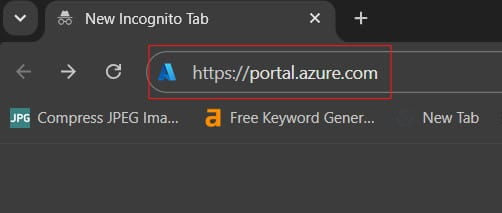
Launch your web browser. Type [https://portal.azure.com](https://portal.azure.com) into the address bar and press Enter. See the screenshot below for reference.
Pro Tip: I always advise bookmarking
[https://portal.azure.com](https://portal.azure.com)or setting up a clean browser profile dedicated exclusively to cloud administration. This prevents session conflicts if you use personal Microsoft accounts for email or gaming on the same machine.
Step 2: Enter Your User Principal Name (UPN)
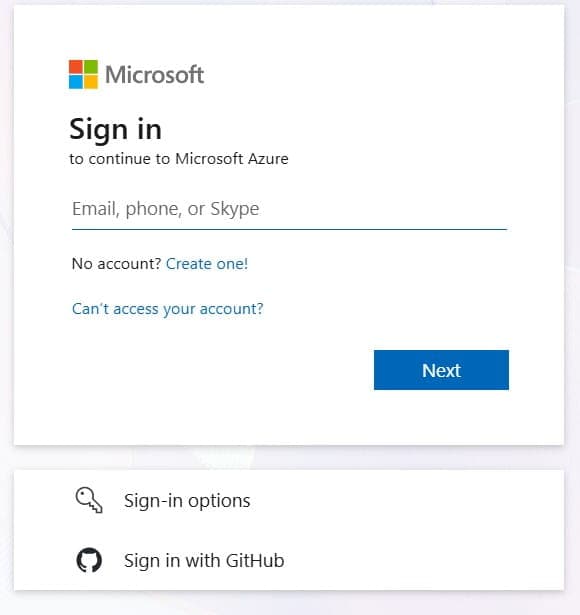
On the Microsoft Sign-In screen, type your full corporate email address or User Principal Name (e.g., raj.azurelessons@techcorp.com) in the sign-in field and click Next.
If your organization uses custom branding, the background image and logo on the sign-in page will automatically shift to your company’s custom Microsoft Entra ID branding once you click Next.
Check out the screenshot below for your reference.
Step 3: Enter Your Password or Use SSO
Depending on your enterprise configuration:
- Standard Password: Enter your domain password and click Sign in.
- Federated Single Sign-On (SSO): If your organization uses Active Directory Federation Services (AD FS) or a third-party Identity Provider like Okta or Ping Identity, you will be redirected to your company’s customized login page to complete authentication before returning to Azure.
Step 4: Complete Multi-Factor Authentication (MFA)
To maintain strict Zero Trust security standards, Microsoft requires MFA for user logins. You will receive a prompt on your registered secondary device:
- Microsoft Authenticator App: Approve the push notification or enter the two-digit number displayed on your screen into the app.
- FIDO2 Security Key / Passkey: Insert your physical USB key (such as a YubiKey) and touch the sensor, or verify using Windows Hello biometrics.
- SMS / Phone Call: Enter the verification code sent to your mobile phone.
Step 5: Choose “Stay Signed In?”
You will see a prompt asking, “Stay signed in? Do this to reduce the number of times you are asked to sign in.”
- Select Yes if you are working on a dedicated, secure, enterprise-managed device.
- Select No if you are on a shared workstation or a secondary computer to ensure your session token expires promptly when you close the browser.
Once authenticated, the browser loads the Azure Portal Home page or your customized Azure Dashboard.
Managing Multiple Directories and Tenants
In complex enterprise environments across the US, IT administrators often manage multiple Microsoft Entra ID tenants (for example, separate tenants for Development, Staging, and Production, or distinct business units).
When you log in, Azure automatically routes you to your primary or default directory. If you do not see your expected subscription or virtual machines, you likely need to switch directories.
How to Switch Tenants Inside the Azure Portal
- Look at the top-right corner of the Azure Portal header.
- Click on your profile picture or username icon.
- Select Switch directory from the dropdown menu.
- The Directories + subscriptions pane will slide open.
- Locate the target directory from the list and click the Switch button next to it.
Setting a Default Directory and Startup Page
To save time during daily sign-ins, configure your startup preferences:
- Click the Settings (gear icon) in the top global navigation bar.
- Under Directories + subscriptions, locate Default directory filter and select the tenant you access most frequently.
- Under Appearance + startup views, set your Startup page to either Home or Dashboard.
Best Security Practices for Azure Portal Sign-In
- Eliminate Passwords with Passkeys and FIDO2: Transition away from traditional text passwords. Mandating hardware security keys (like YubiKeys) or Windows Hello for Business virtually eliminates phishing risks during portal login.
- Enforce Privileged Identity Management (PIM): Avoid assigning permanent Owner or Contributor roles to administrative accounts. Use Microsoft Entra ID PIM to grant Just-In-Time (JIT) access, requiring admins to activate their roles with business justification before accessing the portal.
- Implement Privileged Access Workstations (PAWs): For high-impact production environments, mandate that cloud engineers perform Azure Portal administrative sign-ins exclusively from dedicated, secured workstations separated from general internet browsing and email tasks.
- Enable Automatic Session Timeout: Configure the Azure Portal to sign out automatically after a period of inactivity. Administrators can set this globally by going to Settings (Gear Icon) -> Inactivity timeout and choosing a duration (such as 15 or 30 minutes).
Frequently Asked Questions (FAQ)
Can I sign in to the Azure Portal using the mobile app?
Yes. Microsoft offers the official Microsoft Azure App for iOS and Android. You can sign in using your standard Microsoft Entra ID or personal credentials with full MFA support. It allows you to monitor metrics, restart virtual machines, and run Cloud Shell commands on the go.
What is the difference between logging in to portal.azure.com and Azure CLI?
portal.azure.com provides a graphical web browser interface (GUI) designed for interactive management, monitoring, and dashboard customization. The Azure CLI (az login) is a command-line tool designed for scripting, automation, and headless terminal management. Both use the same underlying Microsoft Entra authentication tokens.
Why does Azure Portal force me to authenticate repeatedly?
Frequent re-authentication prompts are typically caused by strict enterprise Conditional Access policies enforced by your IT security team. Policies may mandate maximum session lifetime caps or require re-authentication whenever your public IP address changes.
Signing in to the Azure Portal is a straightforward process when you know your account type, select the right portal URL, and adhere to proper security hygiene. By following the step-by-step instructions and troubleshooting strategies outlined in this guide, you can maintain seamless and secure access to your organization’s cloud environment.
You may also like the following articles:
- An introduction to Microsoft Azure Portal
- Azure Portal App Download & Installation
- Azure Hybrid Benefit

I am Rajkishore, and I am a Microsoft Certified IT Consultant. I have over 14 years of experience in Microsoft Azure and AWS, with good experience in Azure Functions, Storage, Virtual Machines, Logic Apps, PowerShell Commands, CLI Commands, Machine Learning, AI, Azure Cognitive Services, DevOps, etc. Not only that, I do have good real-time experience in designing and developing cloud-native data integrations on Azure or AWS, etc. I hope you will learn from these practical Azure tutorials. Read more.