
Microsoft provides a robust, native solution directly inside the platform: Azure Budget Alerts. Part of the foundational Microsoft Cost Management suite, these alerts act as an intelligent circuit breaker for your cloud spend. In this guide, I will walk you through the structural design, configuration strategy, and automated governance models required to implement enterprise-grade budget tracking in your organization.
Azure Budget Alerts
The Core Mechanics: What are Azure Budget Alerts?
To implement effective cost controls, you must first understand how Azure tracks, evaluates, and reports spending data.
An Azure Budget is not a rigid barrier that automatically shuts down your applications by default (unless you explicitly script it to do so). Instead, it is a governance baseline. You define a specific dollar threshold over a specific time window, and Azure continuously measures your actual resource consumption and projected expenditures against that marker.
When you configure an alert attached to that budget, the system triggers automated notifications based on two distinct evaluation metrics:
- Actual Cost Alerts: These trigger the exact moment your real-time resource consumption reaches a predefined percentage of your budget. For example, if your monthly budget is $10,000 and you cross the $5,000 mark on day ten, an Actual Cost alert immediately flags that the 50% threshold has been breached.
- Forecasted Cost Alerts: These are powered by Azure’s machine learning algorithms. The engine analyzes your historical consumption patterns and velocity within the current billing cycle to predict your end-of-period spend. If the algorithm determines that your current trajectory will cause you to overshoot your budget by the end of the month, it triggers an alert before the overage actually happens.
Azure Budget Alerts Operational Matrix
| Feature / Variable | Details & Specifications |
| Supported Account Scopes | Management Groups, Billing Accounts, Subscriptions, Resource Groups. |
| Alert Threshold Limit | Up to 5 distinct percentage thresholds can be configured per single budget. |
| Evaluation Metrics | Actual Spend (Real-time accumulated) and Forecasted Spend (Predictive ML). |
| Notification Vehicles | Native Email, SMS, Push Notifications, and Webhooks (Slack/Teams). |
| Advanced Automation | Triggering Azure Logic Apps, Azure Functions, or Automation Runbooks. |
| Supported Offer Types | Enterprise Agreements (EA), Microsoft Customer Agreements (MCA), Pay-As-You-Go. |
| Licensing Cost | Included natively within the Azure platform at no additional premium tier. |
Designing Your Cloud Hierarchy and Scope Boundaries
One of the most common errors I see enterprise architecture teams make is setting a single, massive budget at the top-level billing account and assuming their governance job is done.
When a budget alert fires at an aggregate organizational level, it provides zero immediate context. Your finance team in Chicago knows you are overspending, but they have no idea whether the culprit is a data pipeline in Seattle or a staging environment in Atlanta.
To achieve real accountability, you must align your budget scopes with your organizational hierarchy:
[Management Group] ➔ [Subscription Scope] ➔ [Resource Group Scope] ➔ [Tag-Based Filtering]- Management Group Scope: Ideal for high-level executive visibility. Budgets established here track macro spending trends across entire business units or geographic divisions.
- Subscription Scope: The standard operational sweet spot. Setting budgets at the subscription level allows you to align costs directly with dedicated product teams, specific departments, or broad environments (e.g.,
Production-Subvs.DevTest-Sub). - Resource Group Scope: The granular enforcement zone. This allows you to place tight budget rings around a specific core application or a shared infrastructure component (like an ExpressRoute gateway or an enterprise data warehouse).
- Tag-Based Filtering: To reach elite FinOps maturity, pair your scopes with specific resource tags. This allows you to construct micro-budgets that isolate costs for specific cost centers, projects, or application owners within a shared environment.
Step-by-Step for Creating an Enterprise Budget
Building a budget within the Azure ecosystem requires a systematic approach to ensure you don’t introduce alert fatigue while still protecting your bottom line.
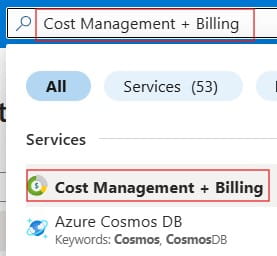
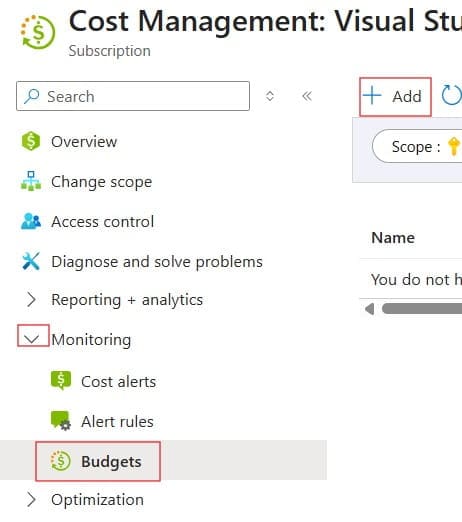
From the Azure Portal, you navigate to Cost Management + Billing and drill down to your target scope. When initializing a new budget, you must define its temporal behavior:
- Time Grain: Choose between Monthly, Quarterly, or Annual reset windows. For standard agile product teams, monthly budgeting is the industry benchmark.
- Effective Dates: Define the start month and the expiration window of the governance policy.
Step 2: Setting the Threshold Architecture
Instead of relying on a single warning system, a mature enterprise budget should leverage layered thresholds to provide a progressive escalation path:
- The 50% Actual Warning: Act as an early checkpoint. This alert should route strictly to engineering leads to verify that resource burning matches expected monthly velocity.
- The 80% Forecasted Warning: This is your critical early-warning system. If your team is projected to hit 80% of their budget with two weeks left in the cycle, it gives architects time to optimize infrastructure, pause non-essential workloads, or alter processing frequencies.
- The 100% Actual Critical Alert: The ultimate boundary line. When reached, this alert should automatically loop in prod