
In this comprehensive article, I will walk you through the professional ways for using the az resource list command. I’ll show you how to filter like a professional, format your output for executive reports, etc.
Table of Contents
Azure CLI List All Resources
Prerequisites
Before we start querying your infrastructure, ensure your local environment is ready. I recommend using the latest version of Azure CLI to ensure all resource providers are supported.
1. Installation and Login
Whether you are on a MacBook Pro or a Windows workstation, ensure you are logged in:
Bash
az login2. Setting Your Context
Many organizations use a “Multi-Subscription” model (e.g., separate subscriptions for Development, Staging, and Production). You must ensure your CLI is pointing to the right environment.
Bash
# List all subscriptions available to you
az account list --output table
# Set your active subscription
az account set --subscription "Production-Internal-App-US-East"After executing the above query, I got the expected output as shown in the screenshot below.


The Core Command: az resource list
The fundamental command we are exploring today is az resource list. By itself, this command is broad, acting as a global search for everything within your current subscription.
Basic Syntax
Bash
az resource listAfter executing the query above, I received the expected output, as shown in the screenshot below.
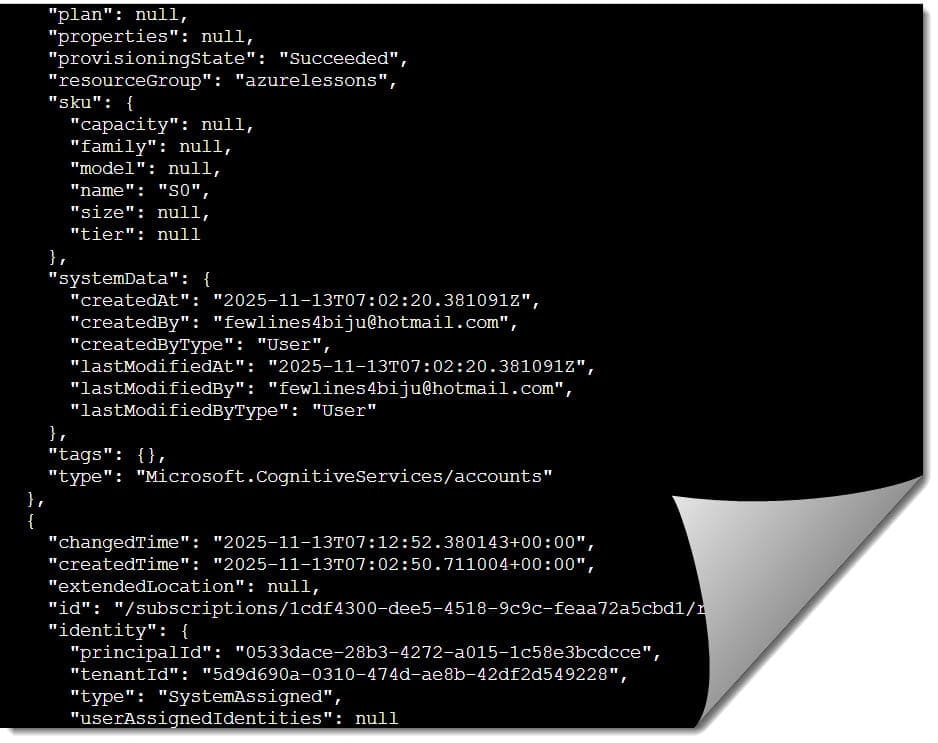
When you run this without parameters, Azure returns a massive JSON array of every resource you have permission to view. This includes everything from Virtual Machines and Storage Accounts to Network Interfaces and Public IP addresses.
Understanding the JSON Output
Each resource returned contains a standard set of properties:
- Name: The identifier of the resource.
- Type: The resource provider namespace (e.g.,
Microsoft.Compute/virtualMachines). - Location: The Azure region (e.g.,
eastusorwestus2). - Id: The full Resource Manager ID.
- Tags: Any metadata associated with the resource.
Mastering the --output Parameter
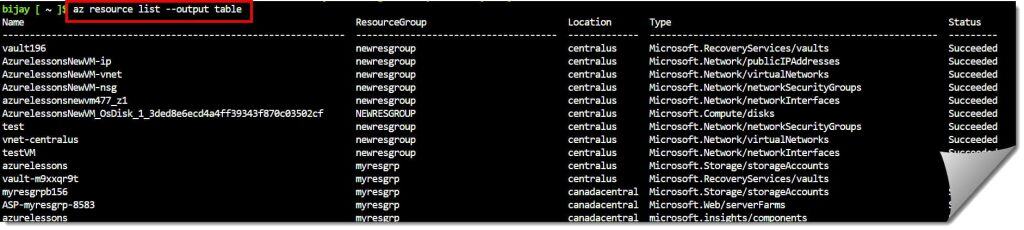
As a seasoned architect, I rarely look at raw JSON unless I’m debugging a script. To make the data readable for your team in New York City or Philadelphia, you need to change the output format.
The Table Format
Bash
az resource list --output tableAfter executing the query above, I received the expected output, as shown in the screenshot below.
The TSV and CSV Formats
If you need to move this data into Excel for a budget meeting in Washington D.C., use the Tab-Separated Value (TSV) format.
Bash
az resource list --output tsvAfter executing the query above, I received the expected output, as shown in the screenshot below.

Advanced Filtering:
Listing everything is easy; listing exactly what you need is where the expertise comes in. We use the --query parameter, which utilizes JMESPath syntax.
1. Filter by Resource Type
Suppose you only want to see the Virtual Machines in your US East data center.
Bash
az resource list --resource-type "Microsoft.Compute/virtualMachines" --output table2. Filter by Location
In the USA, we often split resources between the East and West coasts for disaster recovery. To list only resources in the West US region:
Bash
az resource list --location westus --output table3. Combining Filters (The Power User Move)
If I want to find all Storage Accounts located in US East 2, I combine the parameters:
Bash
az resource list --resource-type "Microsoft.Storage/storageAccounts" --location eastus2 --output tableProfessional Auditing with JMESPath Queries
If you are working for a highly regulated industry, you often need very specific reports. The --query flag allows you to pick and choose specific columns.
Example: Creating a “Lean” Resource Report
Instead of the full output, let’s just get the Name and the Resource Group.
Bash
az resource list --query "[].{Name:name, ResourceGroup:resourceGroup}" --output tableExample: Finding “Untagged” Resources
Governance is a major topic in the US cloud community. To find resources that are missing a specific tag (like “Owner” or “CostCenter”):
Bash
az resource list --query "[?tags == null].{Name:name, Type:type}" --output tableDealing with Scale: Resource Groups and Subscriptions
When your infrastructure reaches “Enterprise Scale,” a single list command can become overwhelming.
Filtering by Resource Group
If you are only responsible for the “Marketing-Web-App” project, keep your focus narrow:
Bash
az resource list --resource-group Marketing-Web-App-RG --output tableListing Resources Across All Subscriptions
This is a common request from CTOs who want a “Global View.” While az resource list stays within one subscription, you can use a bash loop to aggregate data across your entire American enterprise:
Bash
# A quick snippet for our DevOps friends in Seattle
for sub in $(az account list --query "[].id" -o tsv);
do
az resource list --subscription $sub --output table;
doneSummary of Commands for Quick Reference
| Task | Command |
| List everything | az resource list -o table |
| List in a specific group | az resource list -g <GroupName> -o table |
| List by specific type | az resource list --resource-type "Microsoft.Network/publicIPAddresses" |
| List by location | az resource list --location "southcentralus" -o table |
| List with specific tags | az resource list --tag Department=Finance |
Conclusion
The az resource list Command is one of the best command in Azure CLI. Whether you are conducting a security audit for a bank, cleaning up dev resources for a team , or building an automated dashboard for a tech giant, this command is your primary tool.
By moving beyond simple commands and embracing JMESPath queries, table formatting, and cross-subscription loops, you elevate yourself to an expert.
You may also like the following articles:
- Azure CLI Delete Resource Group
- How to Refresh Credentials in Azure CLI
- Azure CLI Examples For Beginners

I am Rajkishore, and I am a Microsoft Certified IT Consultant. I have over 14 years of experience in Microsoft Azure and AWS, with good experience in Azure Functions, Storage, Virtual Machines, Logic Apps, PowerShell Commands, CLI Commands, Machine Learning, AI, Azure Cognitive Services, DevOps, etc. Not only that, I do have good real-time experience in designing and developing cloud-native data integrations on Azure or AWS, etc. I hope you will learn from these practical Azure tutorials. Read more.
