
One of the most common questions I get is: “How do we move our VMware virtual machines to Azure without losing our minds (or our data)?”. In this article, I’m going to walk you through the exact process I use to migrate VMware VMs to Azure using the Azure Migrate tool.
Table of Contents
- How To Migrate Vmware Vm To Azure Step By Step
- Comparison: On-Premise VMware vs. Azure Infrastructure
- Phase 1: Pre-Migration Planning and Prerequisite
- Phase 2: Setting Up the Azure Migrate Project
- Adding the Discovery Tool
- Phase 3: Deploying the Azure Migrate Appliance
- Phase 4: Discovery and Assessment
- Why You Shouldn’t Skip the Assessment
- Phase 5: Replicating Your VMware VMs
- Phase 6: The Test Migration (Don’t Skip This!)
- Phase 7: The Final Cutover (Migration)
- Post-Migration Best Practices
- Summary
How To Migrate Vmware Vm To Azure Step By Step
Comparison: On-Premise VMware vs. Azure Infrastructure
| Feature | On-Premise VMware | Azure Virtual Machines |
| Maintenance | Manual hardware & cooling | Managed by Microsoft |
| Scalability | Limited by physical hardware | Near-infinite (on-demand) |
| Payment Model | Large upfront investment | Pay-as-you-go / Reserved |
| Security Updates | You manage the host | Microsoft manages the host fabric |
Phase 1: Pre-Migration Planning and Prerequisite
You shouldn’t migrate to Azure without a solid assessment. This is where most people trip up. I always recommend the Agentless Migration method for VMware; it’s cleaner and requires less “touching” of the actual VMs.
1. Azure Setup
First, you need an Azure subscription. If you’re working for a US-based corporation, you likely have an Enterprise Agreement (EA).
- Create a Resource Group: Give it a clear name like
prod-migration-rg. - Permissions: Ensure your account has Contributor or Owner permissions on the subscription.
2. VMware Requirements
Your on-premises environment needs to be ready.
- vCenter Server: Version 6.5, 6.7, 7.0, or 8.0.
- Permissions: Create a v-Center user with read-only permissions (at minimum) for discovery.
Phase 2: Setting Up the Azure Migrate Project
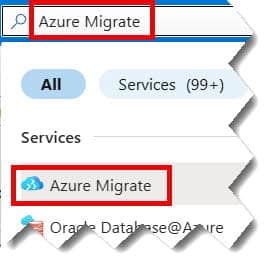
- Search for Azure Migrate in the top search bar.
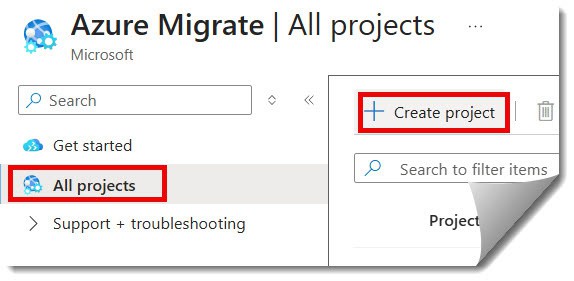
- Select Servers, databases and web apps > Create project.
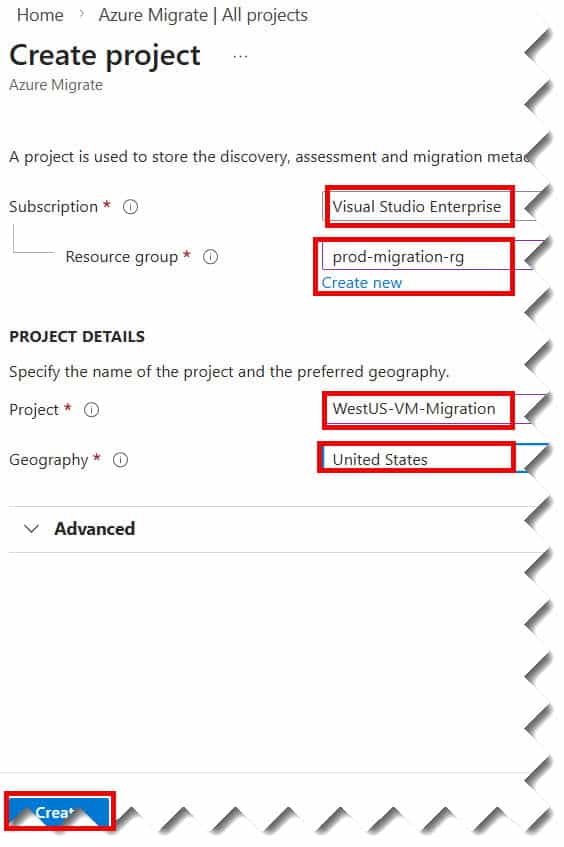
- Choose your subscription and the resource group we created earlier.
- Project Details: Name it something like
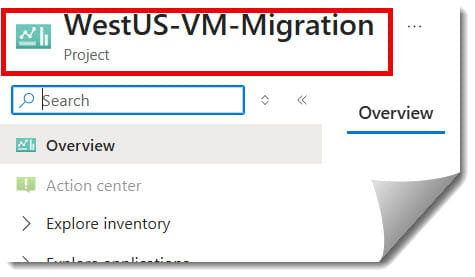
WestUS-VM-Migration. For the geography, I usually select United States to ensure data residency compliance. - Click Create. Check out the screenshot below for your reference.
Adding the Discovery Tool
Once the project is live, you need to add a tool. Click Discover under the “Discovery and assessment” section. When asked “Are your machines virtualized?”, select Yes, with VMware vSphere hypervisor.

Phase 3: Deploying the Azure Migrate Appliance
The “Appliance” is just a small VM that lives in your VMware environment. It acts as a bridge, collecting metadata and sending it to Azure.
- Download the OVA: In the Azure Portal, you’ll see a link to download an OVA template. This is about 12GB, so grab a cup of coffee while it downloads.
- Import to VMware: Go to your vSphere Client, right-click your cluster, and select Deploy OVF Template.
- Configure the Appliance: Once powered on, open the appliance console. You’ll need to:
- Accept the license terms.
- Set up a password.
- Register the appliance using the Project Key provided in the Azure Portal.
Pro-Tip: Make sure the appliance has outbound internet access to the Azure URLs. If your company uses a proxy in Dallas or NYC, you’ll need to configure those settings in the appliance manager.
Phase 4: Discovery and Assessment
Once the appliance is registered, it will start “discovering” your VMs. This usually takes about 15-30 minutes for the metadata to show up in the portal.
Why You Shouldn’t Skip the Assessment
The assessment tool tells you:
- Azure Readiness: Will this VM actually run in Azure? (e.g., is the OS supported?)
- Sizing Recommendations: Azure will suggest the best VM size (like D2s_v3) based on actual utilization.
- Cost Estimates: What will your monthly bill look like in USD?
Phase 5: Replicating Your VMware VMs
Discovery is done. Now, we start moving bits and bytes. This is called Replication.
- In Azure Migrate, go to Replicate.
- Source Settings: Select your appliance.
- Virtual Machines: Select the VMs you want to move. I recommend starting with a non-critical “test” VM.
- Target Settings: * Region: e.g., East US or West US 2.
- Virtual Network (VNet): Select the VNet where your VMs will land.
- Compute/Storage: Here, you can override the assessment if you want a bigger disk or more RAM.
The Initial Sync
The first time you start replication, Azure does a full “initial sync.” If you’re moving a 1TB database server from a data center in Ohio to an Azure region in Virginia, this will take some time. After the initial sync, Azure only replicates the delta changes (incremental blocks).
Phase 6: The Test Migration (Don’t Skip This!)
I cannot stress this enough: Always run a test migration.
Azure creates a copy of your VM in a “sandbox” VNet. This allows you to log in, check if the application starts, and ensure SQL connections are working without affecting your production environment on-premises.
- In the portal, right-click the replicating VM and select Test migration.
- Select the test VNet.
- Once it’s done, go to the Virtual Machines blade in Azure, find the “-test” VM, and RDP into it.
Phase 7: The Final Cutover (Migration)
- Schedule Downtime: Even though replication is continuous, you’ll want a small window to ensure no data is lost during the final “shutdown.”
- Select Migrate: In the Azure Migrate portal, right-click the VM and select Migrate.
- Shut down local VM: Select Yes to shut down the on-premises machine. This ensures a “clean” state and prevents two machines with the same identity from being on the network at once.
- Monitor: Watch the “Job” status. Azure will perform a final delta sync, create the VM, and attach the disks.
Post-Migration Best Practices
Once the VM is running in Azure (check the status: Running), there are a few “Day 2” tasks you need to perform:
- Install Azure VM Agent: Usually handled automatically, but double-check.
- Update DNS: Your VM likely has a new IP address. Update your internal DNS records so users can find the app.
- Backup: Immediately enable Azure Backup (Recovery Services Vault).
- Clean Up: Once you’re 100% sure the cloud version is stable (usually after 7 days), decommission the old VMware VM to save on-prem resources.
Quick Checklist for Success
- Checked OS compatibility (Windows Server 2012+ is best).
- Allocated enough bandwidth for initial sync.
- Verified firewall ports (443 is the big one).
- Ran a successful Test Migration.
- Updated application connection strings.
Summary
Migrating VMware to Azure isn’t just about moving data; it’s about modernizing your workflow. By using the Azure Migrate hub, you get a unified view of your entire journey—from that first discovery scan in your local server room to the final “Success” notification in the cloud.
The cloud journey can be complex, but if you follow these steps, you’ll find that the transition is much smoother than you’d expect.
You may also like the following articles:
- How to Create Azure VM (Virtual Machine)
- How to access Azure VM (Virtual Machine)
- How to SSH into Azure VM
- Azure VM backup step by step

I am Rajkishore, and I am a Microsoft Certified IT Consultant. I have over 14 years of experience in Microsoft Azure and AWS, with good experience in Azure Functions, Storage, Virtual Machines, Logic Apps, PowerShell Commands, CLI Commands, Machine Learning, AI, Azure Cognitive Services, DevOps, etc. Not only that, I do have good real-time experience in designing and developing cloud-native data integrations on Azure or AWS, etc. I hope you will learn from these practical Azure tutorials. Read more.
