
If you’ve been searching for “how to create pipeline in Azure DevOps” and feeling overwhelmed by the documentation, you’re in the right place. In this guide, I’m going to walk you through the exact process I use to set up CI/CD pipelines for clients.
Table of Contents
How to Create Pipeline in Azure DevOps
What is an Azure DevOps Pipeline?
An Azure DevOps pipeline is a cloud service that automatically builds and tests your code project to make it available to others. It works with just about any language or project type.
In the US market, these pipelines are critical. They combine Continuous Integration (CI) and Continuous Delivery (CD) to test and build your code and ship it to any target.
Prerequisites: Getting Your Environment Ready
Make sure you check these off:
- Azure DevOps Organization: You need an active organization. I usually recommend hosting your organization in the East US 2 or West US regions for optimal latency if your team is stateside.
- Source Code Repository: Your code needs to live somewhere. Whether it’s Azure Repos, GitHub, or Bitbucket, have your repository ready.
- Permissions: Ensure you have ‘Project Administrator’ or ‘Build Administrator’ access.
YAML vs. Classic Editor:
When you start, you’ll face a choice: YAML or the Classic Editor. This is a common point of confusion.
The Classic Editor is the visual, drag-and-drop interface we used for years. YAML (Yet Another Markup Language) is the modern, code-centric way to define pipelines.
Here is a quick breakdown:
| Feature | YAML Pipelines | Classic Editor (GUI) |
| Configuration | Defined as code in your repo (azure-pipelines.yml) | Visual designer in the browser |
| Versioning | Versioned with your code (Git) | Versioned separately in DevOps |
| Reusability | High (using Templates) | Lower (Task Groups) |
| Learning Curve | Steeper initially | Very Easy |
| My Verdict | The Standard for 2025 | Legacy (Good for quick prototypes) |
Pro-Tip: I strongly suggest learning YAML. It allows you to review pipeline changes just like code (Pull Requests), which is a compliance requirement for many US public companies.
Step-by-Step Tutorial: Creating Your Build Pipeline
I’ll assume we are using YAML because it is the industry standard.
Step 1: Initialize the Pipeline
- Navigate to your Project in Azure DevOps.
- On the left sidebar, click on Pipelines.
- Click the big blue “Create Pipeline” button. Check out the screenshot below for your reference.

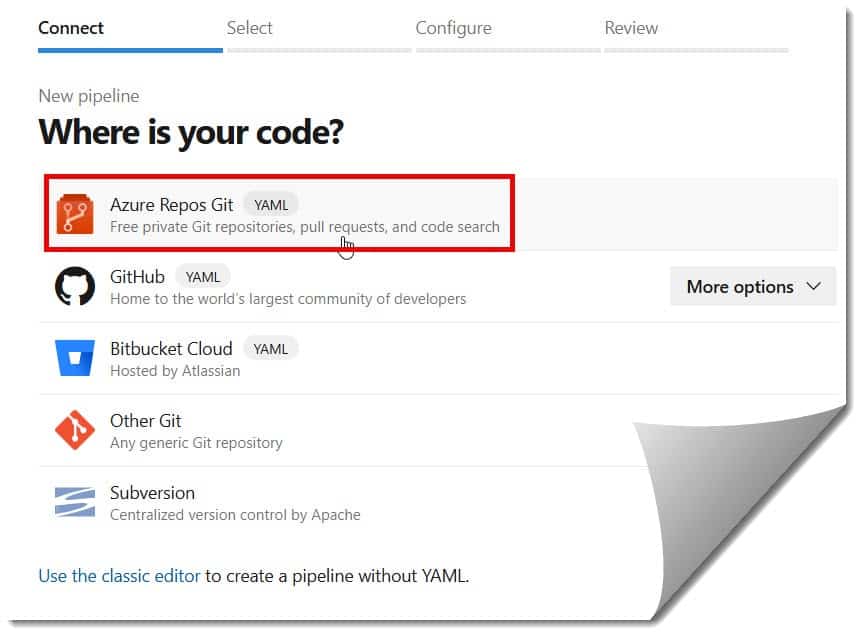
Step 2: Connect Your Code
DevOps will ask, “Where is your code?”
- If you are using Azure Repos Git, select that.
- If you are using GitHub, select GitHub. You’ll need to authorize Azure DevOps to access your repo.
Step 3: Configure the Pipeline
This is where the magic happens. Azure is smart; it analyzes your repository. If you have a .NET project, it suggests a .NET template. If it’s Python, it suggests Python.
For a generic start, choose “Starter pipeline”. You will see a basic YAML file generated for you.

Step 4: Define Your Tasks
In the editor, you will define what the pipeline actually does. A basic pipeline file typically looks like this structure:
- Trigger: When should this run? (usually
masterormain). - Pool: Which computer (agent) runs this?
ubuntu-latestorwindows-latestare standard. - Steps: The actual commands.
I always organize my steps logically:
- Restore dependencies (like NuGet or NPM).
- Build the project.
- Test the code (Run Unit Tests).
- Publish the artifact (Save the built files).
Step 5: Save and Run
Hit “Save and Run”. You will be asked to commit this YAML file to your repository. I typically add a commit message like “Initial pipeline setup – [My Name]”. Check out the screenshot below for your reference.


The Azure Pipeline has now been created successfully, as shown in the screenshot below.

Best Practices
1. Security First (DevSecOps)
Don’t wait until the end to check for security. I integrate tools like SonarQube or WhiteSource directly into the pipeline steps. In the US, data breaches are costly; automating security scans in your pipeline is your first line of defense.
2. Use Templates for Consistency
If you are managing pipelines for multiple microservices, do not copy-paste YAML. Use Templates.
“Templates allow you to define logic once and reuse it everywhere. If you need to change a compliance step, you change it in one file, and it updates across all 50 of your projects.”
3. Implement Branch Policies
Never let anyone push directly to the main branch. I always set up Branch Policies that require the build pipeline to pass successfully before a Pull Request can be merged. This prevents “broken builds” from stopping the entire dev team.
Troubleshooting Common Pipeline Errors
Here are the most common ones I see:
- “Agent Request is not running or not assigned”: This usually means you have run out of free parallel jobs. Microsoft recently changed the free tier policy. You may need to request access or switch to a self-hosted agent.
- YAML Indentation Errors: YAML is extremely picky about spaces. If your pipeline fails to parse, check that you haven’t mixed tabs and spaces.
- Permission Denied: If your build script fails to push an artifact or access a key, check the Build Service Account permissions in the project settings.
Conclusion
Creating a pipeline in Azure DevOps might feel technical at first, but it is the single best practice you can implement to improve your team’s productivity. By moving from manual deployments to an automated CI/CD process, you free up your developers to do what they do best: write great code.
You may also like the following Azure DevOps articles:
- How to Create a New Repo in Azure DevOps
- What is a Pipeline in Azure DevOps
- How to Calculate Sprint Velocity in Azure DevOps
- What Is Work Items in Azure DevOps
- How To Change Sprint Dates In Azure DevOps
- How To Move User Story From One Sprint To Another Azure DevOps
- How To Rename Sprint In Azure DevOps

I am Rajkishore, and I am a Microsoft Certified IT Consultant. I have over 14 years of experience in Microsoft Azure and AWS, with good experience in Azure Functions, Storage, Virtual Machines, Logic Apps, PowerShell Commands, CLI Commands, Machine Learning, AI, Azure Cognitive Services, DevOps, etc. Not only that, I do have good real-time experience in designing and developing cloud-native data integrations on Azure or AWS, etc. I hope you will learn from these practical Azure tutorials. Read more.
