
How to Create a Private DNS Zone in Azure

In this article, I will walk you through exactly how to create and configure a Private DNS Zone in Azure, ensuring your internal network is robust, secure, and ready for enterprise scale.

How to Create a Private DNS Zone in Azure

What is an Azure Private DNS Zone?

Before we click any buttons, let’s clarify what we are building.

An Azure Private DNS Zone is a managed service that provides name resolution for your Virtual Networks (VNets). Unlike a public DNS zone (which tells the whole world that google.com is at a specific IP), a Private DNS zone is completely contained within your Azure environment.

If I create a zone named logistics.internal, and a hacker on the public internet tries to ping it, they get nothing. It doesn’t exist to them. But for your VMs inside Azure, it resolves instantly.

Why specific US industries love this:

  • Healthcare (HIPAA): Your internal patient database names are never exposed to public DNS logs.
  • Finance (SEC/FINRA): You maintain strict traffic isolation within the Microsoft backbone.

Prerequisites

To follow this tutorial, you will need:

Step 1: Creating the Private DNS Zone

Let’s get our hands dirty. I’ll be using the Azure Portal for this, as it gives the best visual feedback, but everything here can be done via PowerShell or CLI.

1. Log in to https://portal.azure.com/

2. In the top search bar, type “Private DNS zones” and select the service.
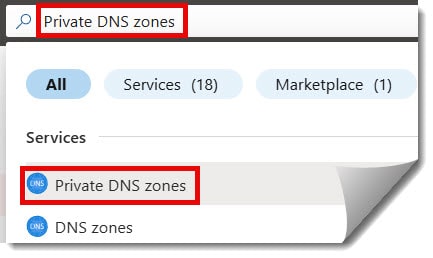
How to Create a Private DNS Zone in Azure

3. In the DNS zones window, click on the “Create DNS zone” button as per the screenshot below.
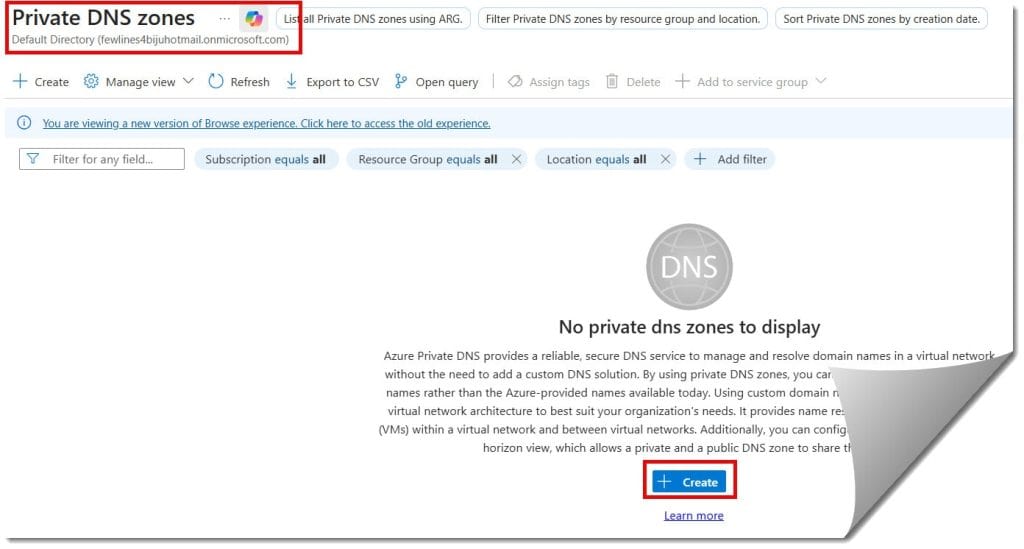
How to Create Private DNS Zones in Azure

4. Fill out the details below

  • Subscription: Select the subscription details.
  • Resource group: Choose your resource group.
  • Name: Fill in the name under Instance details.
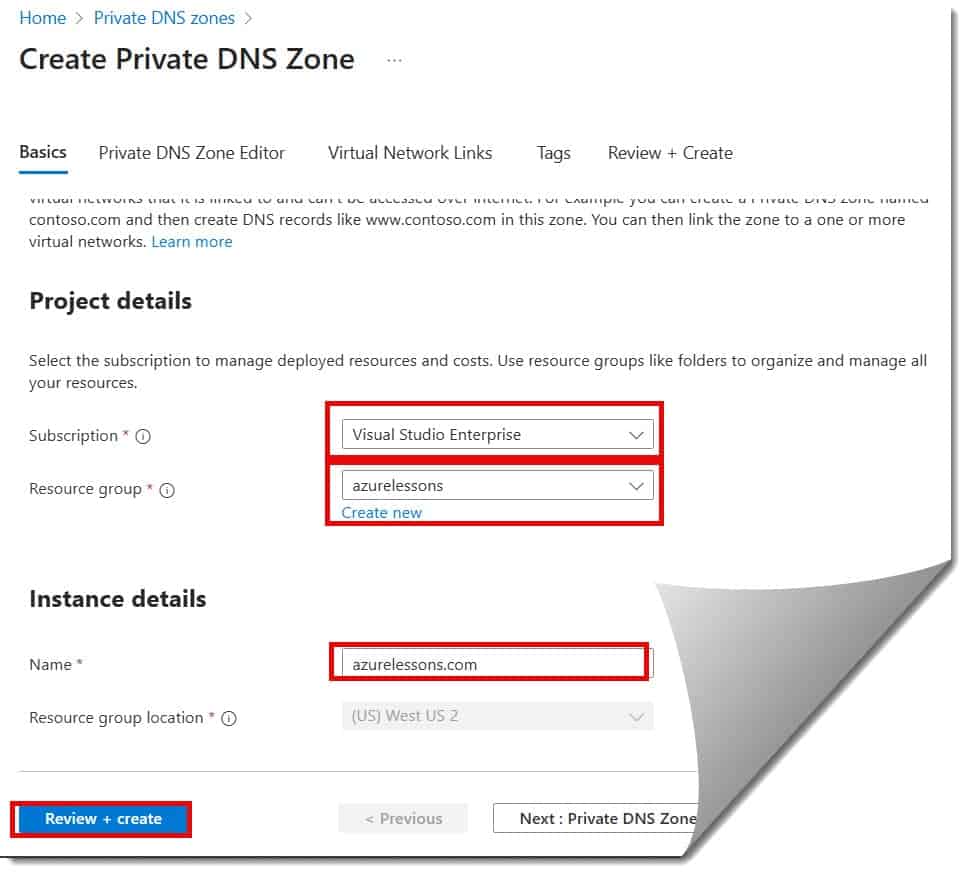
private dns zone in azure

5. Then click the Review + Create button, then click the Create button on the next screen.

Pro Tip regarding Naming: Do NOT use .local. While it works, it conflicts with Multicast DNS (mDNS) used by Macs and Linux machines.

Instead, use a valid-looking domain that you own, but with an internal prefix, or a reserved internal domain.

  • Good: internal.mycompany.com, corp.local (acceptable but risky), azure.mycompany.net.
  • Best Practice: privatelink.postgres.database.azure.com (if using Private Endpoints) or internal.azurelessons.com.

It usually takes less than 30 seconds for Azure to provision the zone.

Step 2: The Magic of Virtual Network Links

This is the step most beginners miss. Just creating the zone does nothing. It’s like buying a phonebook but leaving it in a drawer. You have to tell Azure which networks are allowed to read this phonebook.

  1. Go to your newly created Private DNS Zone.
  2. On the left-hand menu, under DNS Management, click Virtual network links.
  3. Click + Add.

You will see two key configuration options here that dictate how your network behaves.

Option A: Resolution Only

If you just want the VMs in a VNet to be able to read the DNS records, you simply select the VNet and hit create. This is common for “Spoke” networks in a Hub-and-Spoke topology.

Option B: Auto-registration

If you check the box that says “Enable auto registration”, Azure effectively becomes your dynamic DNS server.

  • How it works: If you spin up a new VM named Web-Server-01 inside this VNet, Azure automatically creates an “A Record” in this DNS zone pointing Web-Server-01.internal.liberty-logistics.com to its private IP (e.g., 10.0.0.5).
  • If you delete the VM: Azure automatically deletes the DNS record.

My Recommendation: always enable Auto-registration for your primary “workload” VNets. It saves hours of manual record management.

Configuration for Tutorial:

  • Link Name: Link-to-VNet-EastUS
  • Virtual Network: Select your existing VNet.
  • Enable auto registration: Checked.

Click OK.

Step 3: Verifying the Setup

Trust, but verify. I never consider a job done until I see the packets flowing.

  1. Create a Test VM: Spin up a small Windows or Linux VM in the VNet you just linked. Let’s name it Test-VM-01.
  2. Check the DNS Zone: Go back to your Private DNS Zone in the portal and click Overview.
  3. Refresh: You should see a new “A Record” automatically appear for test-vm-01 pointing to its private IP.

Now, log into that VM (via RDP or SSH) and open a command prompt.

PowerShell

nslookup test-vm-01.internal.liberty-logistics.com

You should see it resolve instantly to the private IP (e.g., 10.0.0.4), not a public IP. This confirms your traffic is staying on the Microsoft backbone.

Comparison: Azure Private DNS vs. Custom DNS Server

I often get asked by traditional IT Directors: “Why shouldn’t I just build two Linux VMs running BIND or use Windows Server DNS?”

Here is the comparison table I show them:

FeatureAzure Private DNSCustom DNS Server (IaaS)
ManagementFully Managed (PaaS)Manual Patching & Updates
Cost~$0.50/zone/month (Cheap!)Cost of 2x VMs + Storage
SLA99.99% AvailabilityDepends on your config
Auto-RegistrationBuilt-inRequires complex scripts
Hybrid ConnectivityRequires Private ResolverNative

The Verdict: Unless you have a very specific legacy requirement (like Active Directory integration without ADDS), Azure Private DNS is superior in cost and maintenance.

Best Practices

Before you deploy this to production, run through this checklist:

  • [ ] Centralize: Use one Resource Group for all Private DNS Zones to avoid sprawl.
  • [ ] Lock it Down: Apply Azure RBAC “read-only” locks to the DNS zone so junior admins don’t accidentally delete the entire zone.
  • [ ] Private Endpoints: If you are using Azure SQL or Storage Accounts with Private Link, ensure you use the recommended zone names (e.g., privatelink.database.windows.net) to ensure correct resolution.
  • [ ] Avoid Orphans: If you delete a VNet, the Link is deleted, but the manually created records remain. Clean them up periodically.

Conclusion

Creating a Private DNS Zone in Azure is one of those that pays massive dividends in stability and security. By decoupling your application logic from IP addresses, you make your infrastructure resilient to change and easier to troubleshoot.

You may also like the following articles:

Azure Virtual Machine

DOWNLOAD FREE AZURE VIRTUAL MACHINE PDF

Download our free 25+ page Azure Virtual Machine guide and master cloud deployment today!