
Azure Data Factory pricing is entirely consumption-based, meaning you pay for what you use, down to the minute and the exact operation. In this comprehensive masterclass, I will break down the mechanics of the ADF pricing architecture, analyze the individual meters that drive your bill, and share practical optimization strategies to keep your infrastructure highly cost-effective.
Azure Data Factory Pricing
The Core Billable Pillars of Azure Data Factory
Azure Data Factory breaks its service charges down into distinct operational pillars. The service does not charge a flat hourly rate for simply existing; instead, it bills you based on the specific actions your pipelines perform.
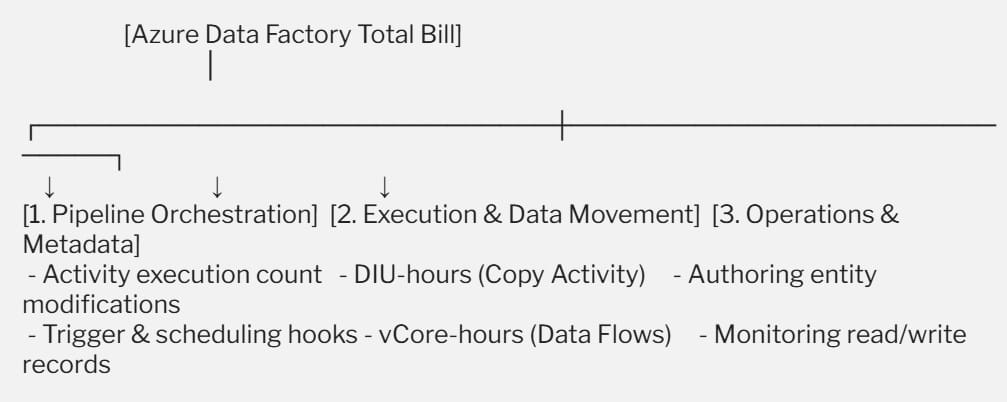
Pillar 1: Pipeline Orchestration and Runs
Orchestration represents the control plane of your data pipelines. Every time a pipeline executes, and every time an individual step (an activity) runs inside that pipeline, Azure registers a billable orchestration event.
- Orchestration Price: Charged per 1,000 activity runs. For standard cloud-hosted integration runtimes, this rate balances at $1.00 per 1,000 runs.
- Activity Execution: This cost applies to structural flow activities like web hooks, lookup steps, and loop iterations. Every loop through an array of filenames, for instance, counts as a billable activity run.
Pillar 2: Execution and Data Movement Compute
This is where the heavy data processing occurs, and it typically forms the largest portion of your monthly invoice. The compute charges adjust depending on whether you are simply moving data or modifying it.
- Data Movement (Copy Activity): Moving data between a source and a target uses a specialized metric called a Data Integration Unit (DIU), which combines CPU, memory, and network resources. You are billed per DIU-hour at a baseline rate of $0.25/DIU-hour for the standard cloud runtime.
- Data Transformation (Mapping Data Flows): When you use visual data transformations inside ADF, the underlying engine provisions a managed Apache Spark cluster. You are billed based on the cluster size and execution time, measured in vCore-hours (starting at $0.274 per vCore-hour for General Purpose compute).
Pillar 3: Data Factory Operations and Monitoring
The final layer covers metadata management during code updates and system monitoring.
- Read/Write Operations: Modifying or referencing data factory components (like pipelines, datasets, linked services, or triggers) costs $0.50 per 50,000 entities.
- Monitoring Queries: Pulling log states or checking pipeline execution metrics through the portal dashboard runs at $0.25 per 50,000 run records retrieved.
Technical Comparison Matrix: Integration Runtimes and Compute Meters
The specific cost of an execution step changes depending on where the compute runs. Azure provides three distinct Integration Runtimes (IR) to fit different corporate security and networking models.
| Compute Category | Azure Integration Runtime (Cloud Default) | Azure Managed VNET Integration Runtime | Self-Hosted Integration Runtime (On-Premises / Private) |
| Pipeline Orchestration | $1.00 per 1,000 runs | $1.00 per 1,000 runs | $1.50 per 1,000 runs |
| Data Movement (Copy) | $0.25 per DIU-hour | $0.25 per DIU-hour | $0.10 per hour (Licensing fee) |
| Pipeline Activity Execution | $0.005 per hour | $1.00 per hour (Up to 50 concurrent runs) | $0.002 per hour |
| External Activity Execution | $0.00025 per hour | $1.00 per hour (Up to 800 concurrent runs) | $0.001 per hour |
Managing the Complexities of Mapping Data Flows
Mapping Data Flows offer a visual, low-code interface for complex data transformations like joining tables, aggregating rows, or flattening JSON arrays. However, because they provision dedicated Spark compute resources, they require careful budget management.
The Impact of Cluster Time-to-Live (TTL)
By default, when a data pipeline invokes a Mapping Data Flow, Azure spins up a fresh Spark cluster. This warm-up sequence can take anywhere from 3 to 5 minutes. To save time on consecutive pipeline runs, you can activate a feature called Time-to-Live (TTL) inside your Integration Runtime configuration.
The TTL keeps the Spark cluster alive and warm for a designated window (e.g., 30 minutes) after a pipeline finishes, allowing subsequent activities to reuse the compute instantly. However, you are billed for the vCore-hours during this idle TTL window.
If you configure a long TTL window for a pipeline that runs only once a day, you will pay for an idle cluster sitting on the cloud network.
Savings Through Commitments: Reserved Capacity
For enterprises running steady data ingestion schedules around the clock, pay-as-you-go costs can be optimized. Microsoft provides Azure Reserved Capacity for Data Factory Mapping Data Flows, allowing you to commit to a baseline tier of vCore consumption over a 1-year or 3-year period to significantly lower your compute costs.
- 1-Year Reservation: Reduces General Purpose vCore-hour rates down to $0.205, saving roughly 25%.
- 3-Year Reservation: Drops the rate further to $0.178, yielding close to 35% savings over standard pay-as-you-go pri