
Azure Free Tier

In this comprehensive tutorial, I will walk you through how the Azure Free Tier works under the hood, break down the eligible services and limits, compare it against competing cloud providers, and show you how to configure Azure so you never pay a single cent unless you choose to.

Azure Free Tier

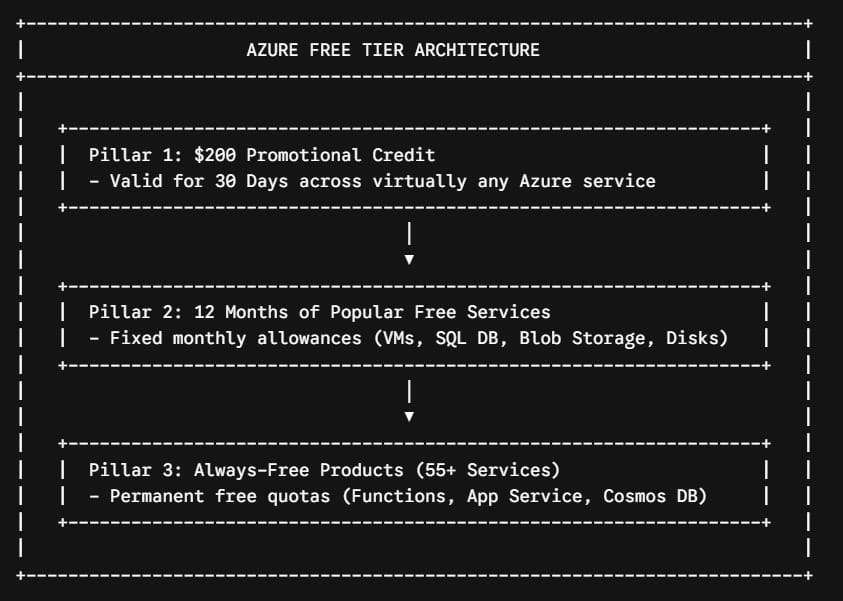
The Three Pillars of the Azure Free Account
Azure Free Tier

The Azure Free Account is not a single trial period; it is a structured, three-phase resource ecosystem designed to support evaluation, prototyping, and ongoing development.

When you understand how these three tiers interact, you can architect cloud environments that run continuously without incurring monthly subscription charges.

Pillar 1: The Initial Promotional Credit (First 30 Days)

When you register an Azure Free Account in the United States, Microsoft immediately deposits a $200 USD promotional credit into your subscription.

Check out How to Get Free Azure Credits

Key Rules Governing the $200 Credit:

  • Lifespan: The credit must be used within 30 days of account creation. Any remaining balance after 30 days expires automatically.
  • Scope of Coverage: The credit can be applied toward almost any service in the Azure catalog, including specialized Virtual Machine sizes (like GPU-enabled instances), Azure Kubernetes Service (AKS), AI Cognitive Services, and premium storage tiers.
  • Third-Party Marketplace Exclusion: Promotional credits cannot be used to purchase third-party software, extensions, or software-as-a-service (SaaS) offerings listed on the Azure Marketplace.

Pillar 2: 12 Months of Popular Free Services

Beyond your 30-day promotional credit, your account includes 12 months of free access to specific core infrastructure and platform services. These allowances reset at the start of each billing cycle.

If your usage stays within these monthly allowances, you will not be billed:

Azure ServiceMonthly Free Allowance (12 Months)Eligible SKU / Configuration Limit
Linux Virtual Machines750 Hours per monthB1s Burstable VM (1 vCPU, 1 GiB RAM)
Windows Virtual Machines750 Hours per monthB1s Burstable VM (1 vCPU, 1 GiB RAM)
Azure SQL Database250 Hours per month / 32 GBS0 tier with 10 Database Transaction Units (DTUs)
Azure Blob Storage5 GB LRS (Locally Redundant Storage)Hot/Cool tier (20,000 read / 10,000 write ops)
Managed Disks2 x 64 GB StorageStandard SSD (E6) or Standard HDD (S6)
Azure Files5 GB StorageLRS storage with up to 100,000 operations
Outbound Data Egress15 GB Data Transfer OutWorldwide internet routing per month
Computer Vision (AI)5,000 TransactionsFree (F0) tier
Speech Translation5 Audio HoursStandard tier allowance

Architectural Note on 750 Hours: A standard calendar month has a maximum of 744 hours (31 days × 24 hours). A 750-hour monthly allowance means you can run one B1s Linux VM and one B1s Windows VM continuously 24/7 for an entire year without exceeding the limit.

Pillar 3: Always-Free Azure Services (55+ Products)

Even after your 30-day credit expires and your 12-month window closes, Microsoft provides access to over 55+ services that remain free indefinitely, provided your usage stays within defined quotas.

Detailed Breakdown of Top Always-Free Services:

  • Azure App Service (F1 Tier): Host up to 10 web applications, REST APIs, or mobile backends using .NET, Node.js, Python, Java, or PHP on shared compute infrastructure with 1 GB of memory.
  • Azure Functions: Serverless event processing providing 1,000,000 executions and 400,000 GB-seconds of resource consumption every month.
  • Azure Cosmos DB Free Tier: Microsoft provides 1,000 Request Units per second (RU/s) of provisioned throughput and 25 GB of storage across one container or database per account forever.
  • Azure DevOps Services: Free access for up to 5 users, including Azure Pipelines (1 free Microsoft-hosted job with 1,800 build minutes per month) and unlimited private Git repositories.
  • Azure Event Grid: 100,000 operations per month for building decoupled, event-driven reactive architectures.
  • Azure Key Vault: 10,000 standard key and secret operations per month.

Check out: How to create Azure Free Account Without Credit Card

How Azure Billing and Transitions Work

Understanding what happens when your free resources reach their limits is essential for managing your environment with confidence.

1. The Default Spending Limit ($0 Cap)

By default, every new Azure Free Account has an active Spending Limit set to $0.

  • If your usage exhausts the initial $200 credit during the first 30 days, Azure immediately pauses your compute resources, disables virtual machine execution, and marks databases as read-only.
  • Your data remains safe on storage volumes, but you will not be billed a single dollar.

2. Transitioning to Pay-As-You-Go

To continue using Azure after the 30-day mark (or if you need services that exceed the free limits), you upgrade your subscription to Pay-As-You-Go:

  • Upgrading does not cancel your 12 months of free services. You will still receive your monthly 750 VM hours, 5 GB storage, and database allocations for the remainder of the 12 months.
  • You are only billed for resources that exceed the specific free tier thresholds or services not covered under the free categories.

Critical Cost Governance: Setting Budgets and Alert Guardrails

Setting up proactive cost alerts is an essential operational best practice.

Step-by-Step: Creating a $1.00 Budget Alert in Azure Cost Management

  1. In the Azure Portal search bar, search for and select Cost Management + Billing.
  2. Select Cost Management from the left navigation pane, then click Budgets.
  3. Click + Add to create a new budget.
  4. Set the parameters:
    • Name: ZeroCostGuardrailBudget
    • Reset Period: Monthly
    • Creation Date / Expiration Date: Current date through 1–3 years out
    • Budget Amount: $1.00
  5. Click Next to configure alert conditions:
    • Alert Condition 1 (Actual Spend): Set to 50% of budget ($0.50).
    • Alert Condition 2 (Actual Spend): Set to 100% of budget ($1.00).
    • Notification Group: Enter your primary administrative email address.
  6. Click Create. If any resource incurs even fifty cents of unbudgeted usage, you will receive an immediate email notification.

Common Free Tier Mistakes and How to Avoid Them

1. Selecting the Wrong VM Size During Deployment

  • The Pitfall: The Azure VM creation wizard often defaults to high-performance general-purpose sizes like Standard_D2s_v3 or Standard_DS1_v2. Running these will rapidly consume your credits or generate hourly charges.
  • The Fix: Always manually click See all sizes and filter specifically for B1s (Standard_B1s – 1 vCPU, 1 GiB Memory).

2. Provisioning Premium SSDs Instead of Standard Storage

  • The Pitfall: When creating a Virtual Machine, Azure defaults the OS disk storage to Premium SSD (P10/P15). Premium SSDs are not included in the 12-month free tier.
  • The Fix: Under the Disks tab during VM provisioning, explicitly change the OS Disk Type to Standard SSD or Standard HDD and ensure disk capacity does not exceed 64 GB (E6/S6).

3. Orphaned Public IP Addresses and Network Gateways

  • The Pitfall: Deleting a virtual machine through the portal removes the compute instance, but frequently leaves behind the associated Static Public IP address, Network Interface (NIC), and Virtual Hard Disk (VHD). In Azure, unassociated static public IPs and unattached managed disks still incur charges.
  • The Fix: Group related resources into a dedicated Resource Group (e.g., Dev-Sandbox-RG). When you are finished testing, delete the entire Resource Group. This deletes all associated disks, IP addresses, and virtual networks in a single operation.

4. Over-Provisioning Azure Cosmos DB Throughput

  • The Pitfall: Creating a Cosmos DB database without checking the “Apply Free Tier Discount” option or setting throughput above 1,000 RU/s.
  • The Fix: When creating an Azure Cosmos DB account, explicitly enable the Apply Free Tier Discount toggle in the Basics tab, and keep provisioned throughput capped at 1,000 RU/s and storage within 25 GB.

Frequently Asked Questions (FAQs)

Will Microsoft automatically charge my credit card when the $200 credit expires?

No. If you have an active Free Trial subscription, Microsoft sets a $0 Spending Limit by default. When the credit expires or runs out, your services pause automatically rather than charging your card. You must explicitly choose to upgrade to a Pay-As-You-Go subscription to enable billing.

Can I run multiple Virtual Machines simultaneously under the free tier?

Yes, but with limitations. Your 750-hour monthly allowance covers total instance hours. If you run two B1s Linux VMs concurrently, they will consume 2 hours of credit for every clock hour, exhausting your 750-hour monthly budget in roughly 15 days. To run instances all month long, keep only one Linux and one Windows B1s VM active at a time.

What happens to my data after the 12-month free period ends?

Your data remains intact. However, the services that were part of the 12-month free window (like the 5 GB Blob storage or B1s VM compute hours) will begin billing at standard Pay-As-You-Go rates. Services in the Always Free tier (like Azure Functions and Cosmos DB up to their limits) will remain free indefinitely.

Can I sign up for the Azure Free Tier multiple times?

No. Microsoft’s terms of service limit the Azure Free Account to one per unique user, validated through your phone number, credit card hash, and Microsoft Account identity.

Summary and Key Takeaways

The Azure Free Tier provides a structured and generous playground for developers, system administrators, and solutions architects to build cloud-native skills and test applications without financial risk:

  • Use Your 30-Day $200 Credit Broadly: Take advantage of the initial promotional credit to experiment with advanced architectures, Kubernetes clusters, and AI tools.
  • Anchor Steady Workloads to the 12-Month Tier: Use the 750 monthly hours of B1s compute, 64 GB managed disks, and 32 GB SQL database allocations for standard testing environments.
  • Build Long-Term Projects on Always-Free Services: Build decoupled serverless architectures using Azure Functions, App Service, and Cosmos DB that cost nothing to run continuously within their quotas.
  • Enforce Strict Guardrails: Implement Azure Cost Management budgets and $1.00 alert thresholds immediately to catch misconfigured resources before they impact you.

You may also like the following articles:

Azure Virtual Machine

DOWNLOAD FREE AZURE VIRTUAL MACHINE PDF

Download our free 25+ page Azure Virtual Machine guide and master cloud deployment today!