
In this article, I’m going to walk you through the, step-by-step guide to building a robust Azure DevOps CI/CD pipeline. Whether you’re a Lead Architect or a Full-Stack Developer, this article will definitely help you.
Table of Contents
- Azure DevOps CI CD Pipeline Step By Step
- What is Azure DevOps CI/CD?
- The Core Components of Azure Pipelines
- Step 1: Setting Up Your Azure DevOps Environment
- Step 2: Source Control and the “Shift Left” Mentality
- Step 3: Creating the Continuous Integration (CI) Pipeline
- Step 4: Automating Quality Gates
- Step 5: Artifact Creation and Storage
- Step 6: Designing the Continuous Delivery (CD) Pipeline
- Step 7: Deployment Strategies (Blue-Green vs. Canary)
Azure DevOps CI CD Pipeline Step By Step
What is Azure DevOps CI/CD?
CI/CD stands for Continuous Integration and Continuous Delivery (or Deployment).
- Continuous Integration (CI): This is the practice of automating the integration of code changes from multiple contributors into a single software project. It involves automated building and testing.
- Continuous Delivery (CD): This picks up where CI leaves off. It ensures that the code is always in a deployable state, automating the push to various environments like Staging, QA, or Production.
Azure DevOps provides a world-class suite of services to handle this entire lifecycle under one roof.
The Core Components of Azure Pipelines
To understand the tutorial below, you must be familiar with these four pillars:
| Component | Description |
| Trigger | The event that tells the pipeline to run (e.g., a code push to the main branch). |
| Stage | A major division in the pipeline (e.g., “Build,” “Test,” “Deploy to Production”). |
| Job | A series of steps that run on a single agent. |
| Step/Task | The smallest building block, such as running a script or a NuGet restore. |
Step 1: Setting Up Your Azure DevOps Environment
Creating Your Project
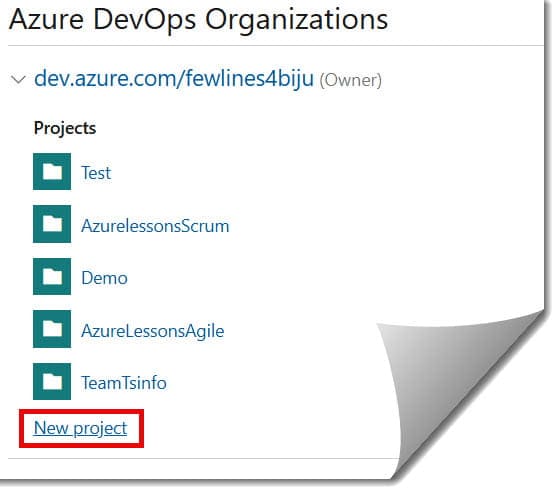
- Sign in to your Azure DevOps organization (e.g.,
dev.azure.com/YourCompany). - Click + New Project.
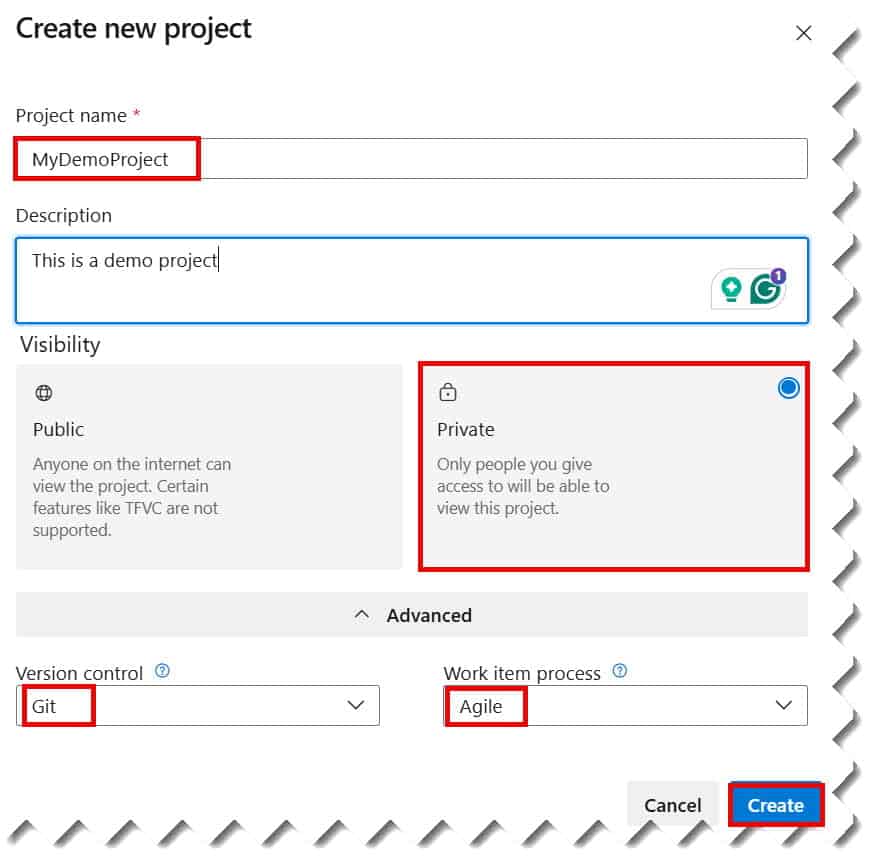
- Name it something descriptive, like
Retail-API-Automation. - Set the visibility to Private (standard for most corporate environments).
- Choose Git for version control and Agile or Scrum for the work item process. Check out the screenshot below for your reference.
Configuring Service Connections
You cannot deploy to Azure without permission. You need to create a Service Connection to link Azure DevOps to your Azure Subscription.
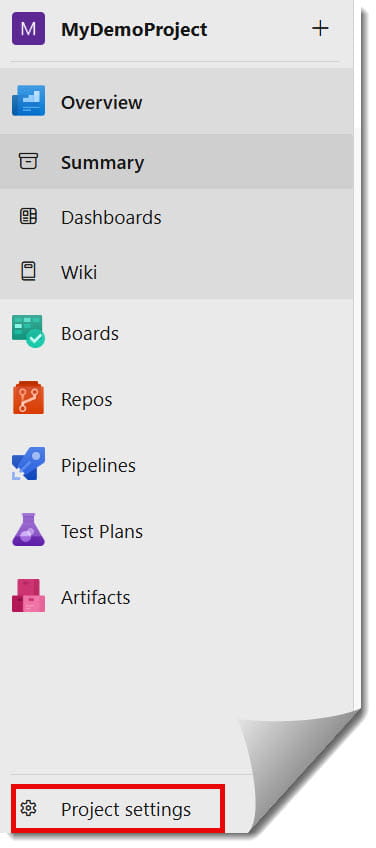
- Navigate to Project Settings > Service Connections.
- Select Azure Resource Manager and use the Service Principal (automatic) option. This is the most secure method, often required by security audits in the financial and healthcare sectors.
Step 2: Source Control and the “Shift Left” Mentality
In my experience, the best pipelines are built on clean code. We use Azure Repos to house our source code.
I strongly recommend implementing Branch Policies. In a high-stakes environment—say, a fintech startup in Charlotte—you should never allow direct pushes to the main branch.
- Require at least two reviewers for Pull Requests (PRs).
- Require a successful “Build” validation before code can be merged.
Step 3: Creating the Continuous Integration (CI) Pipeline
Now, let’s get our hands dirty with YAML. While Azure DevOps offers a Classic Editor (drag-and-drop), as a pro, I exclusively use YAML. Why? Because “Pipeline as Code” allows you to version control your deployment logic just like your application code.
Initializing the YAML File
- Go to Pipelines > Create Pipeline.
- Select Azure Repos Git.
- Select your repository.
- Choose Starter Pipeline.


The Anatomy of a CI Build
Here is the structure I use for a standard .NET or Java application. Note the use of Variables to keep the pipeline “DRY” (Don’t Repeat Yourself).
YAML
trigger:
- main
pool:
vmImage: 'ubuntu-latest'
variables:
buildConfiguration: 'Release'
stages:
- stage: Build
jobs:
- job: BuildJob
steps:
- task: DotNetCoreCLI@2
inputs:
command: 'restore'
- task: DotNetCoreCLI@2
inputs:
command: 'build'
args: '--configuration $(buildConfiguration)'Pro Tip: Always use the latest vmImage. If your team is based in the US and uses Windows-specific dependencies, switch ubuntu-latest to windows-latest.
Step 4: Automating Quality Gates
A pipeline that just compiles code is only doing half the job. You need to ensure the code is good. This is where Unit Testing and Code Analysis come in.
Running Unit Tests
In the same CI stage, add a task to execute your test suite.
- Task:
DotNetCoreCLI@2(orMaven@3for Java). - Command:
test. - Goal: If a single test fails, the pipeline should stop immediately. We don’t ship broken code to American consumers.
Static Code Analysis with SonarCloud
For my clients in the federal or medical sectors, security is paramount. I always integrate SonarCloud or WhiteSource into the CI step to check for:
- Bugs and vulnerabilities.
- Code smells.
- Security hotspots (like hardcoded API keys).
Step 5: Artifact Creation and Storage
Once the code is built and tested, we need to “package” it. This package is called an Artifact.
Think of an artifact as a “sealed box” that contains everything needed to run your app. We use the PublishBuildArtifacts@1 task. This ensures that the exact same code that passed the build is the one that gets deployed to production.
“Never rebuild your code for different environments. Build once, deploy many.” – A core DevOps mantra.
Step 6: Designing the Continuous Delivery (CD) Pipeline
Now that we have our artifact, it’s time to move it through our environments. I typically structure my CD pipelines into three distinct environments:
- Development (Dev): Where developers test their features.
- Staging (QA): Where the QA team performs regression and UAT (User Acceptance Testing).
- Production (Prod): The live environment for your US customers.
Using Environments and Approvals
Azure DevOps allows you to define Environments under the “Pipelines” tab.
- Approval Gates: For the Production environment, I always set up an “Explicit Approval.” This means a Lead Engineer or Product Manager in the US office must click “Approve” before the code goes live. This prevents “Friday Afternoon Disasters.”
Step 7: Deployment Strategies (Blue-Green vs. Canary)
When it comes to the actual deployment task—usually using AzureWebApp@1 or KubernetesManifest@0—you have choices.
- Blue-Green Deployment: You have two identical environments. You deploy to “Green,” test it, and then flip the traffic from “Blue” to “Green.”
- Canary Deployment: You roll out the new version to a small subset of users (e.g., 5% of your users in Seattle) before rolling it out to everyone.
Conclusion:
Building a step-by-step CI/CD pipeline in Azure DevOps is more than a technical task; it’s a commitment to quality. By automating the build, test, and deployment phases, you free your team from the “fear of the deploy” and allow them to focus on what they do best: innovating.
You may also like the following articles:
- Kanban Board Azure DevOps
- Azure DevOps Tutorial For Beginners
- How To Use Azure Devops For Project Management

I am Rajkishore, and I am a Microsoft Certified IT Consultant. I have over 14 years of experience in Microsoft Azure and AWS, with good experience in Azure Functions, Storage, Virtual Machines, Logic Apps, PowerShell Commands, CLI Commands, Machine Learning, AI, Azure Cognitive Services, DevOps, etc. Not only that, I do have good real-time experience in designing and developing cloud-native data integrations on Azure or AWS, etc. I hope you will learn from these practical Azure tutorials. Read more.
