
In this article, I’m going to walk you through everything you need to know about mastering the Kanban board in Azure DevOps. We’ll cover everything from initial setup to advanced flow optimization techniques that will turn your team into a high-velocity system.
Kanban Board Azure DevOps
What is a Kanban Board in Azure DevOps?
At its core, a Kanban board is a visual system for managing work as it moves through various stages. In Azure DevOps, the Kanban board transforms your flat list of “User Stories” or “Product Backlog Items” into a dynamic, interactive visualization.
Unlike a Sprint taskboard—which resets every two weeks—the Kanban board is continuous. It focuses on the Flow of work. It answers three critical questions for any Project Manager:
- What are we doing right now?
- What is blocked?
- Where is the bottleneck?
Step 1: Accessing and Initializing Your Board
When you first create a project in Azure DevOps, whether you choose the Agile, Scrum, or CMMI process template, a Kanban board is automatically provisioned for you.
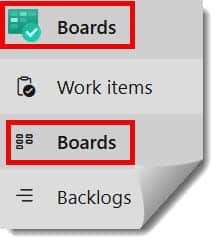
To find it, navigate to Boards > Boards in the left-hand sidebar. Check out the screenshot below for your reference.
Choosing the Right Backlog Level
Before you start moving cards, you need to decide which level of work you are managing. Most teams manage at the Stories (Agile) or Backlog Items (Scrum) level.
- Epics Board: High-level strategic initiatives for leadership.
- Features Board: Major shippable units for Product Owners.
- Stories Board: The “Execution” board for the dev team.
Always recommend starting with the Stories board.
Step 2: Customizing Columns to Reflect Your Reality
The default columns in Azure DevOps are “New,” “Active,” “Resolved,” and “Closed.” Honestly? These are rarely enough for a professional enterprise. Your board should reflect your Actual workflow, not a generic one.
How to Customize Columns:
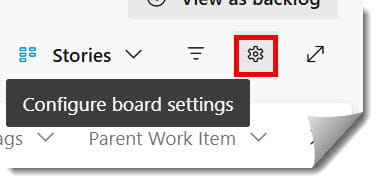
- Click the Gear Icon (Settings) in the top right of the Board view.
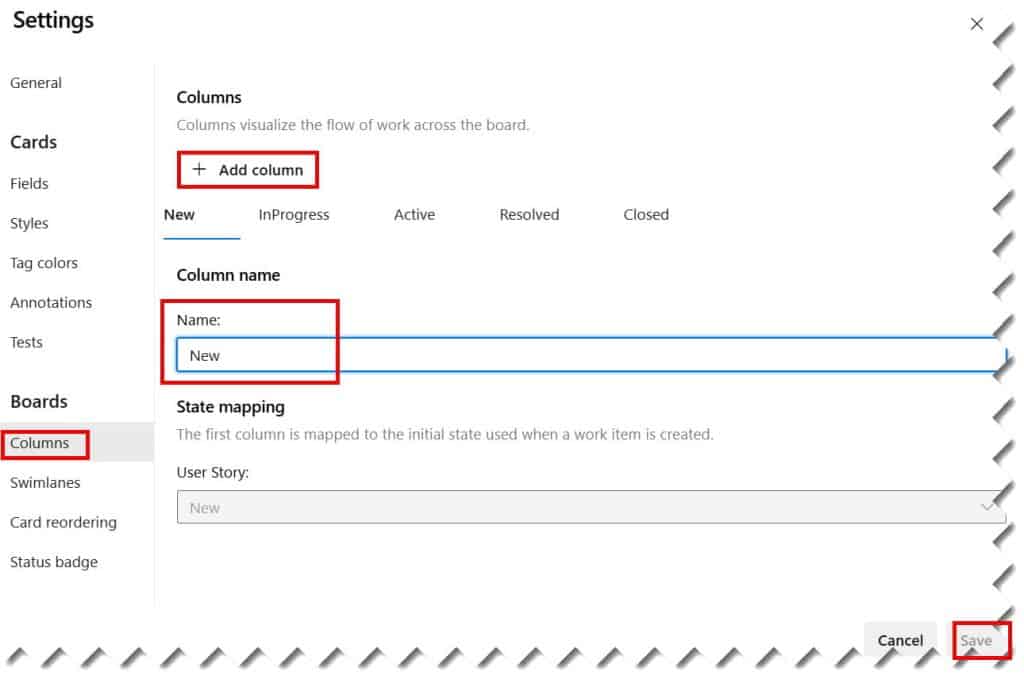
- Select Columns.
- Add or rename columns to match your process. Check out the screenshot below for your reference.
A Professional Example:
| Column Name | State Mapping | Definition of Done (Done Criteria) |
| :— | :— | :— |
| New | New / Proposed | Stakeholder has approved the requirement. |
| Analysis | Active | Requirements are fully documented. |
| Development | Active | Code is written and unit tests pass. |
| Peer Review | Active | Pull Request (PR) has been approved by a teammate. |
| Testing/QA | Resolved | Passed all automated and manual regression tests. |
| Deployment | Closed | Successfully pushed to Production. |
Step 3: Implementing Work-In-Progress (WIP) Limits
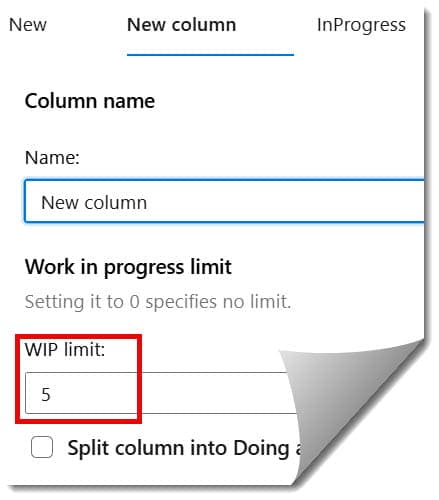
This is where Kanban becomes “Kanban” and stops just being a “To-Do list.” WIP Limits prevent your team from multi-tasking and ensure that they focus on finishing work rather than just starting it.
In Azure DevOps, you can set a maximum number of items allowed in any given column. If I’m managing a team with three developers, I might set the “Development” WIP limit to 4. If a 5th item enters that column, the header turns red.
Why WIP Limits Matter:
- Identification of Bottlenecks: If your “Testing” column is always red, you don’t need more developers; you need more QA testers.
- Improved Cycle Time: By doing fewer things at once, each item gets finished faster.
- Focus: It gives your team permission to say “No” to new work until current work is moved along.
Step 4: Using Swimlanes for Expedited Work
Imagine our VP of Engineering, calls with a “Production Hotfix” that needs to happen now. You don’t want that hotfix buried in your standard list of tasks. This is where Swimlanes come in.
Swimlanes are horizontal rows on your board that allow you to categorize work by priority or type.
Common Swimlane Configurations:
- Expedite/Emergency: For critical bugs that bypass the standard queue.
- Standard: Your day-to-day feature work.
- Regulatory/Compliance: For tasks related to audits or legal requirements.
By creating an “Expedite” lane at the top of your board, you ensure that the most important work is never invisible.
Step 5: Setting “Definition of Done” (DoD)
Azure DevOps allows you to add a Definition of Done directly to each column header. When a team member hovers over the “i” icon in the column, they see a checklist.
- Example for “Peer Review” Column:
- PR has at least two approvals.
- No merge conflicts exist.
- Comments from reviewers have been addressed.
Step 6: Tagging and Styling for Instant Visibility
When you’re looking at a board with 40 cards, you need to be able to “scan” it in seconds. Azure DevOps provides Card Styling rules that act like a heat map for your project.