
In this tutorial, I’m going to walk you through the entire ecosystem for Azure DevOps from the ground up. Whether you are a project manager, a fresh developer, or a stakeholder, this article is your roadmap to mastering the basics.
Table of Contents
- Azure DevOps Tutorial For Beginners
- What is Azure DevOps?
- The Five Main Pillars of Azure DevOps
- Step 1: Setting Up Your First Organization and Project
- Step 2: Planning Work with Azure Boards
- Step 3: Managing Code with Azure Repos
- Step 4: Automating with Azure Pipelines (CI/CD)
- Step 5: Hosting Packages with Azure Artifacts
- Step 6: Testing with Azure Test Plans
- Comparison: Azure DevOps vs. The Competition
- Best Practices for Beginners
- Managing Users and Permissions
- Summary of the Beginner’s Journey
- Video Tutorials
Azure DevOps Tutorial For Beginners
What is Azure DevOps?
Azure DevOps is a SaaS (Software as a Service) platform from Microsoft that provides an integrated set of tools to support the entire software development lifecycle (SDLC).
Azure DevOps isn’t just a place to store code; it’s an end-to-end platform that handles everything from the first “What if we built this?” brainstorm to the final deployment.
Instead of having your tasks in Jira, your code in GitHub, and your deployment scripts in a random folder, Azure DevOps puts everything under one roof.
The Five Main Pillars of Azure DevOps
Azure DevOps comprises five core services. You can use them all together, or pick and choose only what you need.
- Azure Boards: Where you plan work and track tasks (Agile/Scrum).
- Azure Repos: Where you host your source code (Git/TFVC).
- Azure Pipelines: The automation engine that builds and deploys code (CI/CD).
- Azure Test Plans: A suite for manual and exploratory testing.
- Azure Artifacts: A place to store and share packages (NuGet, npm, Maven).
Step 1: Setting Up Your First Organization and Project
To get started, you need an Organization. Think of this as the digital boundary for your company. Inside that organization, you create Projects.
How to Start:
- Navigate to
dev.azure.com. - Sign in with your Microsoft account.
- Create an Organization: Give it a name, like
North-Star-LogisticsorBlue-Ridge-App-Dev.
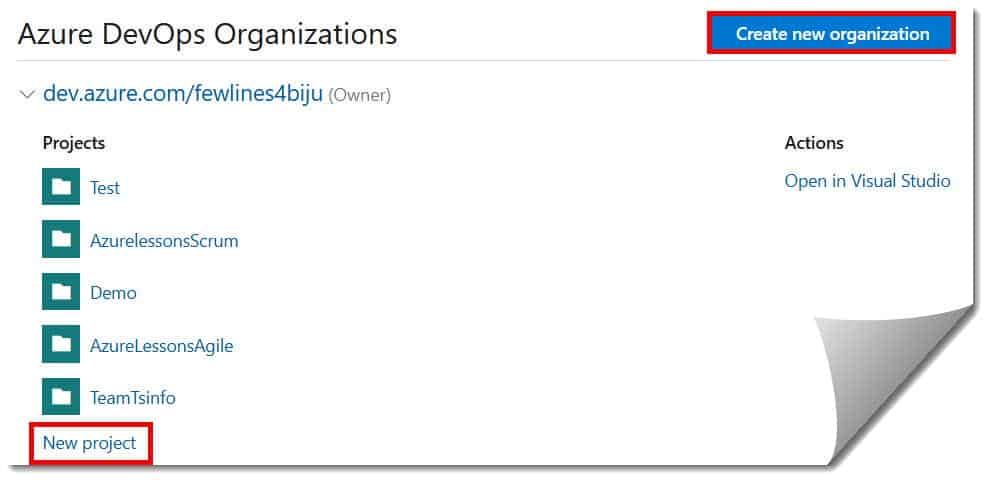
4. Create a Project: Choose a name and set the visibility.
- Public: Anyone on the internet can see it (great for open source).
- Private: Only people you invite can see it (standard for business).
Expert Tip: When creating a project, you’ll be asked to choose a Work Item Process. If you’re in the USA, 90% of teams use Agile or Scrum. If you aren’t sure, pick Agile. It’s the most flexible for beginners.
Step 2: Planning Work with Azure Boards
This is where project management happens. If you’ve used Trello or Jira, you’ll feel right at home here. Azure Boards is where we turn abstract ideas into actionable items.
The Hierarchy of Work
Azure DevOps uses a specific “nesting” system to keep things organized:
- Epics: High-level initiatives (e.g., “Launch Mobile App”).
- Features: Specific capabilities (e.g., “User Login”).
- User Stories: The actual requirement (e.g., “As a user, I want to reset my password”).
- Tasks: The technical steps (e.g., “Create SQL table,” “Design CSS”).
Using the Kanban Board
The Kanban board is your visual “Source of Truth.” You can drag and drop cards from “To Do” to “Doing” to “Done.”
- Columns: You can customize these to match your actual workflow (e.g., “Peer Review,” “Testing”).
- Backlogs: A prioritized list of everything that needs to be done eventually.
Check out Kanban Board Azure DevOps
Step 3: Managing Code with Azure Repos
Once the plan is in place, it’s time to write the code. Azure Repos provides private Git repositories.
Key Concepts in Repos:
- Commits: Saving your changes to the history.
- Branches: Creating a “parallel universe” for your code so you don’t break the main version while working on a new feature.
- Pull Requests (PRs): This is the “Gatekeeper.” Before code is merged into the main branch, other team members (like Logan, our Lead Dev in Austin) review it for bugs and quality.
Why Use Repos Over Standard GitHub?
While Azure DevOps integrates beautifully with GitHub, using native Azure Repos allows for tighter integration with your work items. You can literally link a line of code to the User Story that requested it. That’s “Full Traceability.”
Check out How to Create a New Repo in Azure DevOps
Step 4: Automating with Azure Pipelines (CI/CD)
This is the most “magical” part of Azure DevOps. In the old days, a developer would finish code and email it to an IT guy to “put it on the server.” That’s slow and prone to human error.
Azure Pipelines automates this via CI/CD:
- Continuous Integration (CI): Every time code is pushed, the pipeline automatically “builds” it and runs tests to make sure nothing is broken.
- Continuous Delivery (CD): If the build is successful, the pipeline automatically deploys the code to a server (like Azure App Service or an AWS bucket).
YAML vs. Classic Editor
Azure Pipelines can be built using a Visual Designer (drag and drop) or YAML (writing code to define the pipeline).
- Beginners: Use the Classic Editor to understand the logic.
- Pros: Use YAML because it stays with your code in the repository.
Step 5: Hosting Packages with Azure Artifacts
As your team grows, you’ll find that you share code between different projects. Maybe you have a “Security Library” that every app in your company needs to use.
Instead of copying and pasting code, you publish it as a Package to Azure Artifacts.
- It supports NuGet (.NET), npm (JavaScript), Maven (Java), and more.
- It acts as a private “store” for your company’s custom tools.
Step 6: Testing with Azure Test Plans
Quality assurance (QA) isn’t just for developers. Azure Test Plans allows your QA team to create structured manual test cases.
- Test Suites: Groups of tests for a specific feature.
- Test Steps: Explicit instructions for the tester (e.g., “1. Click Login. 2. Enter ‘Admin’. 3. Verify error message”).
- Bug Integration: If a test fails, the tester can click one button to create a Bug work item that is automatically linked to the failed test.
Comparison: Azure DevOps vs. The Competition
I’m often asked by clients how Azure DevOps stacks up against other toolchains. Here is a quick comparison:
| Feature | Azure DevOps | Jira + GitHub + Jenkins |
| Integration | Native (All-in-one) | Plug-ins / API needed |
| Cost | One subscription | Multiple vendors |
| Identity | Microsoft Entra ID (Native) | Often requires SSO setup |
| Traceability | Automatic | Requires manual linking |
| Learning Curve | Moderate (Unified UI) | Steep (Switching UIs) |
Best Practices for Beginners
If you want to look like a pro on day one, follow these three rules:
1. The “No Orphan” Rule
Never write a line of code that isn’t linked to a work item. In Azure DevOps, you can “Associate” a commit with a User Story ID (e.g., #123). This makes auditing a breeze.
2. Protect Your “Main” Branch
Don’t let anyone push code directly to the main branch. Set up Branch Policies that require at least one Pull Request approval and a successful build before code can be merged.
3. Use Dashboards
Create a Dashboard in Azure Boards to see your team’s velocity, the number of active bugs, and the status of your last deployment at a glance.
Managing Users and Permissions
In an enterprise, security is paramount. Azure DevOps uses Access Levels to manage what people can do.
- Stakeholder: (Free) Can view the board, add stories, and see progress. Great for clients or VPs.
- Basic: (Paid) Can use Boards, Repos, and Pipelines. Standard for developers.
- Basic + Test Plans: (Premium) Everything in Basic, plus advanced testing tools.
Summary of the Beginner’s Journey
Starting with Azure DevOps can feel like learning a new language, but the workflow is actually quite logical once you see it:
- Plan the work in Boards.
- Code the solution in Repos.
- Build and Test automatically in Pipelines.
- Package reusable bits in Artifacts.
- Verify the quality in Test Plans.
By centralizing these five steps, you eliminate the “friction” that slows down software teams. You move from a group of individuals working on files to a cohesive unit delivering a product.
Video Tutorials
Conclusion:
Azure DevOps is more than just a tool—it’s a mindset. It encourages transparency, automation, and constant improvement. Whether you’re a startup or a massive corporation, these principles will help you build better software, faster.
The best way to learn is to create a free organization, spin up an Agile project, and try moving a task from “New” to “Done.” You’ll be surprised at how quickly you can do this.
You may also like the following articles:
- How To Add Feature To Epic In Azure DevOps
- Microsoft Azure Tutorial For Beginners
- How To Use Azure DevOps for Project Management
- How To Create A Feature In Azure DevOps
- Epic Vs Feature Azure DevOps
- Feature Vs User Story Azure DevOps
- What Is A Feature In Azure DevOps

I am Rajkishore, and I am a Microsoft Certified IT Consultant. I have over 14 years of experience in Microsoft Azure and AWS, with good experience in Azure Functions, Storage, Virtual Machines, Logic Apps, PowerShell Commands, CLI Commands, Machine Learning, AI, Azure Cognitive Services, DevOps, etc. Not only that, I do have good real-time experience in designing and developing cloud-native data integrations on Azure or AWS, etc. I hope you will learn from these practical Azure tutorials. Read more.
