How To Add Feature To Epic In Azure DevOps

The relationship between an Epic and a Feature is the backbone of strategic alignment. Today, I’m going to walk you through the process of adding a Feature to an Epic in Azure DevOps, ensuring your project hierarchy is as clean as a fresh Slack workspace.

How To Add Feature To Epic In Azure DevOps

By adding a Feature to an Epic, you are “parenting” the work. This allows the Epic to aggregate the progress of all its underlying Features, giving leadership a real-time view of completion percentages.

Method 1: Using the Mapping Pane

Step 1: Navigating to the Backlog

  1. Sign in to your Azure DevOps organization (e.g., dev.azure.com/YourOrg).
  2. Select your Project from the dashboard.
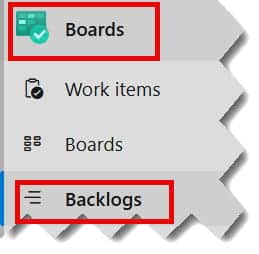
  3. On the left-hand sidebar, navigate to Boards > Backlogs. Check out the screenshot below for your reference.
how to add feature to epic in azure devops

Ensuring the Correct View

By default, your backlog might be showing “Stories” or “Tasks.” To work with Epics and Features, you must adjust your view:

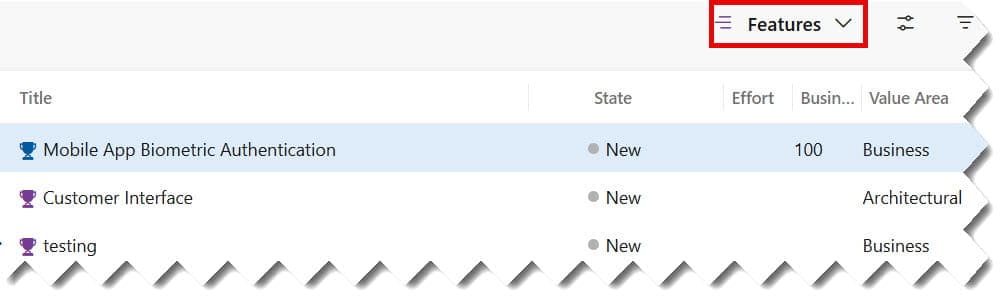
  • In the upper right-hand corner of the Backlog screen, look for the Backlog level selector.
  • Select Features. This will display all the high-level initiatives currently in your roadmap.
how to add a feature to an epic in azure devops

Step 2: Enabling the Mapping Pane (The “Pro” Way)

If you have an existing Epic and you want to add a Feature to it, the most efficient way—and the one I recommend —is using the Mapping Pane.

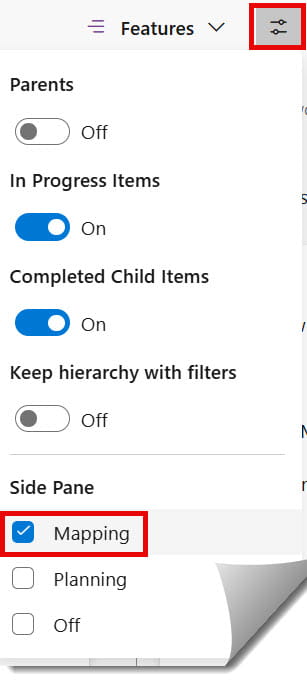
  1. While in the Backlogs view, click on the View Options (gear icon or toggle) in the top right.
  2. Turn the Mapping toggle to On.
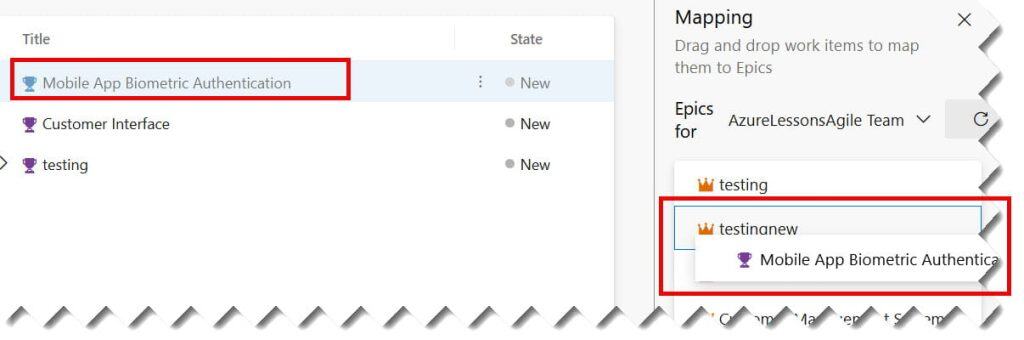
  3. A pane will appear on the right side of your screen showing your Epics. Check out the screenshot below for your reference.
how to link feature to epic in azure devops
add feature to epic in azure devops

4. Now, using your left mouse click, drag the respective feature from the main backlog list and drop it onto the target epic in the mapping pane.

link feature to epic in azure devops

Why Mapping Matters

The Mapping Pane allows for a simple drag-and-drop interface. If you have a list of “Unparented Features,” you can simply grab them and slide them onto the appropriate Epic. Azure DevOps automatically creates the “Parent” link for you behind the scenes.

Method 2: Adding a Feature Directly from the Epic

Sometimes you are starting fresh. You have an Epic, and you want to brainstorm the Features that will make it a reality.

  1. In the Epics Backlog, you will see a plus (+) icon next to each Epic title.
  2. Click the + icon. A dropdown or a new work item row will appear.
  3. Select Feature as the work item type.
  4. Enter the title (e.g., Feature: Cloud Migration - Phase 1).
  5. Press Enter. Check out the screenshot below for your reference.
how to create feature under epic in azure devops
create feature under epic in azure devops

This Feature is now officially a “child” of that Epic. You can click the small arrow next to the Epic to expand it and see your newly created Feature nested neatly underneath.

Method 3: Linking an Existing Feature to an Epic

In a fast-paced development environment—say, a startup in Seattle—teams often create Features in a vacuum. Later, the leadership team realizes these Features belong under a specific strategic Epic.

The “Parent Link” Method

If the Feature already exists:

  1. Open the Feature work item.
  2. Locate the Related Work section (usually on the right side or at the bottom depending on your layout).
  3. Click Add link > Existing item.
  4. Change the Link type to Parent.
  5. Search for the Epic ID or title in the search box.
  6. Click OK and then Save & Close.
create feature under epic azure devops
Add feature under epic azure devops

Organizing Features for Multi-Team Projects

In large US corporations, you might have an Epic that spans multiple teams. For example, a “Global Expansion” Epic might involve the “US-East Team” and the “US-West Team.”

Using Area Paths and Iteration Paths

When adding a Feature to an Epic, don’t forget to set the Area Path.

  • Epic Area Path: Usually set to a high-level Business Unit.
  • Feature Area Path: Set to the specific team responsible for delivering that feature.

This allows the Epic to stay on the “Executive Board” while the Feature shows up on the “Team Board.”

Best Practices for Feature Management

Maintaining a clean hierarchy is a discipline, not a one-time task. Here are the standards I enforce during my DevOps audits:

1. The “Single Parent” Rule

A Feature can only have one Parent Epic. If you find a Feature that seems to belong to two Epics, your Epics are likely defined too narrowly.

2. Naming Conventions

I always advise teams to use prefixes. It makes searching much faster:

  • Epic: [EPIC] 2026 Mobile Refresh
  • Feature: [FEAT] Apple Pay Integration

3. Keep the “Leaf Nodes” Balanced

Don’t have one Epic with 50 Features and another with only one. If an Epic is too large, it becomes a “Black Hole” where work goes to disappear. Aim for 5–10 Features per Epic for optimal visibility.

Comparison: Adding via Backlog vs. Board

FeatureBacklog ViewBoard View
SpeedHigh (Bulk adding)Medium
VisibilityHierarchy ListStatus Columns
Ease of UseBest for PlanningBest for Daily Standups
Mapping PaneAvailableNot Available

Video Tutorial

Conclusion:

Adding a Feature to an Epic in Azure DevOps is a simple mechanical act that carries profound organizational weight. It turns a list of tasks into a cohesive strategy. By following the steps outlined above, you can easily achieve this.

You may also like the following articles:

Azure Virtual Machine

DOWNLOAD FREE AZURE VIRTUAL MACHINE PDF

Download our free 25+ page Azure Virtual Machine guide and master cloud deployment today!