
In this authoritative tutorial, I will guide you through the root causes of the ” Connect-Entra is not recognized error, provide a foolproof blueprint for installing the required binaries, and outline advanced troubleshooting techniques to ensure your identity automation pipeline remains uninterrupted.
Connect-Entra is not recognized
Recently, I tried to run the following PowerShell command to connect to my Azure tenant.
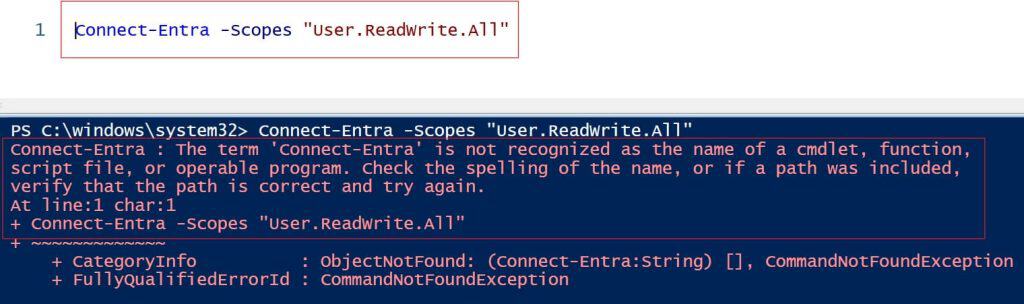
Connect-Entra -Scopes "User.ReadWrite.All"After executing the command above, I received the error shown in the screenshot below.
Cause of this error
That happens because the Microsoft.Entra PowerShell module isn’t installed on your machine yet, or the module hasn’t been imported into your current PowerShell session.
The Microsoft.Entra module is the newer, official module designed to replace the older Azure AD (AzureAD) and MSOnline (MSOnline) modules.
Solution
To fix this issue, you can follow the steps below.
Step 1: Open PowerShell as an Administrator
Right-click your PowerShell shortcut and select Run as Administrator. This is required to install modules system-wide.
Step 2: Install the Microsoft.Entra Module
Run the following command to download and install the module from the PowerShell Gallery:
PowerShell
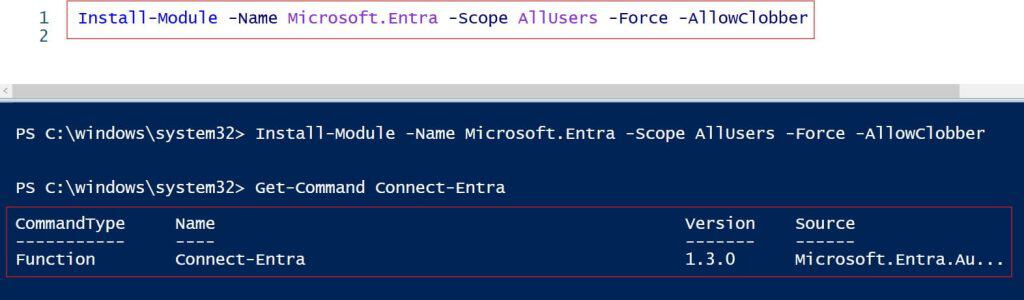
Install-Module -Name Microsoft.Entra -Scope AllUsers -Force -AllowClobber💡 Note: If you get a prompt asking about an “Untrusted repository,” type Y (Yes) or A (Yes to All) and press Enter. The PowerShell Gallery is trusted, but PowerShell asks this by default if it hasn’t been explicitly configured as trusted.
After executing the above command, the module has been installed successfully as per the screenshot below.
Step 3: Verify the Installation
To make sure it is installed correctly, you can check for the command again:
PowerShell
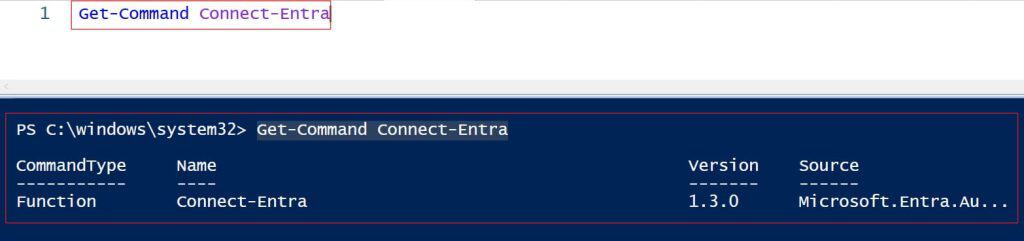
Get-Command Connect-EntraIf it returns the command details, you are good to go! as shown in the screenshot below.
Step 4: Import and Connect
Now you can import the module into your current session and sign in to your tenant:
PowerShell
Import-Module Microsoft.Entra
Connect-Entra -Scopes "User.ReadWrite.All"
Or, you can also use the command below.
Connect-Entra -Scopes "User.ReadWrite.All" -ContextScope CurrentUser -UseDeviceAuthentication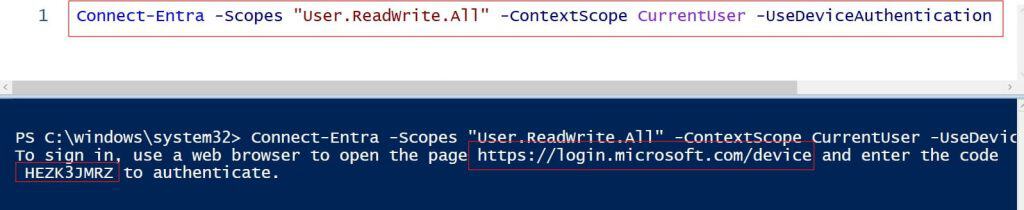
Alternative: What if you are using the Microsoft Graph SDK instead?
If your organization standardizes on the Microsoft Graph PowerShell SDK rather than the standalone Entra module, you will use a different set of commands entirely.
If you’d rather use that (or already have it installed), you can restore the user this way:
PowerShell
# 1. Connect using Graph
Connect-MgGraph -Scopes "User.ReadWrite.All"

# 2. Restore the soft-deleted user (Requires the Beta profile)
Select-MgProfile -Name "beta"
Restore-MgBetaDirectoryDeletedItem -DirectoryObjectId "<User-Object-ID>"
Video Tutorial
Conclusion:
Encountering the “Connect-Entra is not recognized” error can stall your administrative workflows, but resolving it is straightforward. By understanding how PowerShell locates modules, ensuring your system meets the necessary prerequisites, and following a structured installation process, you can quickly clear this blocker and establish a reliable automation environment.
You may also like the following articles: