
How to add team members in Azure DevOps

In this guide, I will walk you through exactly how to add team members in Azure DevOps, and how I manage team additions—from the high-level organization settings down to granular team permissions.

How to add team members in Azure DevOps

Managing Azure DevOps effectively means understanding the hierarchy. You aren’t just “adding an email”; you are assigning a License (Access Level) and a Permission Set (Security Group).

Prerequisites:

Before we start, you need to ensure you have the right permissions to actually add people.

  • Organization Level: To add users to the organization, you must be a member of the Project Collection Administrators group or be the Organization Owner.
  • Project Level: To add users to a specific project team, you should be a Project Administrator or a Team Administrator.

If you’re sitting there looking at a greyed-out “Add” button, check your own profile settings first!

Understanding Azure DevOps Access Levels

Access LevelWho is it for?Cost (Typical)Key Features
BasicDevelopers, Designers, PMsFirst 5 free, then ~$6/moBoards, Repos, Pipelines, Artifacts
StakeholderClients, Executive SponsorsFree (Unlimited)View Boards, Add/Edit Work Items
Basic + Test PlansQA Engineers, SDETs~$52/moEverything in Basic + Manual Testing tools
Visual Studio SubscriberDevelopers with MSDNIncluded in SubscriptionAutomatically detected based on login

Step 1: Adding a User to the Organization

I always recommend adding users at the organization level first. This makes them “available” to be picked for any project within your company.

The Walkthrough:

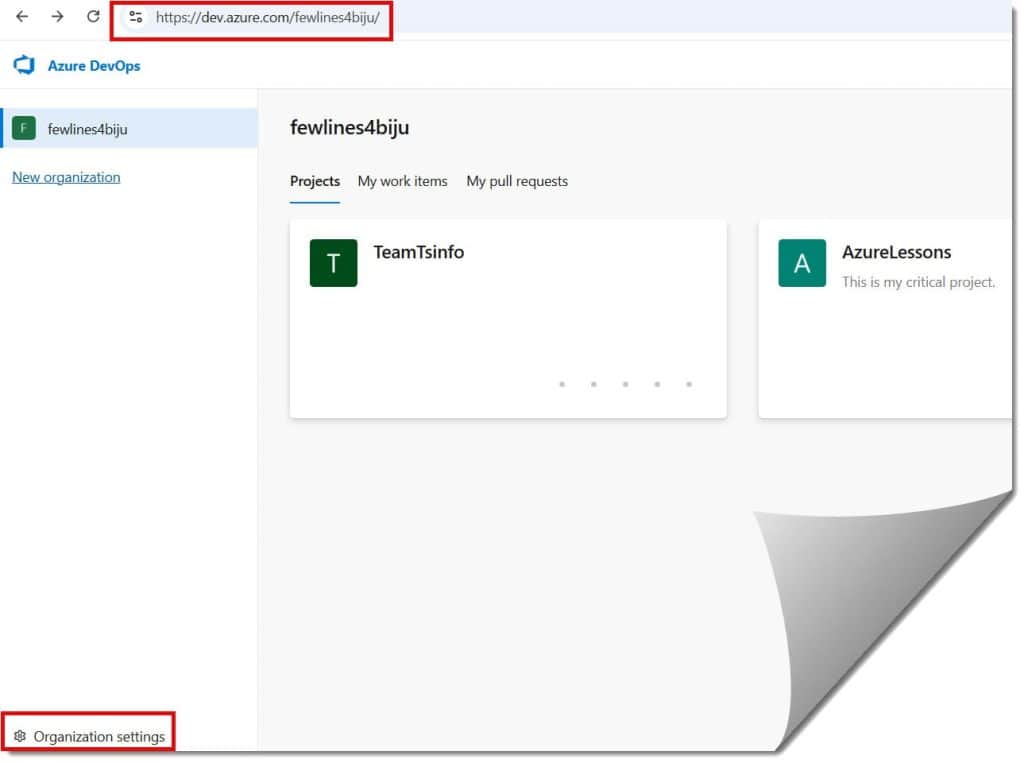
  1. Log in to your Azure DevOps organization (e.g., dev.azure.com/YourCompany).
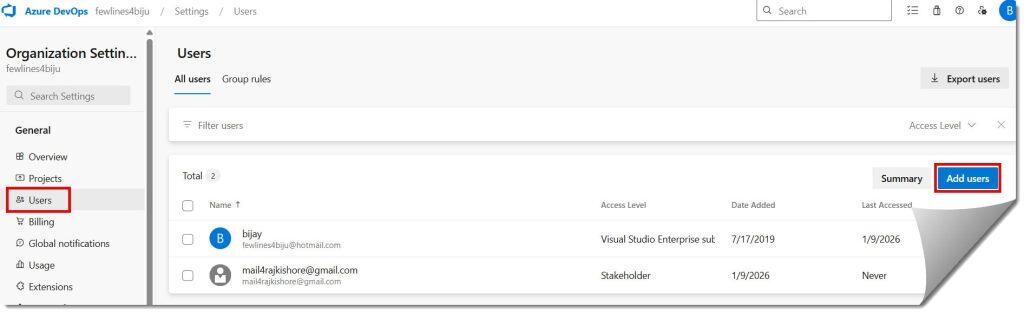
  2. In the bottom-left corner, click on Organization Settings.
  3. Under the General section, click on Users.
  4. Click the blue Add users button at the top right.
  5. Enter Information: * Users: Type in the email (e.g., chloe.baker@yourcompany.com).
    • Access Level: For a developer, I’ll choose Basic.
    • Add to Projects: Select the specific project they’ll be working on.
    • Azure DevOps Groups: By default, I usually add them to [Project Name]\Contributors.
  6. Click Add. Check out the screenshots below for your reference.
how to add team members in azure devops
add team members in azure devops
how to add new team member in azure devops
how to add members to a project in azure devops

Step 2: Adding Members to a Specific Team

Sometimes a project is so large that it’s split into multiple teams—like “Mobile App Team” and “Cloud Infrastructure Team.” Adding someone to the project isn’t enough; you need to put them where the work is happening.

The Walkthrough:

  1. Navigate to your Project Home Page.
  2. Click on Project Settings (bottom-left).
  3. Under the General category, select Teams.
  4. Click on the specific team name (e.g., Sprint Squad A).
  5. Click the Add button in the Members section.
  6. Search for Robert’s name (since he was added to the Org in Step 1, his name will auto-populate).
  7. Click Save Changes. Check out the screenshots below for your reference.
how to add members to azure devops project
add members to azure devops project
how to add users in azure devops
how to add a user in azure devops project

Managing Security Groups: Who Can Do What?

  • Readers: Perfect for stakeholders who only need to see progress but shouldn’t touch the code or the tasks.
  • Contributors: The “Goldilocks” zone for 90% of your team. They can push code, create work items, and run pipelines.
  • Project Administrators: Reserved for the “Captains.” They can change project settings, delete repositories, and manage other users.

Troubleshooting: “I Can’t See the Repos!”

  1. Check Access Level: Is he a “Stakeholder”? Stakeholders cannot see Repos by default. Switch him to “Basic.”
  2. Check Group Membership: Is he in the “Readers” group by mistake?
  3. Conditional Access: If your company has strict security, he might need to be on the VPN or a managed device to see the code.
  4. License Expiration: If you are using a monthly Basic license and the credit card failed, he might have been downgraded to Stakeholder automatically.

Video Tutorial

Conclusion

Mastering user management in Azure DevOps is about balancing accessibility with security. By following the hierarchy—Organization > Project > Team—you ensure that every member is added to the team.

If you are just starting out, keep it simple: use “Basic” access and “Stakeholder” for viewers.

You may also like the following articles:

Azure Virtual Machine

DOWNLOAD FREE AZURE VIRTUAL MACHINE PDF

Download our free 25+ page Azure Virtual Machine guide and master cloud deployment today!