
Here is my complete, step-by-step guide on how to recover a deleted branch in Azure DevOps, covering everything from the web portal to command-line saves.
Table of Contents
How to recover deleted branch in Azure DevOps
Method 1: The Web Portal (The Easiest Method)
Log in to your Azure DevOps organization. Navigate to your Project, then hover over Repos in the sidebar and select Branches.
Step 2: Search for the Deleted Branch
By default, the “Mine” and “All” tabs only show active branches. If you scroll through the list, you won’t see your deleted branch.
- Locate the “Search all branches” box in the top right corner.
- Type the exact name of the deleted branch.
- Note: Partial matches often fail here. You need the full string, e.g.,
feature/login-updaterather than justlogin.
- Note: Partial matches often fail here. You need the full string, e.g.,
- Once you hit enter, you will likely see “No branches found.” Look closely for a link that appears below the search bar saying: “Search for exact match in deleted branches.”
Step 3: Restore the Branch
Click that link. Azure DevOps will query the recycle bin for that specific string.
- Your branch should appear in the list with a Deleted status.
- Hover over the row to find the actions menu (the three vertical dots
...). - Select the Restore branch. Check out the screenshot below for your reference.
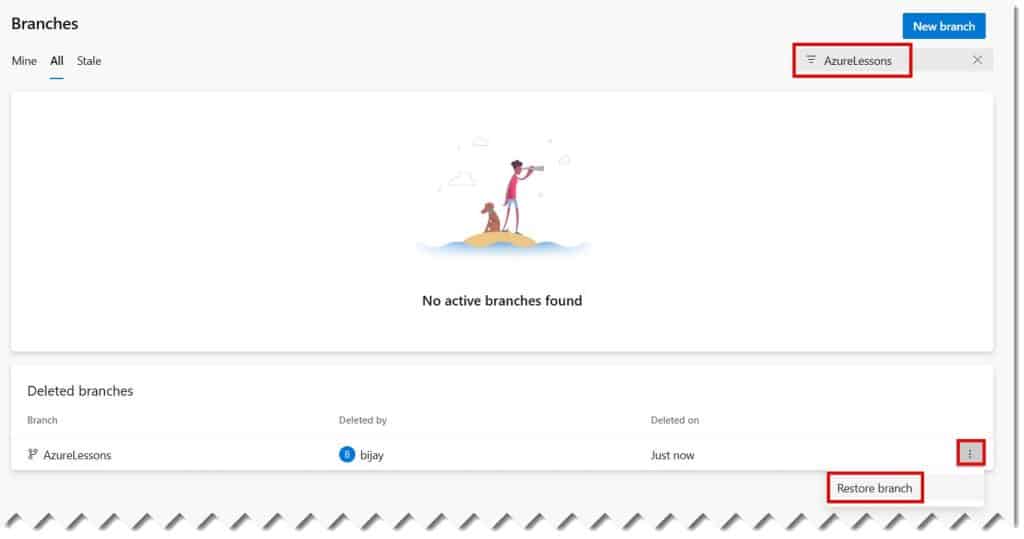
The system will recreate the branch pointing to the exact same Commit ID (SHA) it was at when it was deleted.
Method 2: recovering via Git Reflog
Sometimes, you might not have access to the Azure Portal, or perhaps you deleted the branch locally and propagated that deletion to the remote. In these cases, I prefer using the command line. It makes me feel more in control of the Git history.
This method relies on git reflog, which is essentially a history of everywhere your HEAD pointer has been.
Step 1: Find the Commit ID
Open your terminal or command prompt in your repository folder. Run the following command:
Bash
git reflogYou will see a list of moves. Look for the entry where you moved away from the deleted branch or the commit message associated with the tip of that branch. You are looking for the SHA-1 hash (the alphanumeric code, e.g., a1b2c3d) next to that state.
Step 2: Recreate the Branch Locally
Once you have the SHA, you can resurrect the branch from that specific point in time.
Bash
git checkout -b <branch_name> <sha_id>- Replace
<branch_name>with your original branch name. - Replace
<sha_id>with the hash you found in the reflog.
Step 3: Push to Azure DevOps
Now that the branch exists locally, you simply need to push it back to the remote server to “restore” it for everyone else.
Bash
git push origin <branch_name>Method 3: Restoring via API (For Automation)
If you are a DevOps Engineer like me, you might need to automate this process or handle bulk restorations. The Azure DevOps REST API is powerful here. While I won’t write a script for you, I will explain the logic so you can build your own tools.
You generally need to use the Git Ref Update endpoint.
Required Parameters for API Restoration
| Parameter | Description |
oldObjectId | The SHA of the commit you want to restore to. |
newObjectId | This should be set to 0000000000000000000000000000000000000000 (40 zeros) to indicate a new creation, or the specific SHA if locking a ref. |
name | The full path of the branch, e.g., refs/heads/my-branch. |
By sending a POST request to the refs endpoint of your repository, you can programmatically force the creation of a branch at a specific commit, effectively restoring it.
Critical Considerations After Recovery
Restoring the branch is only half the battle. From my experience managing large enterprise repositories, simply getting the code back isn’t enough to return to “business as usual.” There are several disconnected configurations you must manually address.
1. Branch Policies are Reset
This is the most dangerous pitfall. When a branch is deleted, the policies attached to it (Pull Request requirements, build validation, reviewer requirements) are deleted as well.
- Action: Immediately after restoration, go to Project Settings > Repositories > Policies and re-apply any protection rules.
2. Build Definitions (CI Pipelines)
If your CI/CD pipelines were triggered by commits to that specific branch, they should resume working automatically. However, if you had a “Scheduled” trigger or a specific path filter that was modified while the branch was gone, verify your YAML files.
3. Pull Request Links
If there was an active Pull Request (PR) open for that branch when it was deleted, the PR was likely abandoned or closed.
- Restoration: You will usually need to create a new Pull Request. The old PR will remain in the “Abandoned” tab for historical reference, but you cannot typically “reactivate” a PR for a branch that was deleted and then restored with a new ref update.
Troubleshooting Common Errors
Even with a smooth process, you might hit road bumps. Here are the most common ones I encounter:
- “Branch already exists” Error:Sometimes, a teammate might have created a new branch with the same name while you were panicking.
- Solution: Rename the existing branch or restore your deleted branch using a slightly different name (e.g.,
feature/login-update-recovered).
- Solution: Rename the existing branch or restore your deleted branch using a slightly different name (e.g.,
- Permissions Denied:If you cannot see the “Restore” button, you likely lack the specific permission Force push (rewrite history, delete branches and tags).
- Solution: Contact your Project Administrator. They need to adjust the Security settings for your specific user account or group on that repository.
- Ghost Commits:If the branch was deleted a long time ago and the Git history was rewritten (e.g., via a squash merge into main), restoring the old branch might result in conflicts or “detached” histories.
- Solution: Always rebase the restored branch against the current
mainbranch immediately after recovery to ensure compatibility.
- Solution: Always rebase the restored branch against the current
Video Tutorial
Conclusion
Recovering a deleted branch in Azure DevOps is a robust feature. Whether you use the Web Portal for a quick fix or the Git CLI for a restoration, the data is almost always there waiting for you.
The most important takeaway? Don’t panic. Azure DevOps is built with enterprise safety in mind. As long as you know the branch name and act methodically, you can get your code back in minutes.
Summary Checklist for Recovery
- Check the Web Portal first using “Search for exact match in deleted branches.”
- If that fails, check your local Git Reflog.
- Once restored, immediately re-apply branch policies.
- Verify your CI/CD pipelines are triggering correctly.
You may also like the following articles:
- How To Merge Two Branches In Azure DevOps
- How to Delete a Branch in Azure DevOps
- How to Resolve Merge Conflicts in Azure DevOps
- How to Create a New Repo in Azure DevOps

I am Rajkishore, and I am a Microsoft Certified IT Consultant. I have over 14 years of experience in Microsoft Azure and AWS, with good experience in Azure Functions, Storage, Virtual Machines, Logic Apps, PowerShell Commands, CLI Commands, Machine Learning, AI, Azure Cognitive Services, DevOps, etc. Not only that, I do have good real-time experience in designing and developing cloud-native data integrations on Azure or AWS, etc. I hope you will learn from these practical Azure tutorials. Read more.
