
How To Create A Feature In Azure Devops

In this article, I’m going to show you exactly how to create and manage Features in Azure DevOps. Whether you’re a Product Owner or a Scrum Master, this article is designed to help you master the “Feature” work item.

How To Create A Feature In Azure Devops

In the Azure DevOps hierarchy, a Feature is the bridge between the high-level vision (Epics) and the tactical execution (User Stories). Without Features, your backlog becomes a “flat list” of hundreds of items, making it impossible for stakeholders to see the “big picture.”

The Standard Azure DevOps Hierarchy

Work Item TypeTypical DurationTargeted Audience
EpicSeveral Months / QuartersExecutives & Stakeholders
Feature2 to 4 SprintsProduct Managers / Lead Devs
User StoryWithin 1 SprintDevelopment Team
Task4 to 12 HoursIndividual Developer

Step 1: Navigating to the Features Backlog

Before you can create a Feature, you need to be in the right place. Azure DevOps provides multiple views, but the Backlogs view is the most efficient for building a roadmap.

  1. Open your Project: Log into your Azure DevOps organization (e.g., dev.azure.com/YourCompany).
  2. Select Boards: On the left-hand sidebar, click on Boards and then select Backlogs.
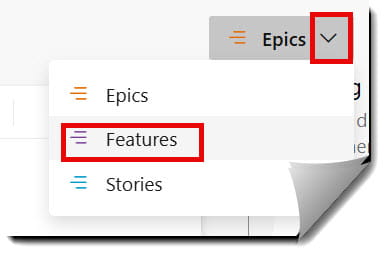
  3. Choose the Correct Level: In the top-right corner of the backlog view, you’ll see a toggle. Ensure Features is selected. If you only see “Stories” or “Backlog items,” click the selector and choose Features. Check out the screenshot below for your reference.
How To Create A Feature In Azure Devops

Pro-Tip: If “Features” doesn’t appear in the list, you may need to enable the backlog level in your Team Settings. Go to Project Settings > Team Configuration > Backlogs and ensure the checkbox for “Features” is checked.

Step 2: Creating Your First Feature

Now that you’re on the Features backlog, let’s create one. I’ll use a standard USA-specific naming convention (e.g., “Customer Loyalty Rewards Integration”) to illustrate what a professional entry looks like.

Method A: The Quick Add

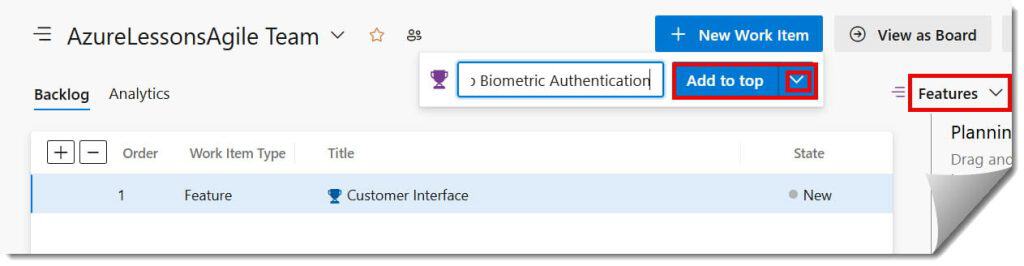
At the top of the Features backlog, look for the + New Work Item button.

  • Type your title: Mobile App Biometric Authentication.
  • Click Add to top or Add to bottom. Check out the screenshot below for your reference.
  • This creates a “stub” that you can go back and fill in later.
how to create feature in azure devops

Method B: The Detailed Form (Best for Precision)

Click on the title of the Feature you just created (or click the plus icon and then the expand icon). This opens the full Work Item form. Here is what I recommend filling out immediately:

  • Title: Make it descriptive but concise.
  • Description: Use this space to define the What and Why. What problem are we solving?
  • Priority: In the USA market, time-to-value is everything. Use 1 for “Must-have” and 2 or 3 for “Should-have.”
  • Business Value: A numerical value (often 1-1000) to help sort the backlog by ROI. Check out the screenshot below for your reference.
create feature in azure devops

Step 3: Mapping Features to Epics and Stories

A Feature shouldn’t live in a vacuum. To show true authority over your project, you must ensure Traceability.

Parenting to an Epic

On the right-hand side of the Feature form, look for the Related Work section.

  1. Click Add link > Existing item.
  2. Select the Link Type as Parent.
  3. Search for your Epic. Check out the screenshot below for your reference.
create a feature in azure devops
create feature azure devops
feature azure devops

Decomposing into User Stories

A Feature is too big for a developer to “just do.” It needs to be broken down.

  1. From the Backlogs view, click the (+) icon next to your Feature.
  2. This will automatically create a User Story as a “Child” of that Feature.
  3. Repeat this until the Feature is fully defined by actionable stories.

Step 4: Managing Features on the Kanban Board

Once your Features are created, you need to track their flow. Navigating to Boards > Boards and selecting the Features view allows you to see your roadmap in motion. Check out the screenshot below for your reference.

how to link feature to epic in azure devops

Customizing Your Feature Board

Standard columns like “New” and “Active” are often too vague. I recommend customizing your Feature board to include:

  • Discovery: For Features currently being researched by the UX/Product team.
  • Refinement: For Features being broken down into stories.
  • In Development: When at least one child story is being worked on.
  • Validation: For UAT (User Acceptance Testing) or Stakeholder review.
  • Done: The feature is live in production.

Video tutorial

Summary

Creating a Feature in Azure DevOps is the first step toward moving towards more productive” By organizing your work this way, you provide your stakeholders with the transparency they crave and your developers with the context they need.

You may also like the following articles:

Azure Virtual Machine

DOWNLOAD FREE AZURE VIRTUAL MACHINE PDF

Download our free 25+ page Azure Virtual Machine guide and master cloud deployment today!