
How To Delete A User Story In Azure DevOps

Maintaining a clean and efficient backlog is essential. What you remove from your backlog is often just as important as what you add. In this comprehensive article, I will walk you through the professional way to delete a user story in Azure DevOps while maintaining the integrity of your project.

How To Delete A User Story In Azure DevOps

Deleting vs. Removing vs. Closing: Know the Difference

Before we click the delete button, we must understand the “State” logic in Azure DevOps. Many teams make the mistake of deleting work items when they should actually be “Removing” or “Closing” them.

The Decision Matrix

ActionWhen to Use ItImpact on Data
CloseThe work is finished and verified.Keeps the item in history; counts toward velocity.
RemovedThe idea is valid but we’ve decided not to do it.Keeps the item in history; does not count toward velocity.
DeleteThe item was a mistake, a duplicate, or created in error.Moves item to the “Recycle Bin”; eventually permanently purged.

If you are a Project Lead overseeing a critical deployment, you likely want to use the “Removed” state for audit purposes. However, if someone accidentally double-clicked and created a blank story, “Delete” is the correct path.

Prerequisites: Permissions and Access

In most enterprise Azure DevOps environments, “Delete” permissions are restricted to prevent accidental data loss.

  • Project Level: You must be a member of the Project Administrators group or have the “Delete work items” permission set to “Allow” for your specific Area Path.
  • Process Template: Whether you use Agile, Scrum, or Basic, the deletion process remains consistent, but ensure your organization hasn’t disabled the Recycle Bin feature.

How to Delete a User Story: The Step-by-Step Tutorial

I will show you the two primary ways to handle this: through the Backlog view and through the Work Item form.

Method A: Deleting from the Backlog or Board (The Bulk Method)

This is the most efficient way to clean up several items at once.

  1. Navigate to your Project: Open your organization (e.g., dev.azure.com/YourOrg).
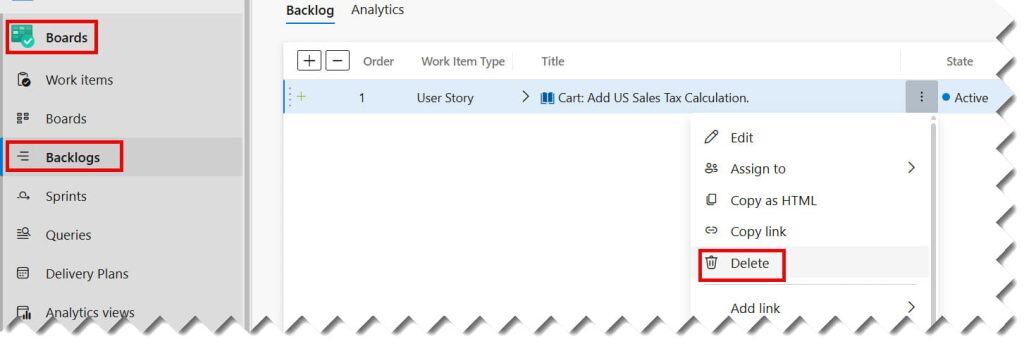
  2. Go to Boards: Select Backlogs or Queries from the left-hand navigation pane.
  3. Select the Story: Click on the User Story you wish to delete. To select multiple, hold the Ctrl key (Windows) or Cmd key (Mac).
  4. Open the Context Menu: Right-click on the selected item(s) or click the three dots (…) (Actions menu).
  5. Select Delete: Click on Delete.
  6. Confirm: A confirmation dialog will appear. Click Delete again.

Check out the screenshots below for your reference.
how to delete a user story in azure devops
delete a user story in azure devops

Method B: Deleting from Within the User Story Form

If you are currently reviewing the details of a story and realize it is no longer needed:

  1. Open the User Story: Click on the title to open the full work item view.
  2. Locate the Actions Menu: In the top right corner of the form, look for the three dots (…).
  3. Choose Delete: Select the Delete option from the dropdown.
  4. Finalize: Confirm the deletion in the pop-up window.
delete user story azure devops
how to delete user story in azure devops

What Happens After Deletion? (The Recycle Bin)

One of the best safety features Microsoft introduced is the Work Item Recycle Bin. When you delete a story, it isn’t gone forever—at least not yet.

  • Retention Policy: By default, deleted items stay in the Recycle Bin for 30 days.
  • Traceability: The links to parent features or child tasks are severed upon deletion.
  • Restoration: If James Miller realizes he deleted the wrong story during a hectic refinement session, he can navigate to Boards > Work Items, click the Recycle Bin tab, and select Restore.

Method C: Deleting the user story using Azure CLI

We can also use the Azure CLI command below to permanently delete the user story.

az boards work-item delete --id 40 --destroy --yes --org "https://dev.azure.com/fewlines4biju" --project "AzureLessonsAgile" 

After executing the query above, I received the expected output, as shown in the screenshot below.

how to delete user story azure devops

Note: If you use the destroy parameter with the above command, you won’t be able to restore the deleted user story. It is a permanent deletion. So use the command with caution.

Deleting User Stories with “Child” Tasks

If your User Story has Child Tasks or Bugs attached to it, deleting the parent story does not automatically delete the children.

Expert Warning: If you delete a User Story but leave its Tasks active, those Tasks become “orphaned.” They will still appear in your Sprint Taskboard but will have no parent context, which wreaks havoc on your “Work by Parent” reports.

The Correct Workflow for Linked Items:

  1. Open the User Story.
  2. Scroll to the Related Work section.
  3. Multi-select all Child items.
  4. Delete the children first, then delete the parent story. Or, move the children to a different User Story if the work is still relevant.
delete user story azure devops

Security Best Practices

  • Disable Permanent Deletion: In your Project Settings, you can allow users to “Delete” (move to Recycle Bin) but deny them the permission to “Permanently Delete” (purge from the bin). This ensures a Project Admin can always recover data.
  • Audit Logs: Use the Azure DevOps Audit Logs to see who deleted what. If a high-priority story disappears from the “Financial Portal 2.0” project, the audit log will show that David Wilson performed the deletion at 2:00 PM EST.
  • Automation Rules: Consider using Azure Logic Apps or Service Hooks to send a Slack or Microsoft Teams notification whenever a work item is deleted. This keeps the team transparent.

Video Tutorial

Conclusion

Deleting a user story in Azure DevOps is a simple action with significant ripple effects. By following this article, you ensure that your backlog remains a “lean, mean, product-building machine” without sacrificing the data integrity of your organization.

You may also like the following articles:

Azure Virtual Machine

DOWNLOAD FREE AZURE VIRTUAL MACHINE PDF

Download our free 25+ page Azure Virtual Machine guide and master cloud deployment today!