
In this article, I’m going to walk you through the definitive difference between an Epic and a Feature in Azure DevOps, how to structure them for maximum visibility.
Epic Vs Feature Azure DevOps
What is an Epic in Azure DevOps?
Think of an Epic as a major investment.
An Epic represents a large body of work that has a substantial impact on the business. In Azure DevOps, an Epic is a “Portfolio Backlog” item. It is the highest level of organization for most teams (unless you’ve enabled “Initiatives” or “Themes” through customization).
Characteristics of an Epic:
- Timeframe: Usually takes 3 to 6 months to complete.
- Stakeholders: Executives, Product Directors, and Project Managers.
- Goal: To track the “Why” and the “When” of a massive business shift.
Example of an Epic: > Epic Name: “Launch Mobile Banking for Small Business Clients”
Owner: Raj (Product Director)
What is a Feature in Azure DevOps?
In the AzDO world, a Feature is a mid-level container. It’s small enough to be understood by the development team but large enough to represent a “marketable” piece of functionality. When Logan, our Lead Architect in Austin, looks at the board, he’s focused on the Feature level to ensure we aren’t over-engineering the solution.
Characteristics of a Feature:
- Timeframe: Usually takes 2 to 4 sprints (4 to 8 weeks) to complete.
- Stakeholders: Product Owners, Scrum Masters, and Tech Leads.
- Goal: To deliver a specific, functional “unit of value” that contributes to the parent Epic.
Example of a Feature: > Feature Name: “Mobile Check Deposit via OCR”
Parent: Launch Mobile Banking Epic
Epic vs. Feature: Key Differences at a Glance
To make this crystal clear, let’s put them side-by-side.
| Attribute | Epic | Feature |
| Primary Focus | Business Strategy & ROI | Product Capabilities |
| Typical Duration | 3–12 Months | 1–3 Months (2-6 Sprints) |
| Hierarchy Level | Level 1 (Top Tier) | Level 2 (Mid Tier) |
| Reporting Audience | C-Suite, Stakeholders, VPs | Product Owners, Team Leads |
| Child Items | Contains multiple Features | Contains multiple User Stories |
| Completion Criteria | Significant business outcome | Functional capability delivered |
Tutorial: Setting Up Your Hierarchy
Step 1: Enable the Portfolio Backlogs
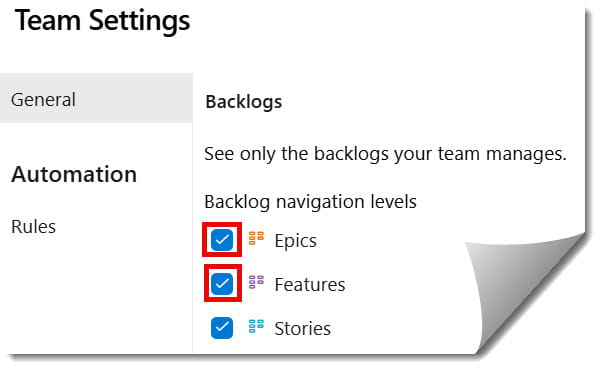
By default, Azure DevOps might only show you “Stories.” To see the epic and features you need to turn them on.
- Navigate to Boards > Backlogs.
- In the top right, click the Gear Icon (Settings).
- Go to Navigation levels.
- Ensure Epics and Features are checked.
- Hit Save and close.
Check out the screenshot below for your reference.
Step 2: Create the Strategic Epic
Let’s say we’re building a new internal portal for our HR team in Atlanta.
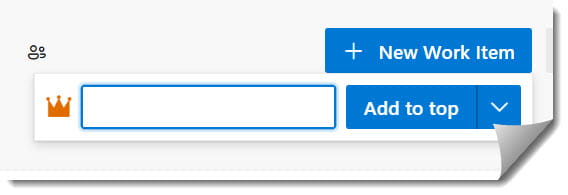
- Select Epics from the backlog selector.
- Click + New Work Item.
- Title:
[Strategic] Q3 HR Self-Service Transformation. - Open the item and fill in the Value Area. Is it Business or Architectural? (Always pick Business if it helps a user; Architectural is for tech debt/infrastructure).
Step 3: Mapping Features to Epics
This is where the magic happens. Don’t just create Features in a vacuum; map them to the Epic so the progress “rolls up.”
- Switch your view to the Features backlog.
- On the right-hand side, click View Options (the little slider icon) and turn on Mapping.
- You will see a column on the right showing your Epics.
- Create your Feature (e.g.,
Digital Onboarding Workflow). - Drag and drop that Feature onto the Epic in the mapping pane.
Pro Tip: If you see a Feature without a parent, it’s a “rogue” item. It shouldn’t exist unless it’s a minor maintenance task that doesn’t fit a larger strategy.
Deep Dive: Managing Business Value vs. Technical Debt
One of the biggest arguments is where “Technical Debt” goes. Does