Azure OpenAI Tutorial for Beginners

Azure OpenAI Service is currently the gold standard for enterprise-grade generative AI. This tutorial is designed to take you from a beginner to someone who can confidently provision, deploy, and manage AI models within the Microsoft platform.

Azure OpenAI Tutorial for Beginners

What exactly is Azure OpenAI Service?

Azure OpenAI is not just “OpenAI on a different website.” It is the fusion of OpenAI’s groundbreaking models (like GPT-4o and the o1-series) with the security, compliance, and regional availability of Microsoft Azure.

The Key Difference: Why Enterprises Choose Azure

FeatureStandard OpenAI APIAzure OpenAI Service
Data PrivacySubject to OpenAI’s privacy policy.Your data is not used to train the base models.
Network SecurityPublic API access only.Private Link and VNet support (US-based data stay in-US).
AuthenticationAPI Keys.Role-Based Access Control (RBAC) via Microsoft Entra ID.
SLABest effort.Microsoft-backed Service Level Agreement.

Prerequisites

To follow along with this tutorial, you will need a few things in place.

  1. An Active Azure Subscription: If you don’t have one, you can start with a free account ($200 credit). However, keep in mind that Azure OpenAI often requires a Pay-As-You-Go subscription for full production access.
  2. Access Approval: As of 2026, Microsoft still requires a brief registration form to be filled out to prevent misuse. This is a standard procedure for US-based corporate entities.
  3. Basic Cloud Literacy: You should be familiar with the concepts of “Resource Groups” and “Regions.”

Step 1: Provisioning Your First OpenAI Resource

Let’s get our hands dirty. In this section, we will create the “container” that will hold your AI models.

  1. Log in to the Azure Portal: Go to portal.azure.com.
  2. Create a Resource: Click the “+ Create a resource” button in the top left.
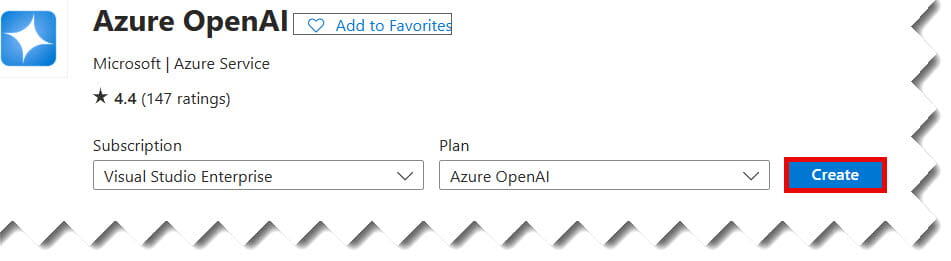
  3. Search for OpenAI: Type “Azure OpenAI” in the search bar and select it.
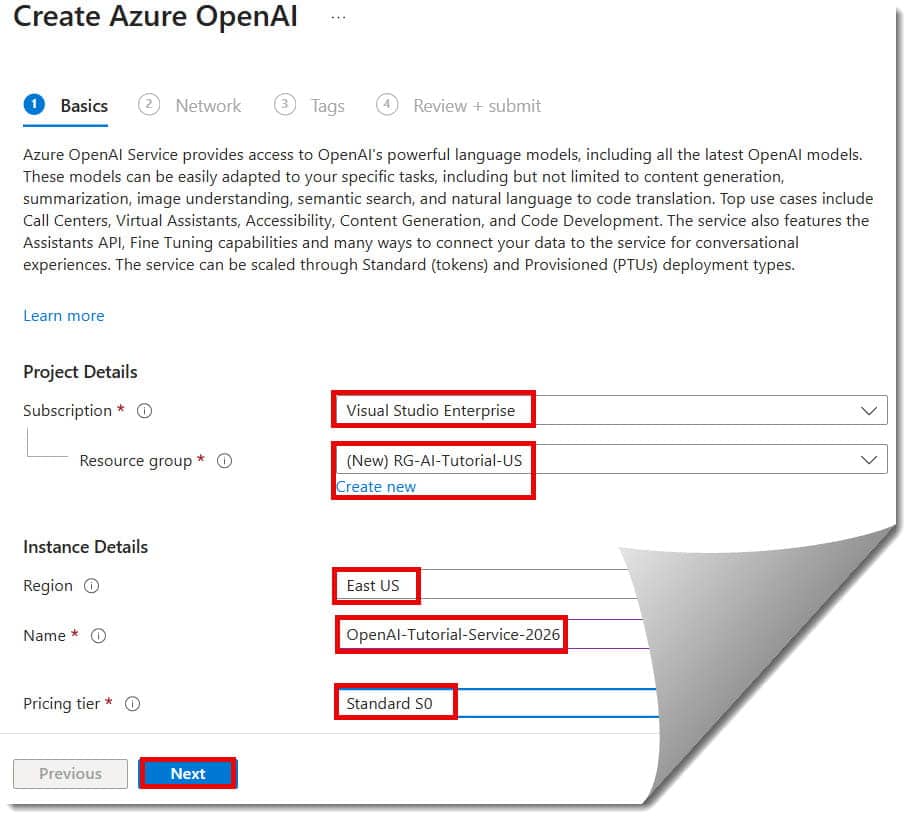
  4. Basics Tab:
    • Subscription: Select your active subscription (e.g., “Visual Studio Enterprise”).
    • Resource Group: Create a new one named RG-AI-Tutorial-US.
    • Region: For the lowest latency and newest models, I recommend East US or West US 3.
    • Name: This must be globally unique. I’ll name mine OpenAI-Tutorial-Service-2026.
    • Pricing Tier: Select Standard S0.
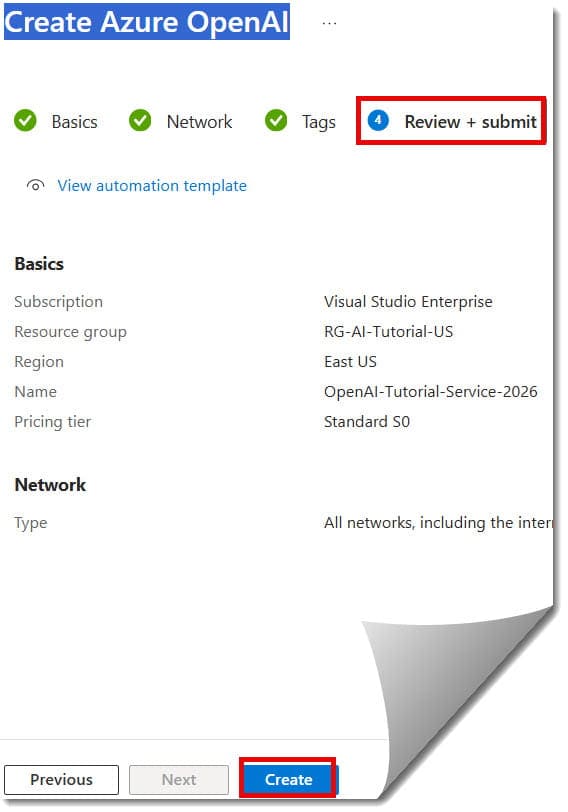
  5. Review + Create: Skip through the Tags for now (though I always recommend tagging for billing!) and hit Create.

Check out the screenshot below for your reference.

Azure OpenAI Tutorial for Beginners
Azure OpenAI Tutorial
Create Azure OpenAI
How to Create Azure OpenAI

Step 2: Entering Azure OpenAI Studio

Azure OpenAI Studio is the specialized dashboard where the real magic happens. It’s a separate environment optimized for testing prompts and managing models.

  1. Navigate back to your newly created OpenAI resource in the Azure Portal.
  2. In the Overview blade, click the button that says Go to Foundry Portal.
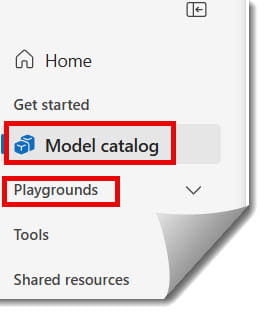
  3. Once the Studio loads, you’ll see several options: Playgrounds, Deployments, and Models.
how to create a new openai resource in azure

Step 3: Deploying Your Model

Simply having the service isn’t enough; you need to “spin up” a specific model instance. Think of the Service as the computer and the Model as the software.

  1. In the foundry portal, click on Deployments in the left-hand menu.
  2. Click + Create new deployment.
  3. Select a model: Choose gpt-4o (or the latest reasoning model like o3-mini).
  4. Model Version: I always recommend leaving this on Auto-update to default to ensure you stay on the latest patch.
  5. Deployment Name: This is the name your code will use to call the AI. Let’s call it Chat-Model-US.
  6. Advanced Options: Leave the Tokens Per Minute (TPM) at the default for now.

Check out the screenshot below for your reference.
how to use azure openai

Step 4: Testing in the Chat Playground

Now for the fun part. The Chat Playground allows you to talk to your model without writing a single line of code.

The Three Pillars of the Chat Interface

  • System Message: This is where you define the “persona” of your AI. For example: “You are a helpful assistant for Smith & Associates, a law firm in Chicago. Use professional language.”
  • Chat Session: This is your actual conversation window.
  • Configuration: On the right side, you’ll see sliders for Temperature and Max Response.

Step 5: “Bring Your Own Data” (RAG)

One of the most powerful features I use with my US clients is the ability to ground the AI in private company data. This is known as Retrieval-Augmented Generation (RAG).

Inside the Chat Playground, you’ll see a tab labeled Add your data.

  1. Select Data Source: You can connect an Azure AI Search index or upload files directly (PDF, TXT, MD).
  2. Indexing: Azure will “chunk” your documents and store them in a way the AI can search.
  3. Testing: Ask a question like, “What is our company’s policy on remote work in our New York office?” The AI will now answer using your document as the source, rather than its general training data.

Best Practices for Beginners

A. Monitor Your Quotas

Azure OpenAI uses a “Tokens Per Minute” (TPM) quota system. If you have five different teams in your company all hitting the same deployment, you will get “429 Too Many Requests” errors. Monitor your usage in the Quotas tab to avoid service interruptions.

B. Security First (The Entra ID Way)

Never, ever hard-code your API keys into your application. I’ve seen security breaches at major firms because an intern pushed an API key to GitHub. Instead:

  • Use Managed Identities.
  • Store keys in Azure Key Vault.
  • Restrict access using Entra ID roles.

C. Responsible AI & Content Filtering

Azure OpenAI comes with built-in filters to block hate speech, violence, and self-harm. You can customize these in the Content Filters section of the Studio. If you are building an app for a sensitive industry like Finance or Education, you might want to set these filters to “Strict.”

Conclusion: Your AI Journey Starts Now

Azure OpenAI is not just a tool; it’s a platform for innovation. Whether you are building a customer support bot or a data analysis tool, the steps outlined here provide the starting point you need.

You may also like the following articles:

Azure Virtual Machine

DOWNLOAD FREE AZURE VIRTUAL MACHINE PDF

Download our free 25+ page Azure Virtual Machine guide and master cloud deployment today!