
Let’s walk through the exact process I use to architect, optimize, and maintain high-performing Azure Delivery Plans.
Azure DevOps Delivery Plans
What Are Azure DevOps Delivery Plans?
Let’s define exactly what a Delivery Plan is—and more importantly, what it isn’t. A Delivery Plan is a dynamic, native timeline canvas in Azure Boards that overlays the work items of multiple teams onto a single calendar view governed by your organization’s iteration paths (sprints).
Think of it as a virtual planning wall that cuts horizontally across your organizational silos.
Key Capabilities at a Glance
- Multi-Team Aggregation: View work from up to 15 different teams and multiple backlogs on a single screen.
- Live Sprints Synchronization: Unlike a static PowerPoint deck or third-party Gantt chart, if a developer shifts a card’s target sprint on a team board, the Delivery Plan instantly updates.
- Native Dependency Mapping: Visually trace links between upstream and downstream work items across your entire enterprise directory.
Choosing Your Visibility Level: Epics vs. Features
| Roadmap View Type | Target Audience | Primary Backlog Level | Optimal Planning Window |
| Executive Portfolio Plan | VPs, Directors, Chief Product Officers | Epics | 2 to 4 Quarters |
| Cross-Team Program Plan | Product Managers, Scrum Masters, Release Trains | Features | 3 to 6 Sprints |
| Tactical Coordination Plan | Team Leads, Senior Engineers | User Stories / Requirements | 1 to 2 Sprints |
The “One Level” Rule
When configuring a plan, select one primary backlog level per plan. If you are building a roadmap for a program steering committee, track the Features backlog.
Mixing User Stories and Epics on the same canvas increases visual density and dilutes the roadmap’s core message.
Configuring Sprints and Standardization
A Delivery Plan is only as accurate as the underlying configuration of your project settings. If your teams operate in localized silos with completely asymmetric sprint schedules, your global timeline will look disjointed.
Standardizing the Iteration Cadence
Before onboarded teams can share a unified canvas, you must establish standard Iteration Paths at the project level.
- Ensure that team sprint start and end dates match exactly across your portfolio.
- Adopt a clean, predictable naming standard (e.g.,
ProjectName\2026\Sprint 01) rather than letting each team name their sprints arbitrarily.
Setting Up the Delivery Plan Canvas
When you create a new plan, you will define the scope by targeting the exact teams and backlog levels relevant to your initiative:
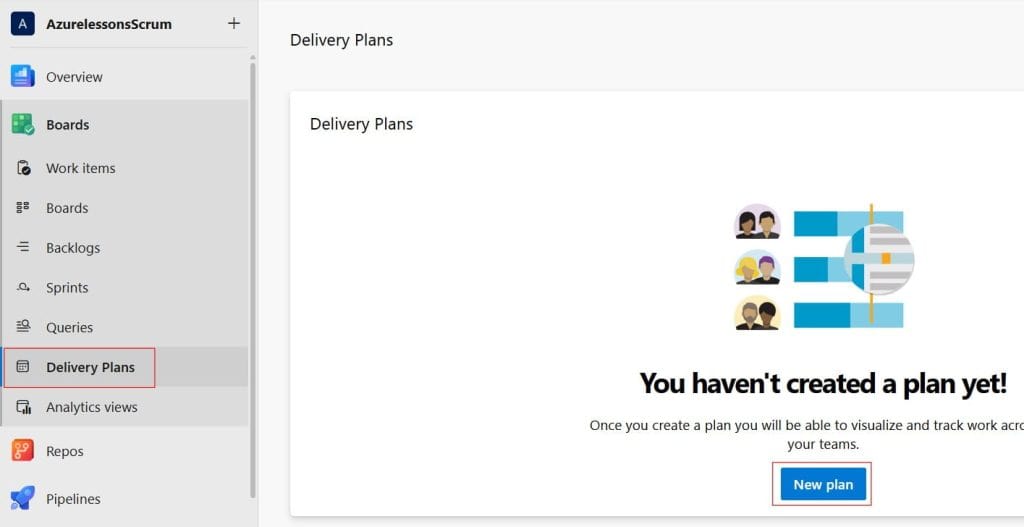
- Navigate to Boards > Delivery Plans and click New Plan.
- Input a descriptive name (e.g.,
FY26 H1 Cloud Migration Roadmap). - Add your target teams one by one. For each team, specify whether you want to track their Epics, Features, or Stories.
- Apply criteria filters if necessary to isolate specific work (for example, filtering out operational maintenance work to focus strictly on net-new product development). Check out the screenshot below for your reference.
Advanced Dependency Tracking and Resolution
Visualizing the Link Network
Azure DevOps tracks dependencies through work item links, specifically utilizing the Predecessor / Successor relationship model. When these links are accurately established between work items owned by different squads, the Delivery Plan automatically surfaces them with distinct visual indicators.
- Green Dependency Lines: Indicate that the upstream work item (Predecessor) is scheduled to finish in a sprint before the downstream work item (Successor) begins. The workflow is healthy.
- Red Dependency Lines: Indicate a critical scheduling conflict. The downstream work item is assigned to a sprint that occurs before or concurrently with the work item it depends on. This is an active bottleneck.
Proactive Management Protocols
During cross-team syncs or Program Increment (PI) planning sessions, use the plan’s built-in Dependency Toggle to display these linkages.
When a red line appears, click directly on the badge to open the conflicting work items. You can coordinate right there to shift the target iteration paths, resolving the bottleneck directly on the screen.
Tailoring the Canvas: Field Criteria, Card Customization, and Markers
A highly functional roadmap needs to display critical metadata at a glance without requiring stakeholders to click into individual work items. You can achieve this by mastering card customization and markers.
Customizing Card Fields
By default, cards on the Delivery Plan display limited information, such as the work item title and assigned user. You can customize this by opening the Plan Settings and selecting Fields.
Add high-value tracking fields that support real-time triage:
- Target Date / Target End: To track fixed commitments.
- Story Points / Risk Rating: To assess scope density at a glance.
- State: To monitor progress through your workflow states (
Proposed,In Progress,Resolved).
Highlighting Realities with Style Rules
Use Style Rules to color-code cards automatically based on specific properties. For instance, you can set a rule that turns any card bright orange if its Risk field equals High, or soft red if a feature remains in the In Progress state despite its target sprint having already concluded.
Dropping Anchors with Calendar Markers
Roadmaps need external real-world context. By using Markers, you can overlay important institutional milestones directly onto the delivery timeline.
- Click Markers in the upper right control panel.
- Add the exact calendar date and apply a label (e.g.,
10/15/2026 - Beta Launch,12/01/2026 - Executive Review). - This draws a vertical guide line straight down through all team lanes, allowing teams to immediately see if their planned features are tracking to land before or after that hard deadline.
Governance, Scale, and Maintenance Best Practices
A delivery plan is not a static artifact; it is a living reflection of your engineering database. If teams fail to maintain their individual backlogs, the collective roadmap degrades rapidly.
The Data Hygiene Mandate
To maintain an authoritative portfolio view, enforce these three non-negotiable rules across all participating engineering squads:
- No Missing Iterations: Every feature targeted for the current roadmap must have an assigned sprint. Items left sitting indefinitely in the general product backlog will not render on the timeline view.
- Real-Time State Transitions: As soon as an engineer pulls a user story into active development, the parent feature must be transitioned accurately to keep cross-team tracking metrics clean.
- Mandatory Link Documentation: Engineers must link cross-team dependencies using explicit
PredecessorandSuccessorrelationship types rather than genericRelatedtags, which do not trigger the automated dependency lines on the canvas.
While Azure DevOps provides immense scale, be aware of system parameters to keep your views performant:
- A single project can host up to 1,500 distinct Delivery Plans.
- A single plan can pull data from up to 15 different teams.
- The visual rendering canvas is optimized to display up to 1,000 active cards simultaneously across the active timeline window.
Conclusion
Before rolling out your new cross-team Delivery Plan to leadership and product stakeholders, execute this checklist to ensure complete operational readiness:
- Audience Definition: Verified that the plan targets a single, logical backlog tier (e.g., strictly Features or strictly Epics) matched to your stakeholders.
- Cadence Sync: Confirmed that all included teams are mapped to standardized project sprint schedules with identical start and end dates.
- Data Hygiene Audit: Created a helper query to catch and fix any active work items that lack an assigned iteration path.
- Dependency Validation: Linked upstream and downstream blockers using explicit Predecessor and Successor relationships to unlock the visual mapping engine.
- Card Layout Optimization: Customized card fields to display core tracking attributes like Story Points and State without cluttering the screen.
- Milestone Mapping: Placed clear, color-coded markers for hard external deadlines, compliance rings, and release windows.
- Review Rhythm: Established a recurring cadence (such as a bi-weekly Scrum of Scrums) to walk the plan, resolve red dependency lines, and adjust timelines dynamically.
By shifting away from manually assembled status decks and adopting automated Azure DevOps Delivery Plans, you bring genuine structural clarity to your organization.
You may also like the following articles:
- How To Copy Tasks In Azure DevOps
- How To Add Feature To Epic In Azure DevOps
- Azure DevOps CI CD Pipeline Step By Step
- How To Use Azure Devops For Project Management

I am Rajkishore, and I am a Microsoft Certified IT Consultant. I have over 14 years of experience in Microsoft Azure and AWS, with good experience in Azure Functions, Storage, Virtual Machines, Logic Apps, PowerShell Commands, CLI Commands, Machine Learning, AI, Azure Cognitive Services, DevOps, etc. Not only that, I do have good real-time experience in designing and developing cloud-native data integrations on Azure or AWS, etc. I hope you will learn from these practical Azure tutorials. Read more.